Authentication Templates in Mark360.ai
Authentication templates allow businesses to send secure one-time passcodes (OTP) to users during key identity verification steps such as login, registration, account recovery, or fraud detection challenges. These templates are compliant with WhatsApp's guidelines and include required buttons for OTP interaction.
When to Use Authentication Templates
Use an authentication template only when you’re delivering a one-time password (OTP) or verification code via WhatsApp.
Ideal Use Cases:
- New account signup
- Password reset
- Identity verification
- Suspicious login detection
📝 Sample Authentication Message Templates
Here are some WhatsApp-compliant samples:
{{1}} is your verification code.{{1}} is your verification code. For your security, do not share this code.{{1}} is your verification code. This code expires in 15 minutes.
Only preset text and OTP buttons are allowed. Media, emojis, and URLs are not supported.
Mandatory Template Components
| Component | Description |
|---|---|
| Fixed Text | {{1}} is your verification code. |
| Security Disclaimer (Optional) | For your security, do not share this code. |
| Expiry Warning (Optional) | This code expires in <NUM_MINUTES> minutes. |
| Button (Required) | Copy Code or One-Tap Autofill |
| No Custom Body/Text Allowed | Use only pre-approved Meta text |
OTP Button Types
1. Copy Code
- Copies the OTP to clipboard
- Users must manually paste it into your app
2. One-Tap Autofill
- Seamlessly sends OTP to your app
- Works only on Android
- Requires app handshake setup with Meta
Even if you choose Zero-Tap Setup, the template must include buttons as a fallback.
Handshake Setup for One-Tap
To enable One-Tap Autofill, you’ll need:
| Field | Description | Example |
|---|---|---|
<PACKAGE_NAME> | Android app’s package name | com.mark360.app |
<SIGNATURE_HASH> | Your app signing key hash (see Meta docs) | K8a%2FAINcGX7 |
Contact your developer team to generate the Signing Key Hash.
How to Create an Authentication Template in Mark360.ai
-
Go to:
WhatsApp → Message Templates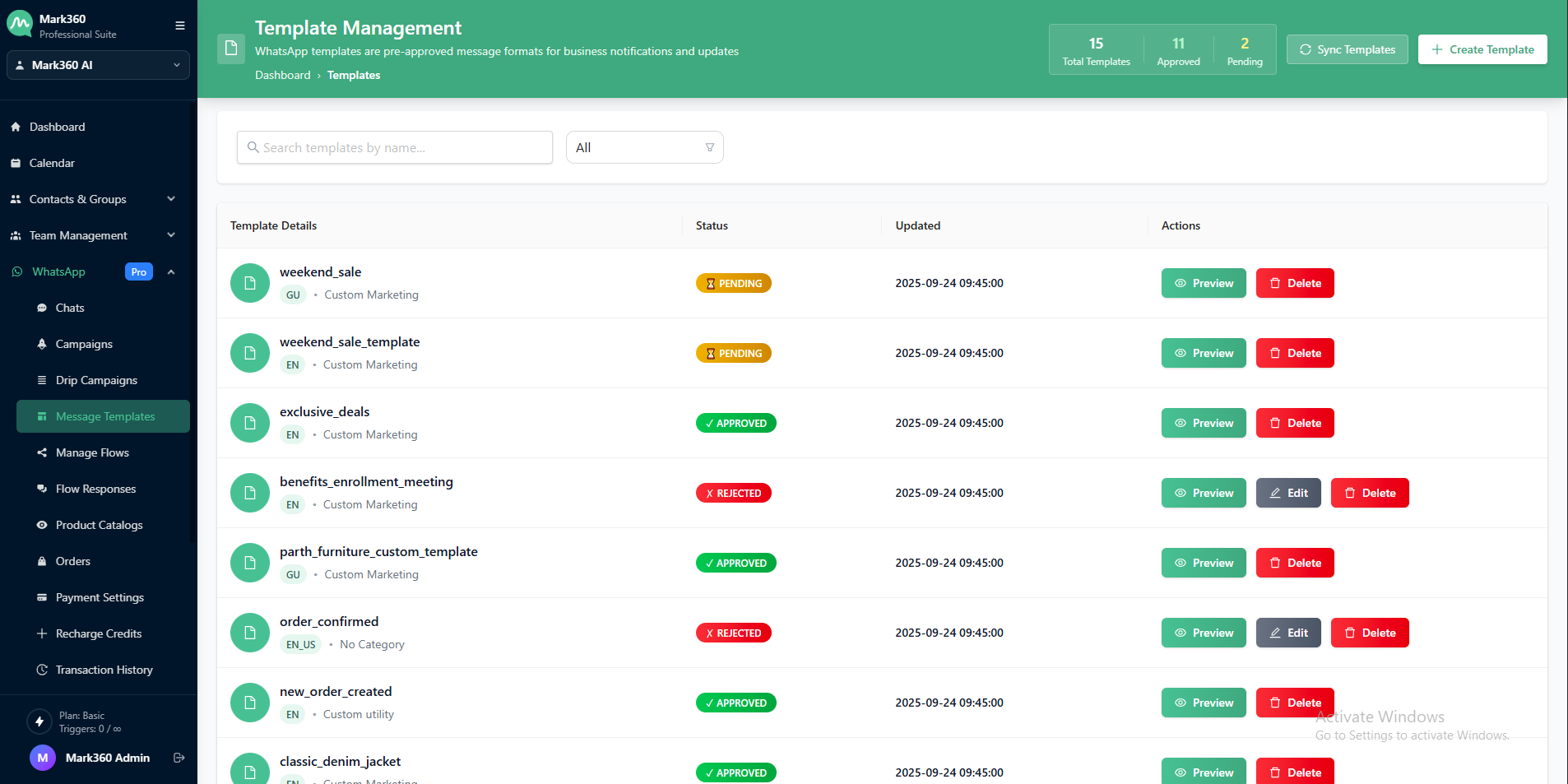
-
Click:
+ Create Template- On the top-right corner, click the ➕Create Template button.
-
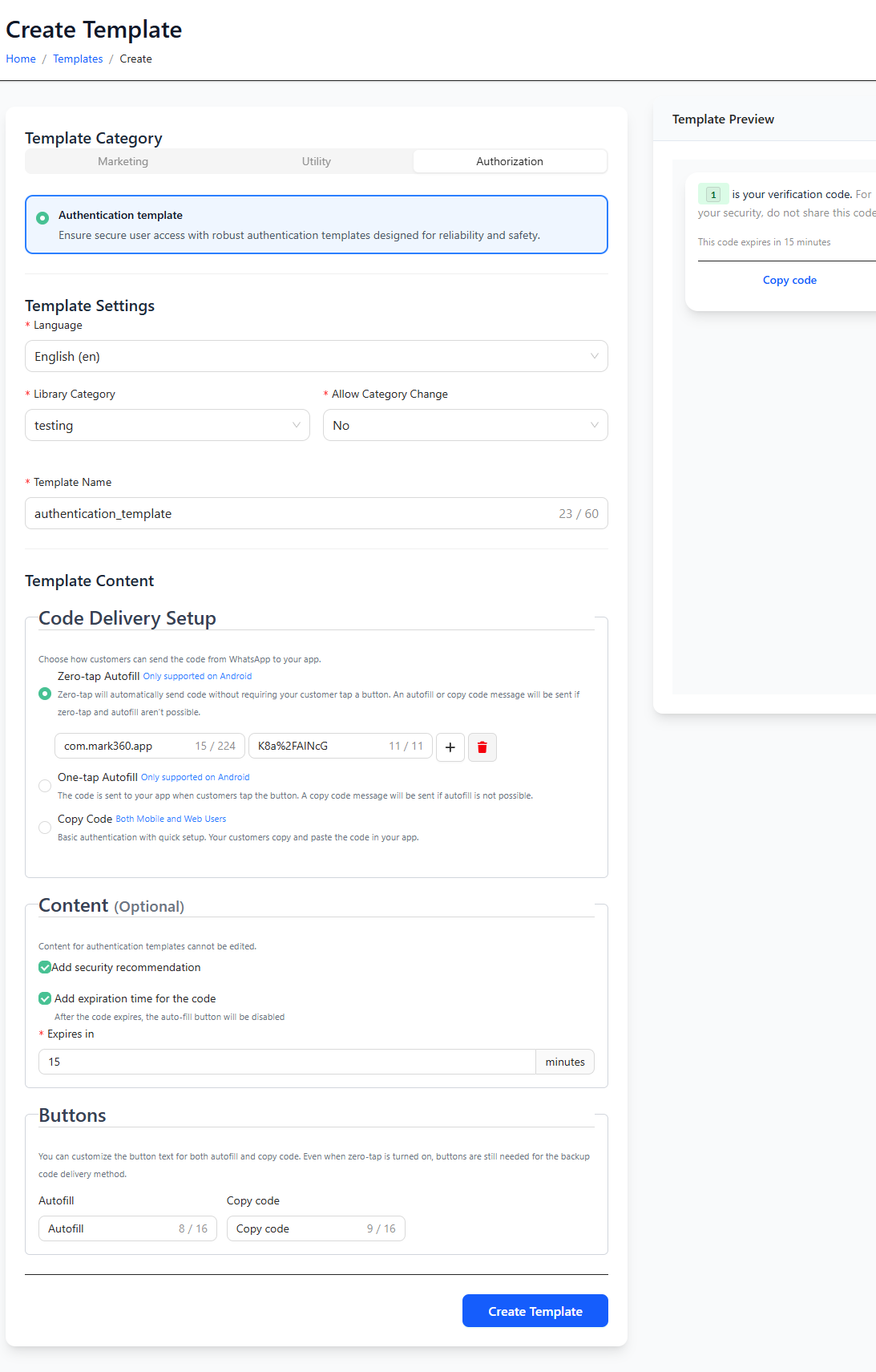
Fill in the details:
- Template Name
- Category:
Authentication - Allow Category Change:
No - Language: Choose preferred language
-
Select OTP Interaction Method:
- Copy Code
- One-Tap Autofill
- Zero-Tap Setup
-
(If applicable) Provide:
<PACKAGE_NAME>of your app<SIGNATURE_HASH>of your app
-
Enable options:
- Add security disclaimer
- Set OTP expiry (e.g., “15 minutes”)
-
Customize:
- Button label for autofill or copy
-
Submit for Meta approval
Important Notes
- Only bots and Dev API can send authentication templates
- Messages can only be sent within the same country as the sender (international delivery is not supported)
- Approval typically takes up to 24 hours
- Templates become usable 15 minutes after approval
With Mark360.ai, authentication over WhatsApp becomes secure, reliable, and fully compliant with Meta's latest protocols — ensuring both user trust and business protection.