Campaign Management
Overview
The Campaign Management section in Mark360 allows you to monitor, manage, and analyze all your marketing campaigns from one centralized dashboard.
You can view each campaign’s status, creation schedule, and analytics to optimize your marketing performance.
Navigating to Campaign Management
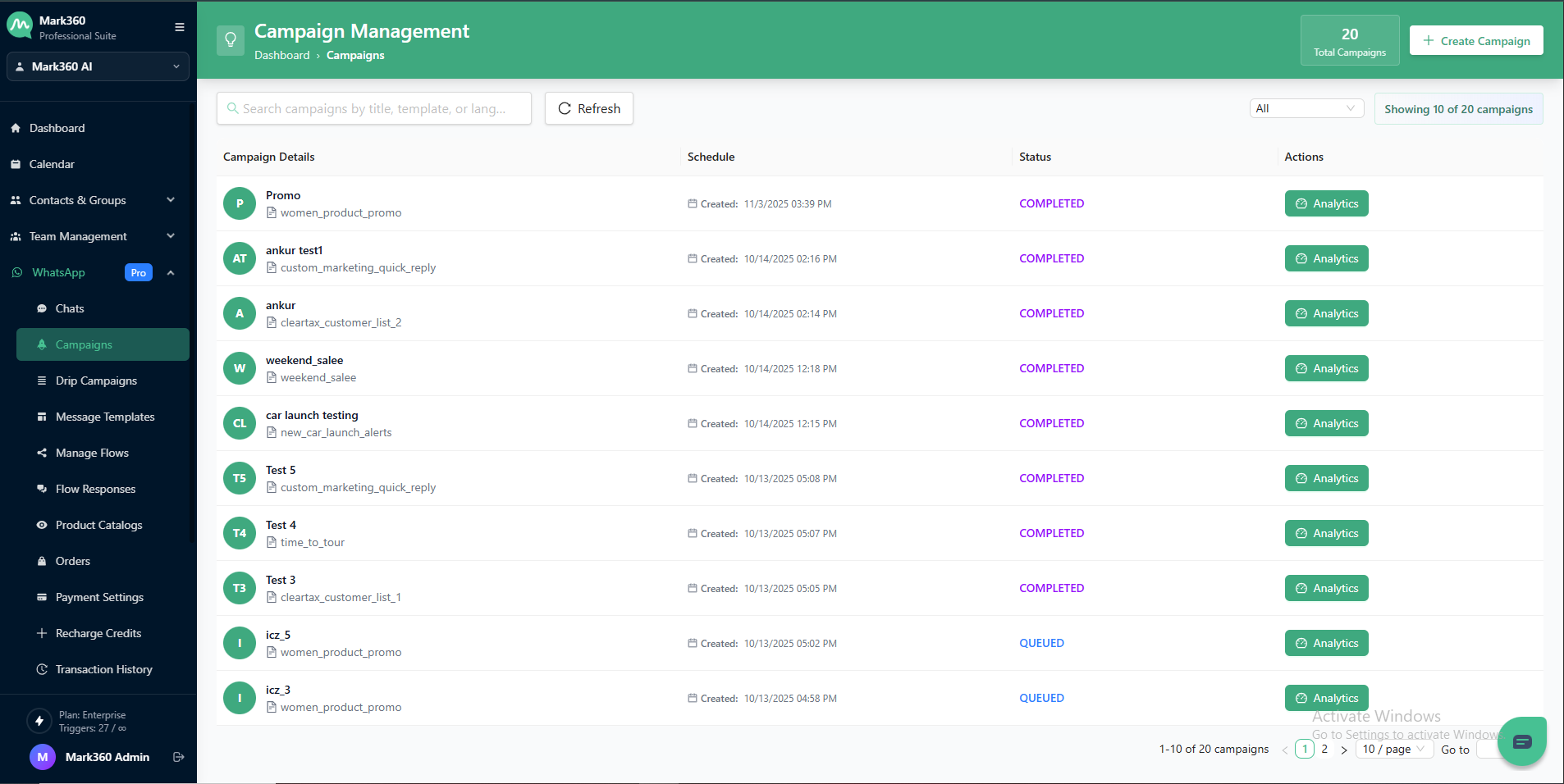
- From the left navigation panel, click on Campaigns under the WhatsApp section.
- You’ll be directed to the Campaign Management Dashboard.
Dashboard Overview
The dashboard displays all your created campaigns in a table format with key details:
| Column | Description |
|---|---|
| Campaign Details | Displays the campaign name and the associated template used. Each campaign entry shows the title and subtext of the template for quick reference. |
| Schedule | Shows the creation date and time of the campaign. Helps track when campaigns were initiated. |
| Status | Displays the current campaign state — such as Completed, Queued, or In Progress. |
| Actions | Provides quick access to the Analytics of each campaign, allowing you to monitor performance and engagement. |
Key Dashboard Elements
| Element | Function |
|---|---|
| Search Bar | Search campaigns by title, template, or language. |
| Filter Dropdown | Filter campaigns based on their status — All, Completed, Queued, etc. |
| Refresh Button | Reloads the campaign list to show updated data. |
| Total Campaigns Counter | Displays the total number of campaigns created. |
| Create Campaign Button | Initiate a new campaign setup directly from the dashboard. |
Campaign Status Types
| Status | Meaning |
|---|---|
| Completed | Campaign has been successfully sent and executed. |
| Queued | Campaign is scheduled and awaiting execution. |
| In Progress | Campaign is currently being sent. |
| Failed | Campaign encountered an error during processing. |
Actions: Analytics
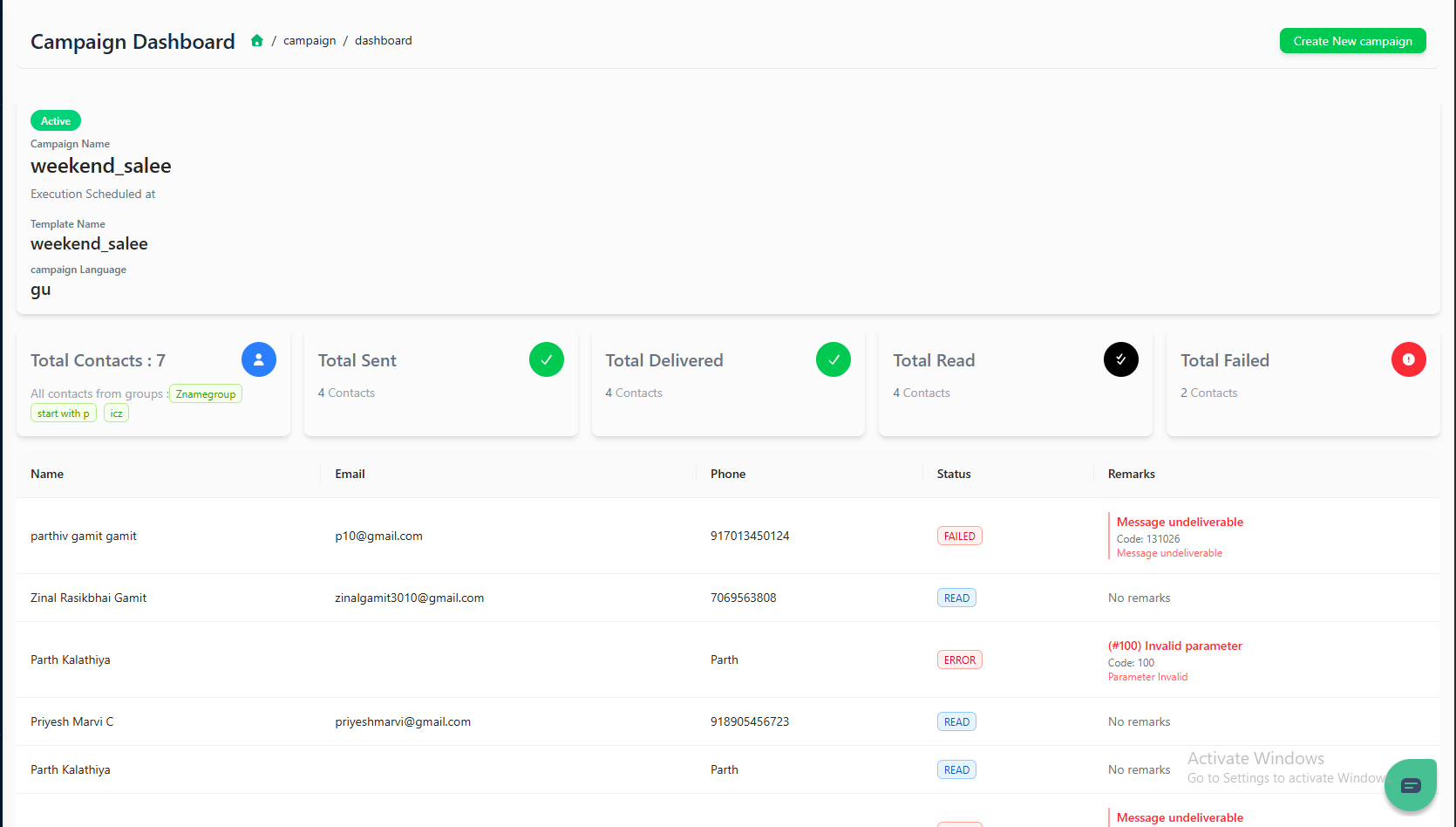
Click on the Analytics button in the Actions column to access campaign performance reports.