Initiate a New Chat
Learn how to initiate WhatsApp conversations with customers using 4 easy methods in Mark360.ai.
Initiating a chat on WhatsApp requires the use of pre-approved WhatsApp Templates. You can only message a customer outside the 24-hour window by sending them one of these templates. Once the customer replies, the session becomes interactive for 24 hours.
Prefer Visual Guidance?
Watch our video tutorial (Coming soon)
Prefer Step-by-Step Instructions?
Here are 4 ways to initiate a chat with a customer using Mark360.ai:
Start Chat with a Saved Contact
If the customer is already saved in your Mark360.ai Contacts:
-
Navigate to Dashboard → Whatsapp -> Chats
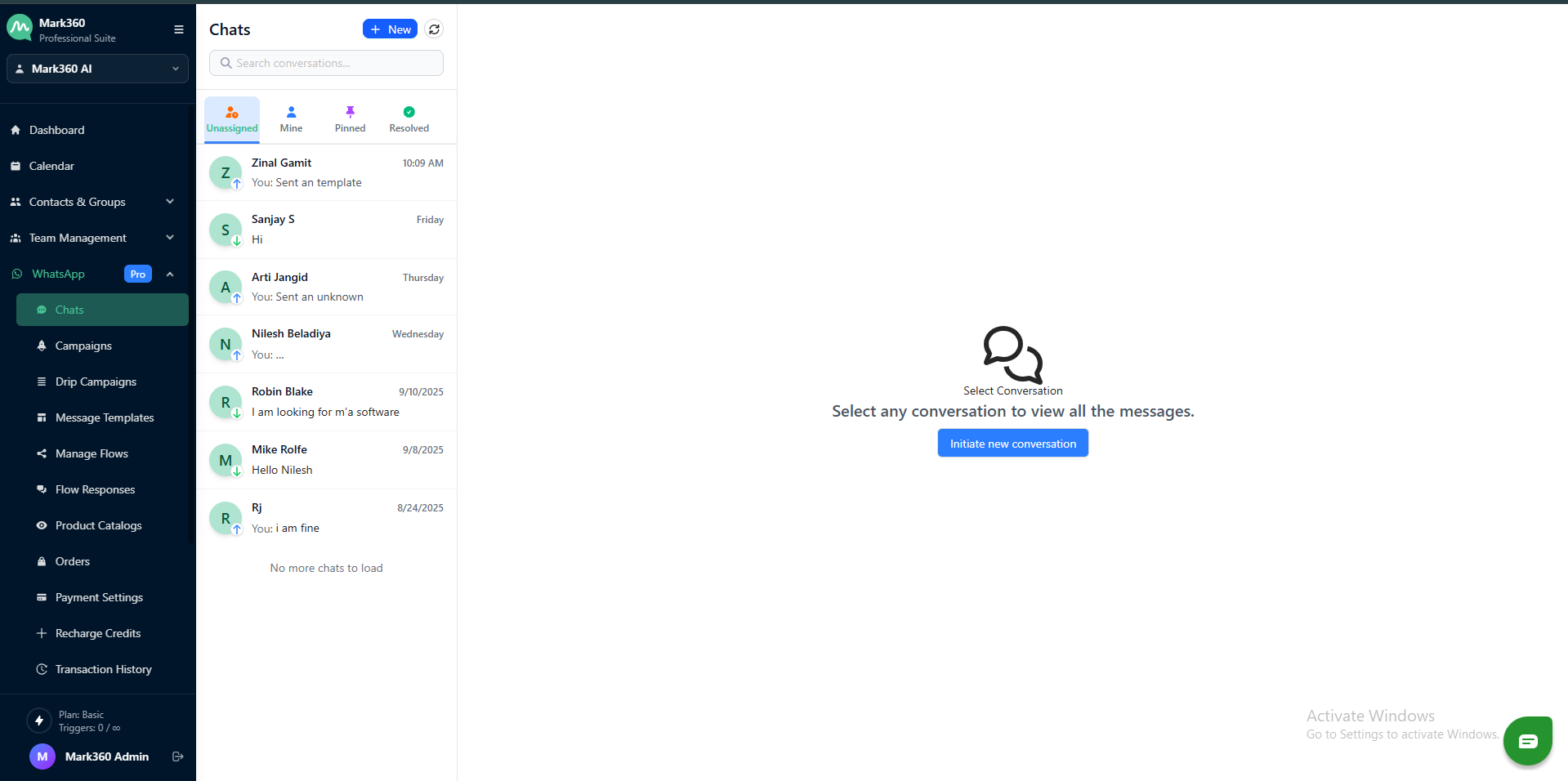
-
Click on the + New
-
Click on the Search Contact icon
-
Select the contact to open the chat window
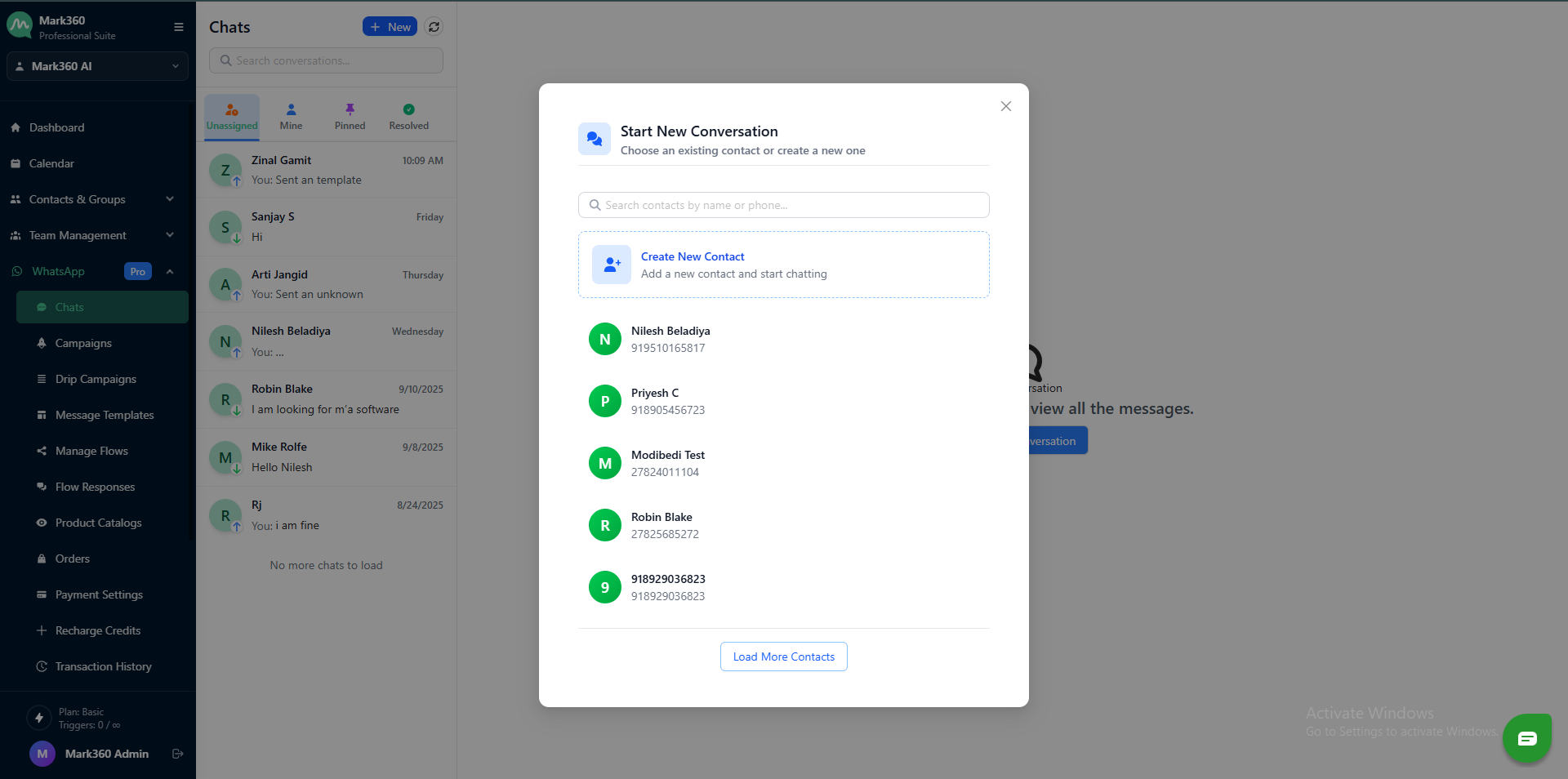
-
In the chat window, click on the ➕ icon.
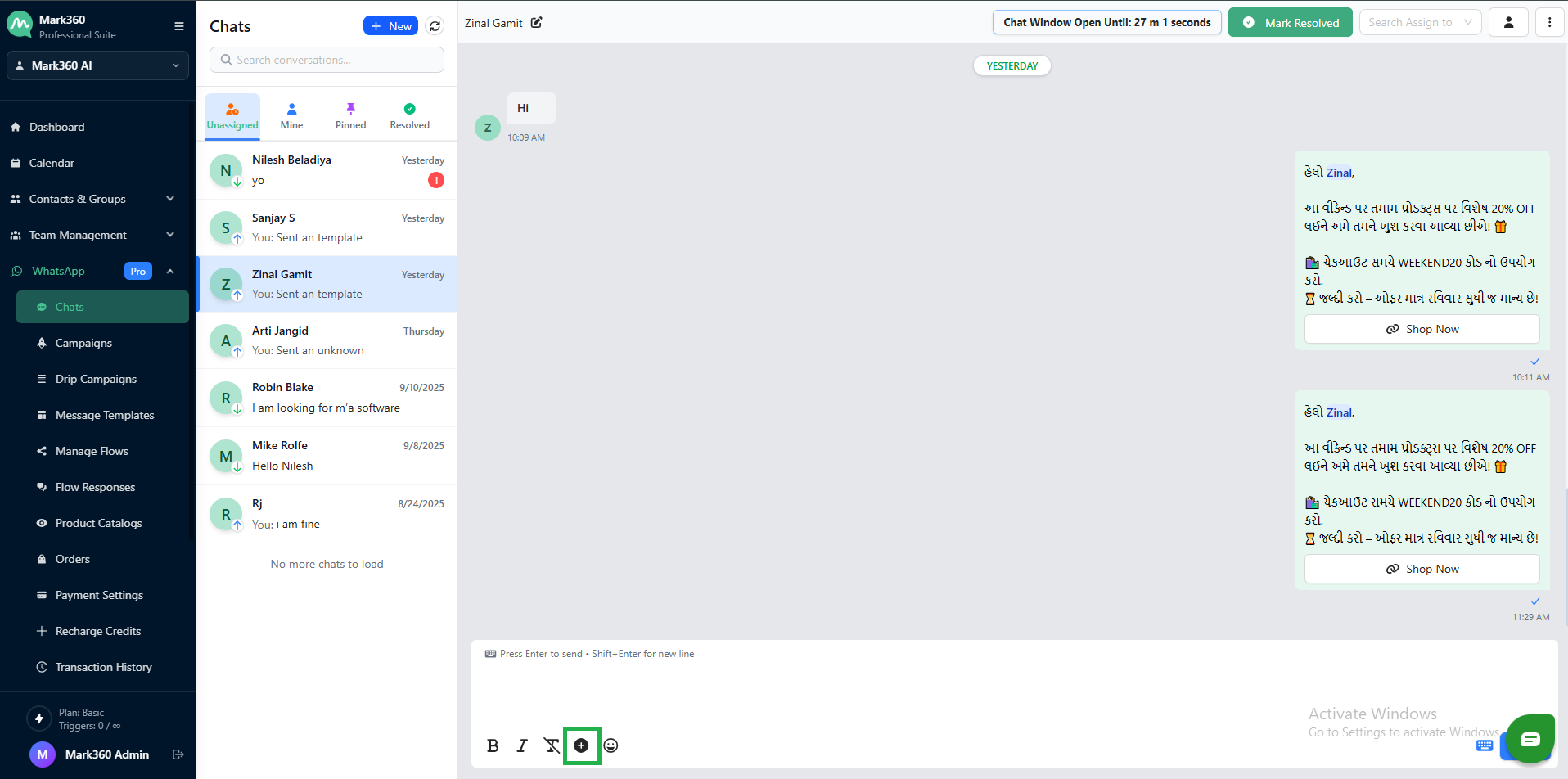
-
The Select Predefined Messages window will open.
-
Switch to the Templates tab to view and choose from the available predefined message templates.
-
Choose a pre-approved WhatsApp Template, fill in required variables, and click Send
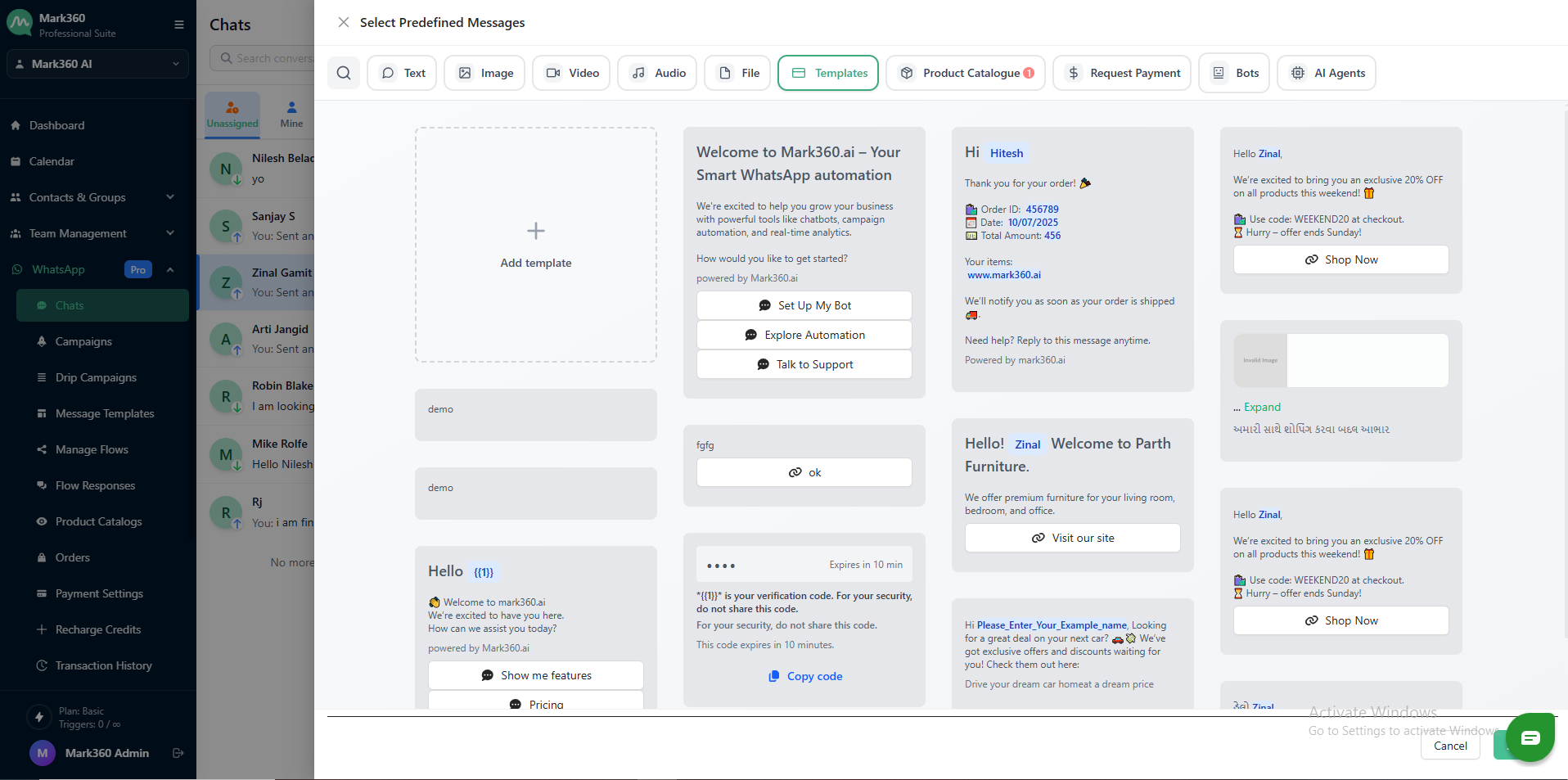
Templates are required for initiating chats with users who haven’t messaged recently.
Start Chat with a New (Unsaved) Contact
Want to send a message to a new contact?
- Create a New Contact
-
Go to WhatsApp → Chats → + New Button → Create New Contact.
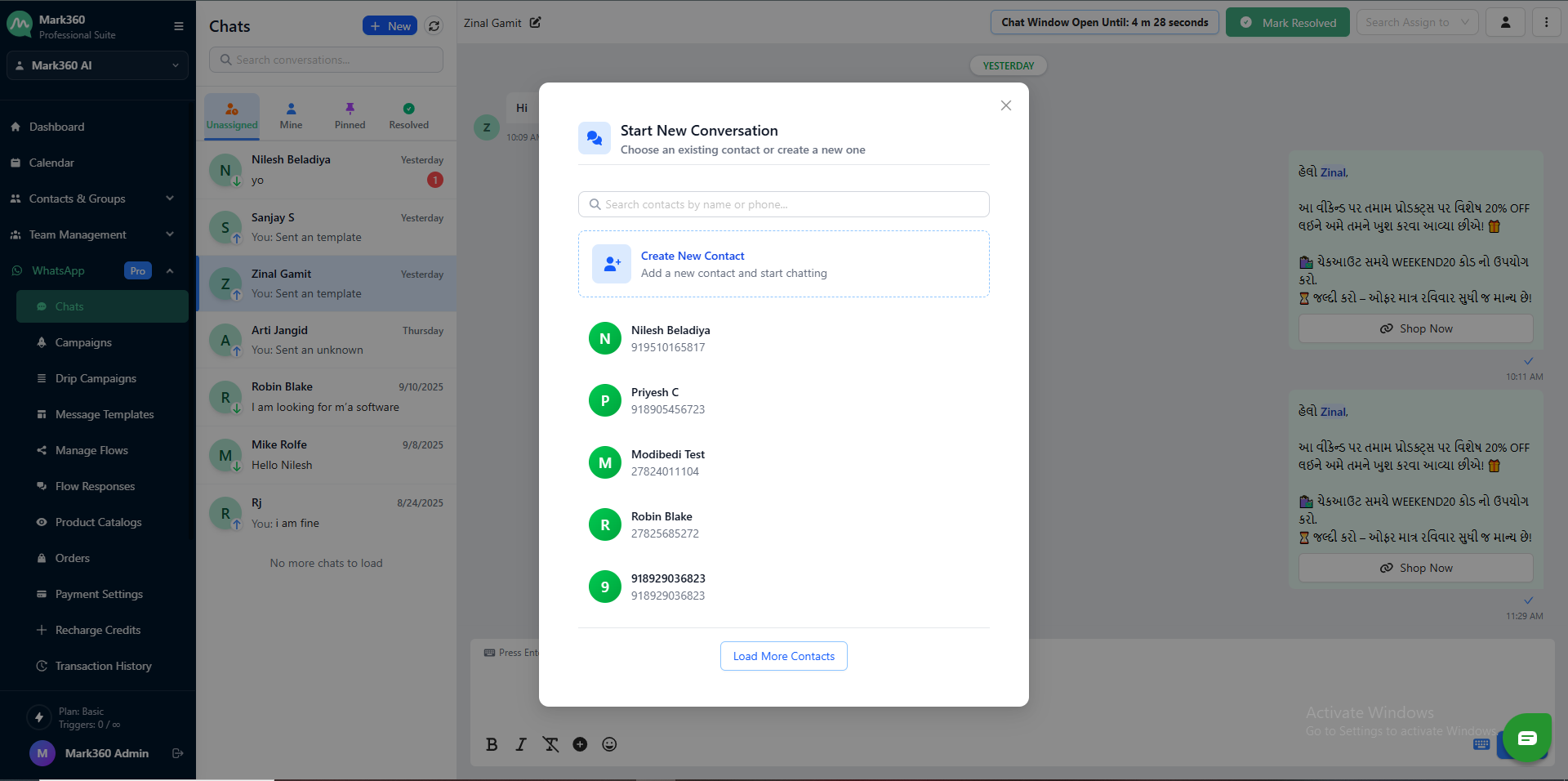
-
Enter the required details such as Name, Phone Number, and optional Tags.
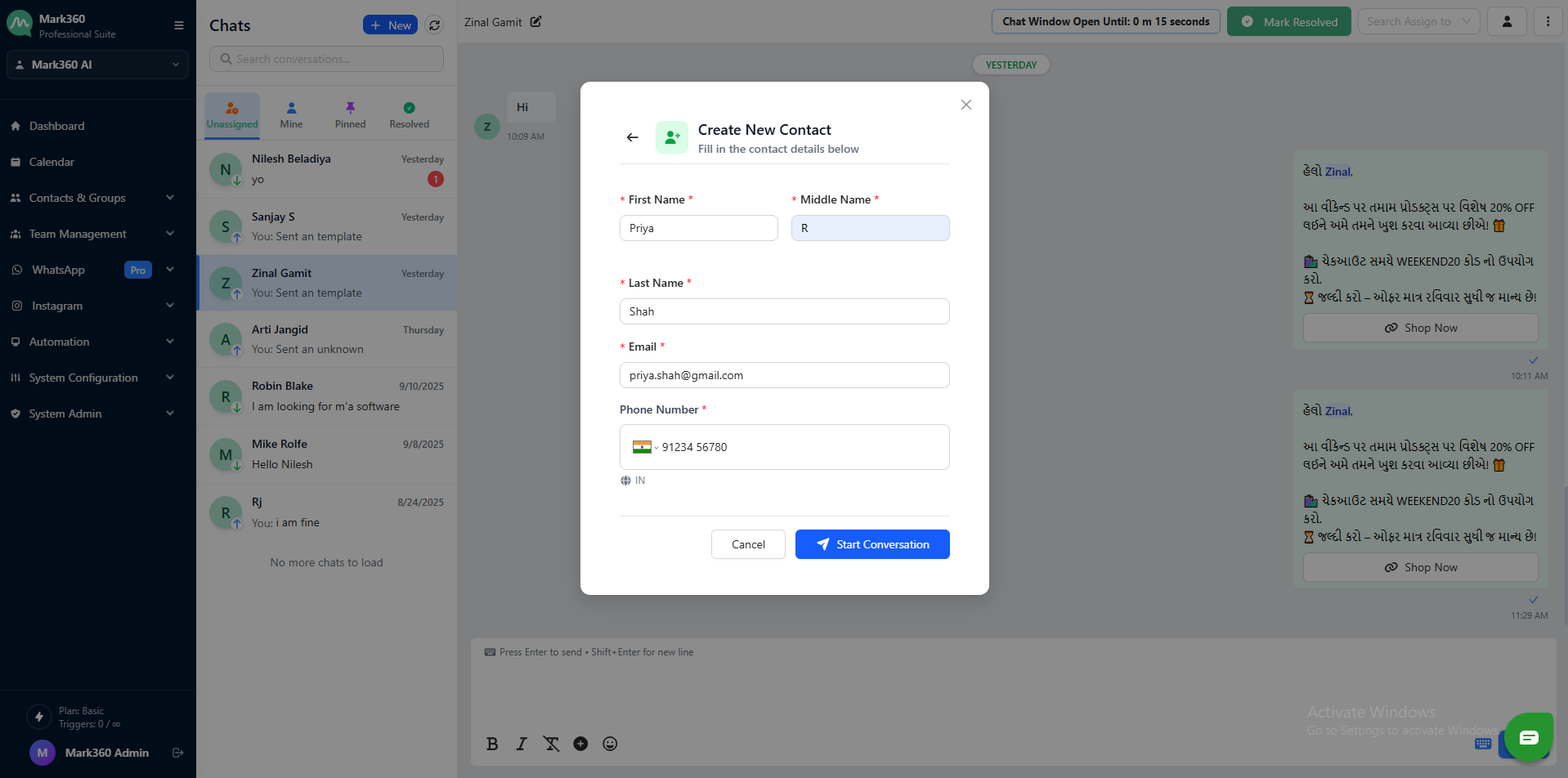
- Save the Contact
- After entering the details, click Start Conversation to create the new contact.
- Send a Template Message
-
Open the chat of the newly added contact.
-
Select and send a Template Message to initiate communication.
This is ideal for leads from external sources, sign-up forms, or events.
Send Individually from Contact List
If you're browsing through the Contacts section:
- Find the contact in Contacts
- Click on Send Message icon
- Choose a WhatsApp Template, fill in values, and click Send
Respond to Incoming Messages (Interactive Session)
Once a customer sends a message:
- You can respond freely within a 24-hour window
- Use text, images, buttons, or quick replies
- No template is required within this active session
Conversations within this window are freeform and not template-bound.
Best Practices
| Action | Requirement |
|---|---|
| Initiate Chat | Use approved WhatsApp Template |
| Ongoing Conversation | No template needed (within 24 hrs) |
| New Contact Outreach | Add → Send Template → Engage |
| Session Expired | Must send Template to reinitiate |
Need More Help?
For help with creating WhatsApp templates or managing contacts:
Contact support@mark360.ai