Smart Reply Panel
Enhance productivity and deliver delightful conversations with powerful features like bot triggers, file attachments, emojis, AI tools, and more.
The Smart Reply Panel in Mark360.ai is your control panel for customer communication. It allows you to send messages, trigger bot flows, leave private team notes, format content, use AI enhancements, and translate messages—all from one place.
Replying to Customers
You can respond to active WhatsApp conversations with various features:
- Text messages
- Emojis to personalize and humanize responses
- Attachments (images, PDFs, etc.)
- Message formatting: bold, italics, strikethrough, code snippets
- WhatsApp Templates (for initiating or re-engaging chats)
- Canned Responses for commonly used replies
- AI Rewrite: polish, simplify, or personalize messages
- Translate your message to the customer's language
- Record & send voice messages
- Send product catalogs (up to 30 items in one message)
- Request payments via WhatsApp
Attach Files
- Use the "New Upload" to attach a file instantly
- Access previously uploaded documents via "Use Recent Files"
Product Search
- Quickly search & share products directly from the catalog
- Send a single item or entire collection in one go
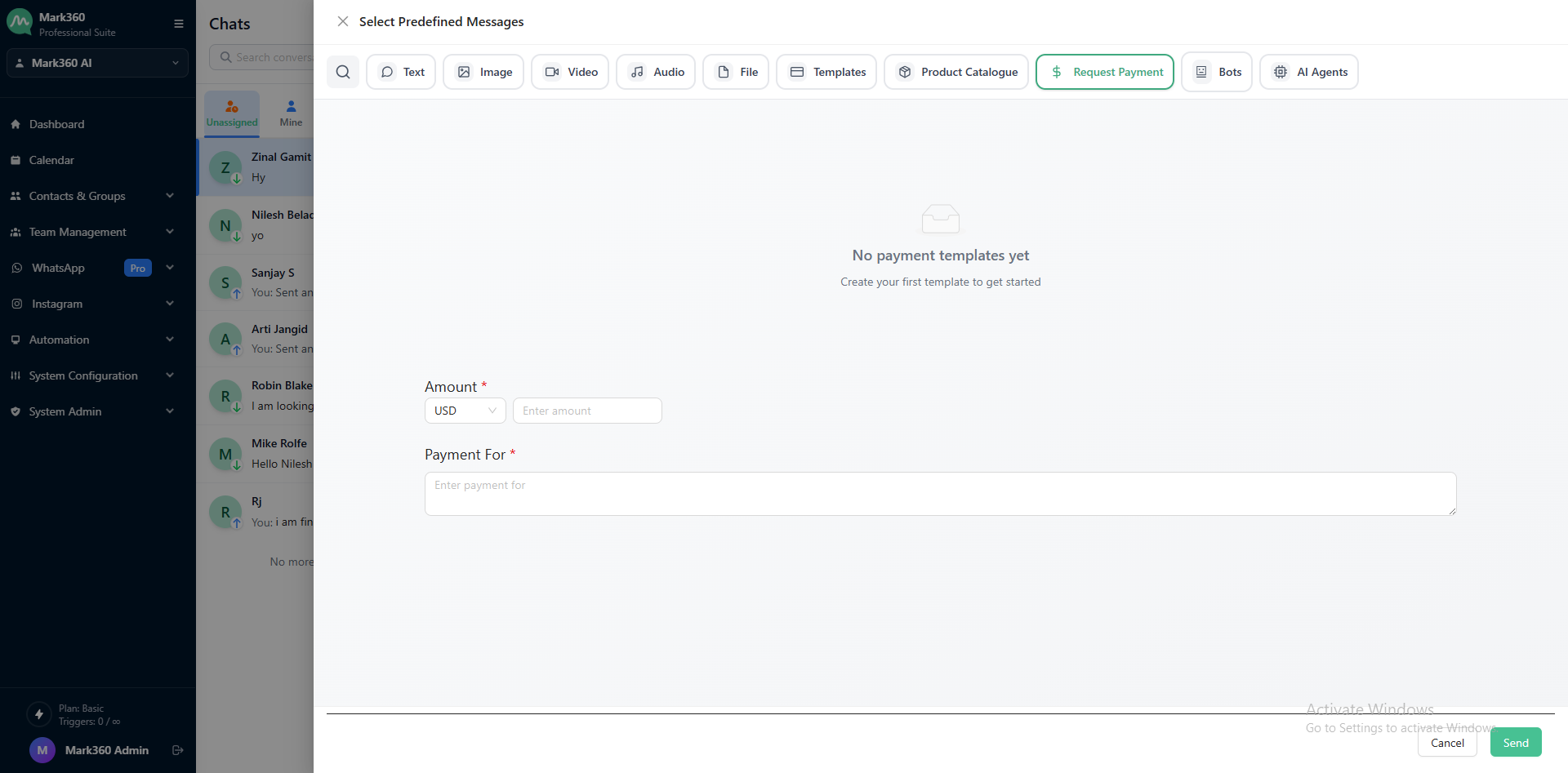
Payment Requests
-
Send payment links via WhatsApp
-
Supported currencies: INR, USD, EUR, AED
-
Include personalized notes with payment requests
Record Audio
- Use the Record Audio feature to send voice notes directly from the chat composer
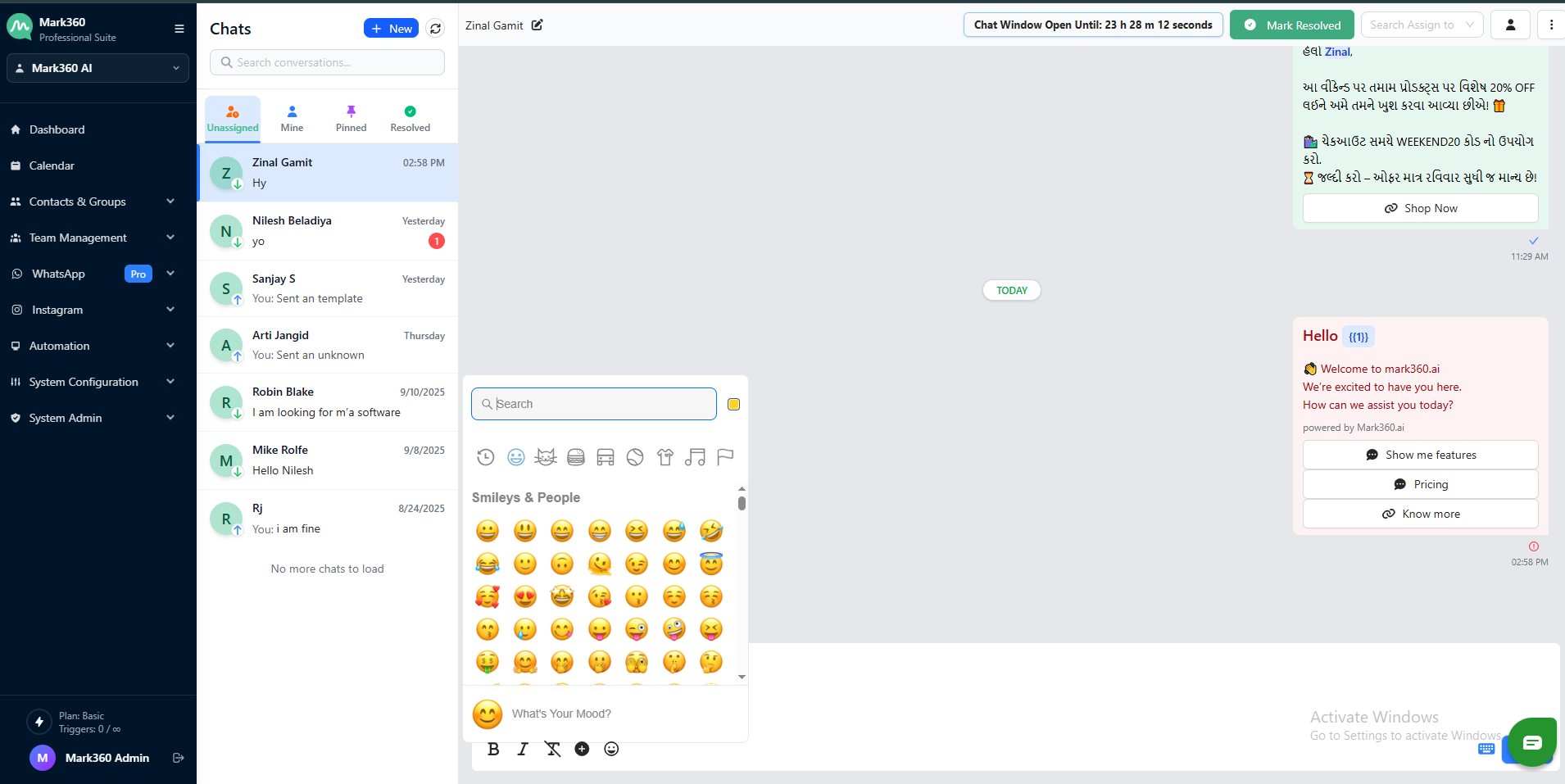
Emojis
- Add emojis to make messages engaging and expressive
Text Formatting
Use the following formats to enhance readability:
-
Bold:
*bold text* -
Italic:
_italic text_ -
Strikethrough:~strikethrough text~ -
Code: for sharing snippets or instructions
Canned Responses
- Save frequently used replies
- Use for FAQs, product info, welcome messages, etc.
AI Rewrite Tools
Make your messaging faster and more effective:
- Rewrite for clarity or impact
- Change tone: Professional / Friendly / Humorous
- Grammar & spell check
- Shorten or Expand content
- Simplify sentence
- AI Rewrite appears after typing at least 3 words
- Located beside the Send button
Translation
- Translate outgoing or incoming messages
- Auto-detects customer’s language
- Shows source & translated version
- Set your native language in account settings for better accuracy
Trigger Bot Flows
Trigger bot automations directly from the Smart Reply Panel using:
1. Bot Trigger Icon
- Located in the Smart Reply Panel toolbar
- Search and select a bot + flow
- Assigns the conversation to bot automatically
- Lists the latest 25 flows (searchable for more)
2. "Reply to Config" (Inside WhatsApp Templates)
- While sending a template, use Advanced Options → Reply to Config
- Assign the conversation to a bot flow from the dropdown
3. Button Payloads
- Use button payloads in WhatsApp templates to trigger bots
- Payloads act as predefined triggers for specific flows
Private Notes & Mentions
Internal notes help improve team collaboration:
- Notes appear in yellow — visible only to your team
- Mention teammates using
@name - Mentioned teammates get notified in Mentions Inbox
Extra Features
- Mention multiple teammates
- Remove mentions from a conversation
- Note Drawer: View all notes in a sidebar
- Access via ⋮ menu → View Notes
- Click any note to jump to its location in the conversation
Message Reactions
Use message reactions to quickly acknowledge or respond to conversations:
- Hover on any message and click Add Reaction
- Choose from emojis or sentiment icons
- Click again to remove a reaction
Prefer a Video Walkthrough?
Video tutorials coming soon to visually explore all Smart Reply Panel capabilities.
Pro Tip
Maximize your efficiency with a combination of AI Rewrite, bot triggers, and canned responses — all designed to scale conversations without compromising on personalization.
Need Help?
For assistance with composing messages, AI tools, or bot automation, reach out to:
support@mark360.ai