Contact Management
Easily create, edit, or delete contacts in Mark360.ai using the single contact management option. Follow these simple steps to add, update, or manage your customer details quickly and efficiently.
Single Contact Creation
To manually add a contact to your workspace:
-
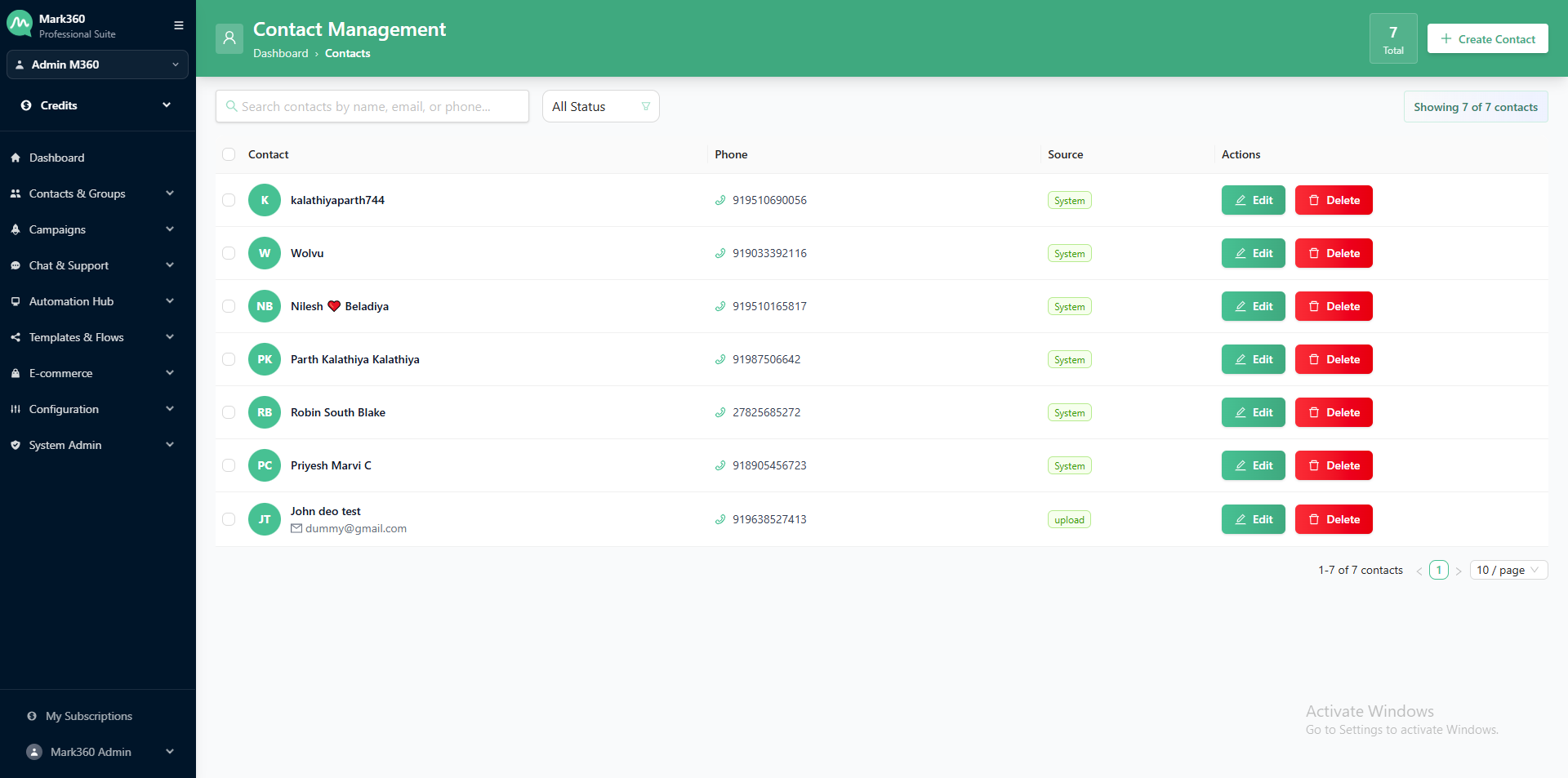
Navigate to the Contacts & Groups section from your Mark360.ai dashboard.
-
Click on the Create Contact button.
- On the top-right corner, click the ➕Create Contact button.
-
A side panel will open, prompting you to enter the following contact details:
- Full Name
- Phone Number
- Email Address
- Tags
- Any other custom fields as configured in your account
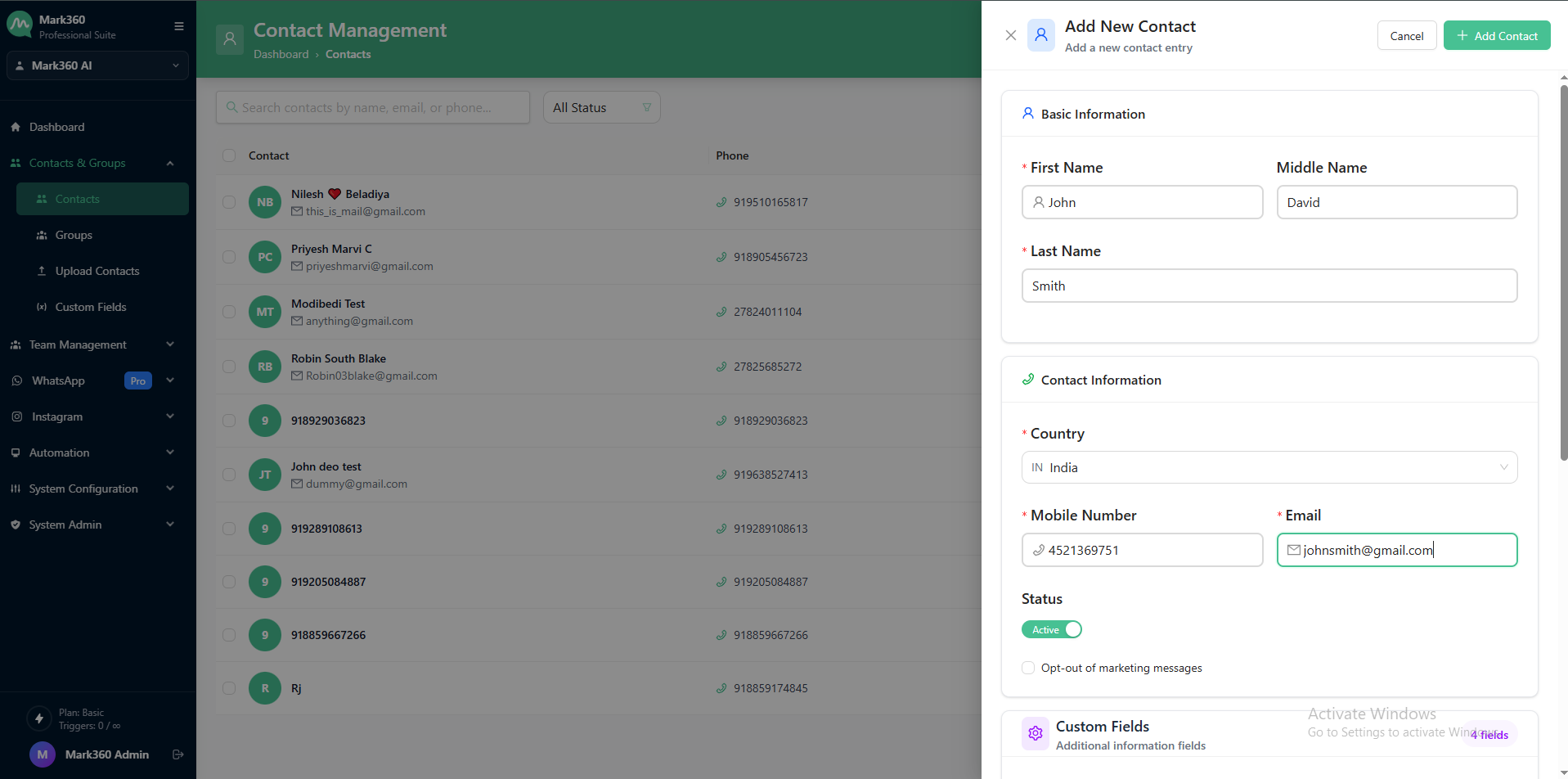
You can add multiple mobile numbers and email addresses to a single contact if necessary.
- After entering the required information, click Add Contact to successfully create the contact.
- The contact will now appear in your Contact List.
Marketing Opt-In
-
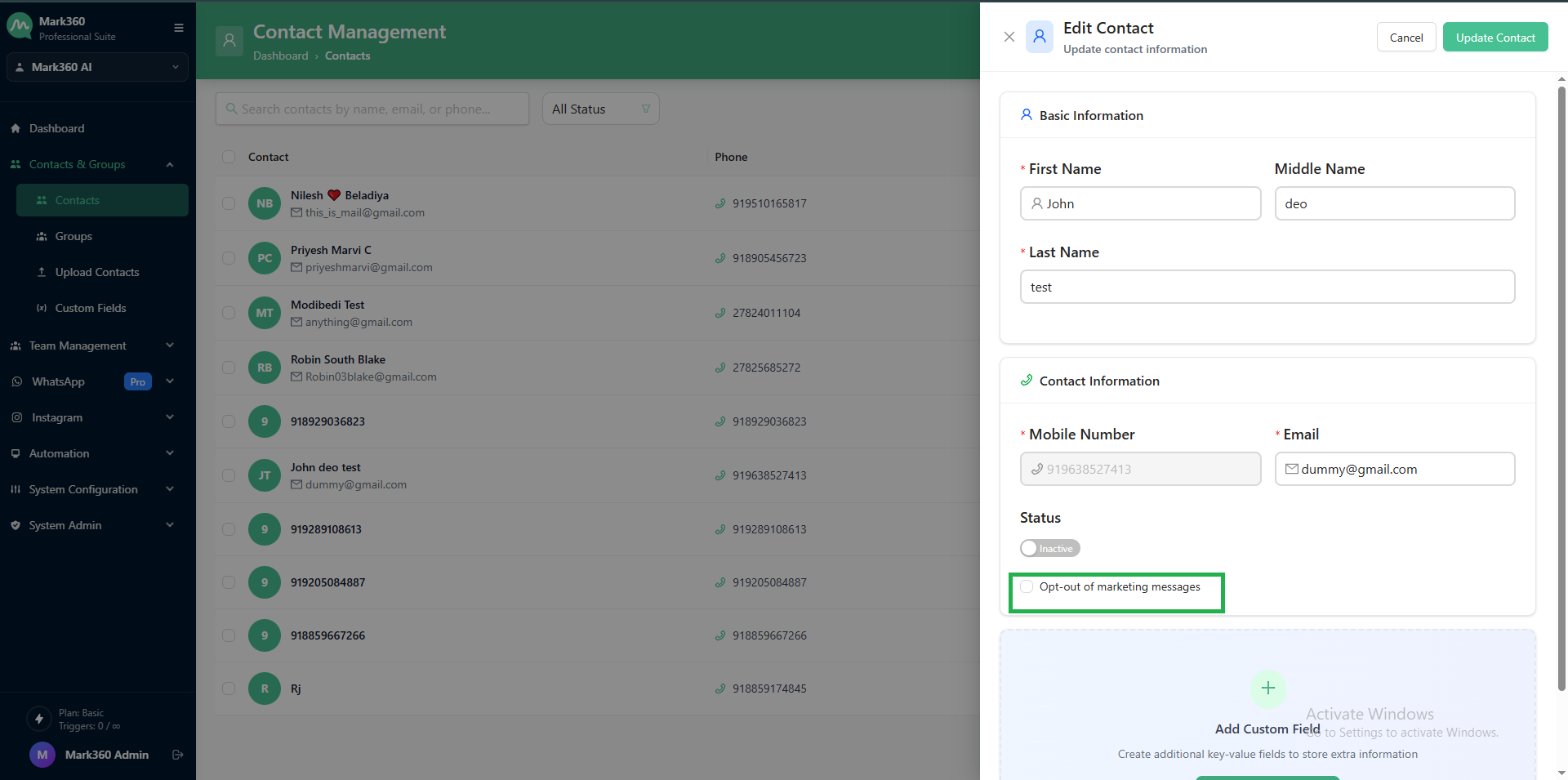
Whenever you create a new contact in the Contacts module, you’ll notice a field called Marketing Opt-in.
-
This CheckBox lets you capture whether the customer has agreed to receive promotional updates from you.
-
✅ Checked → The contact will be included in your marketing campaigns and can receive templates.
-
⬜ Unchecked → Mark360.ai will automatically skip them when sending out marketing messages.
-
This way, you only reach out to people who have given you permission, keeping your campaigns customer-friendly and compliant.
Edit & Delete Contact
✏️ Edit a Contact
-
Navigate to the Contacts & Groups section from your Mark360.ai dashboard.
-
In the Contact List, locate the contact you want to edit.
-
On the right side under Actions, click the ✏️ Edit icon.
-
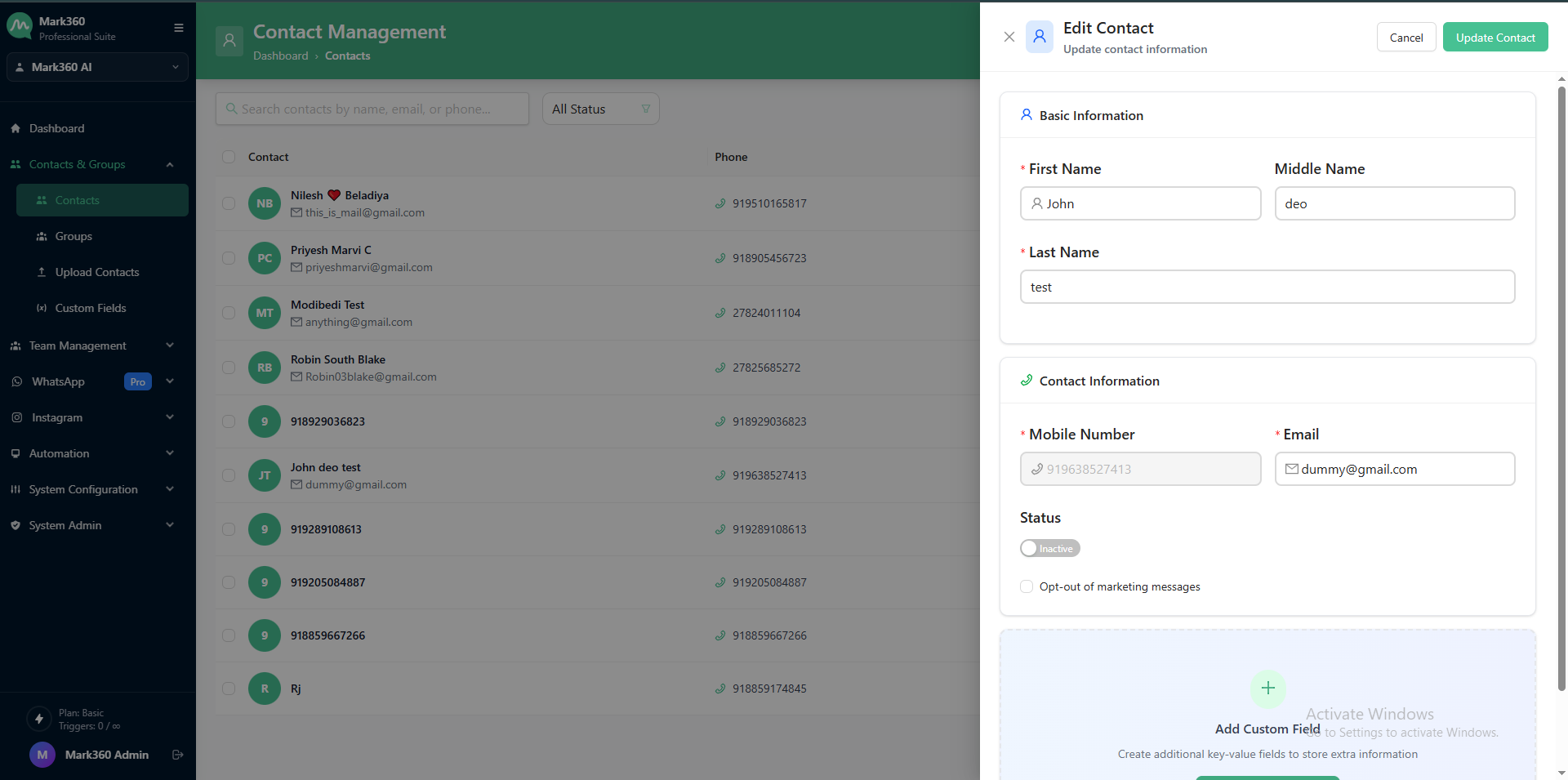
A side panel will open , update any of the following:
- Full Name
- Phone Number
- Email Address
- Tags
- Any other custom fields as configured in your account
-
After entering the required information, click Update Contact to successfully update the contact.
- The updated details will instantly reflect in your contact list.
🗑️ Delete a Contact
-
Navigate to the Contacts & Groups section from your Mark360.ai dashboard.
-
In the Contact List, locate the contact you want to Delete.
-
On the right side under Actions, click the 🗑️ Delete icon.
-
A confirmation popup will appear:
- Click Yes, Delete to confirm.
- Or Cancel if you don’t want to proceed.
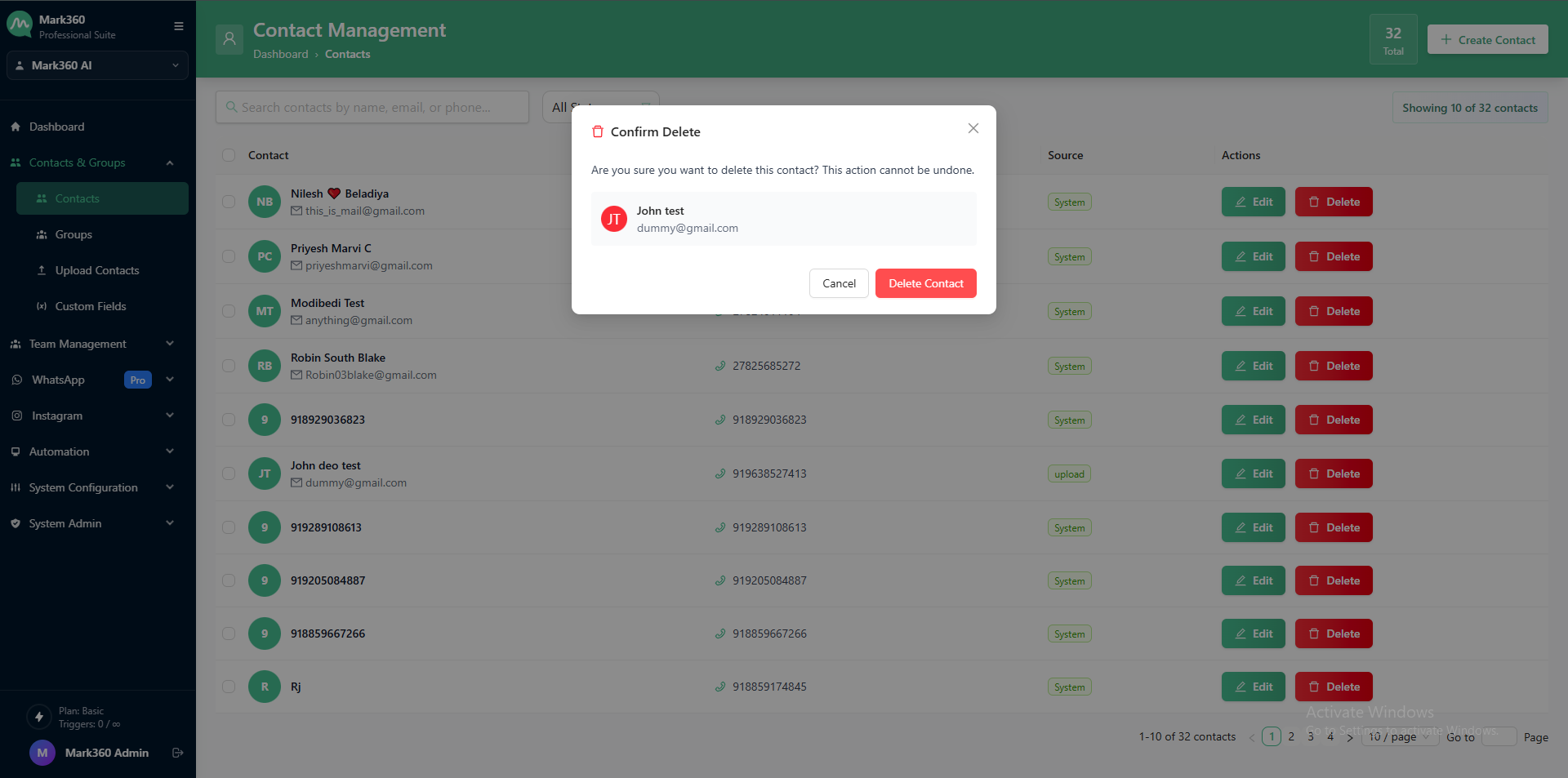
Deleted contacts cannot be recovered. Make sure before deleting.
Filter Contacts
Click on the "Add Filter" button on the left of the screen to reveal the filters. Contacts can be filtered by the parameters set to collect contact data. To filter click on "Add Filter", input the necessary information, and click "Apply".
Common conditions to filter contacts:
- Filter by Name
If you have many contacts with same name, you can use this filter.
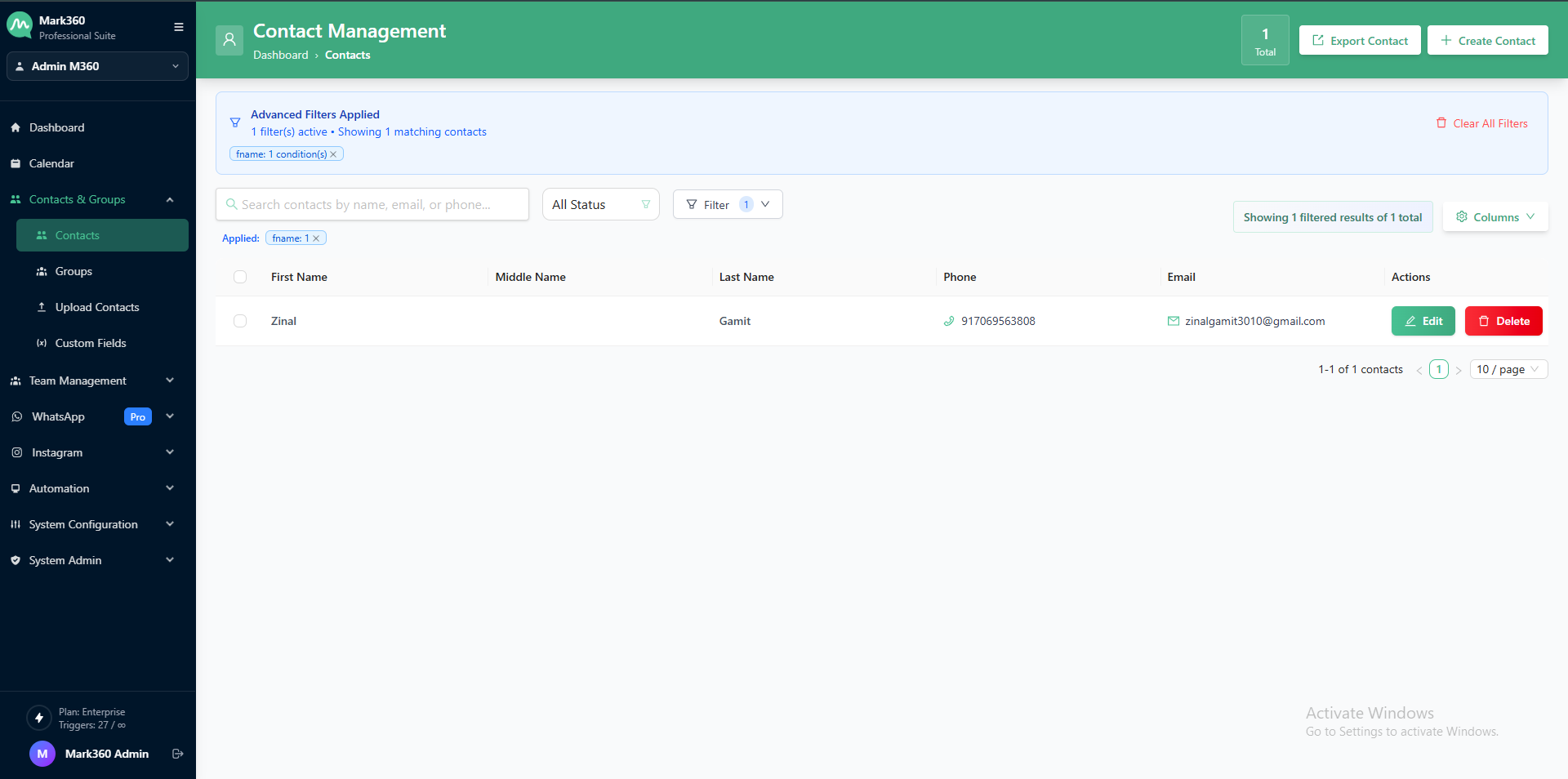
Multiple filters can be added to find the desired information. There is no limit to the number of filters that can be added.
Search Contacts
You can search using any keyword like name, tags, first numbers of Contact number using the search bar in Contacts. Refer to the GIF below for guidance.
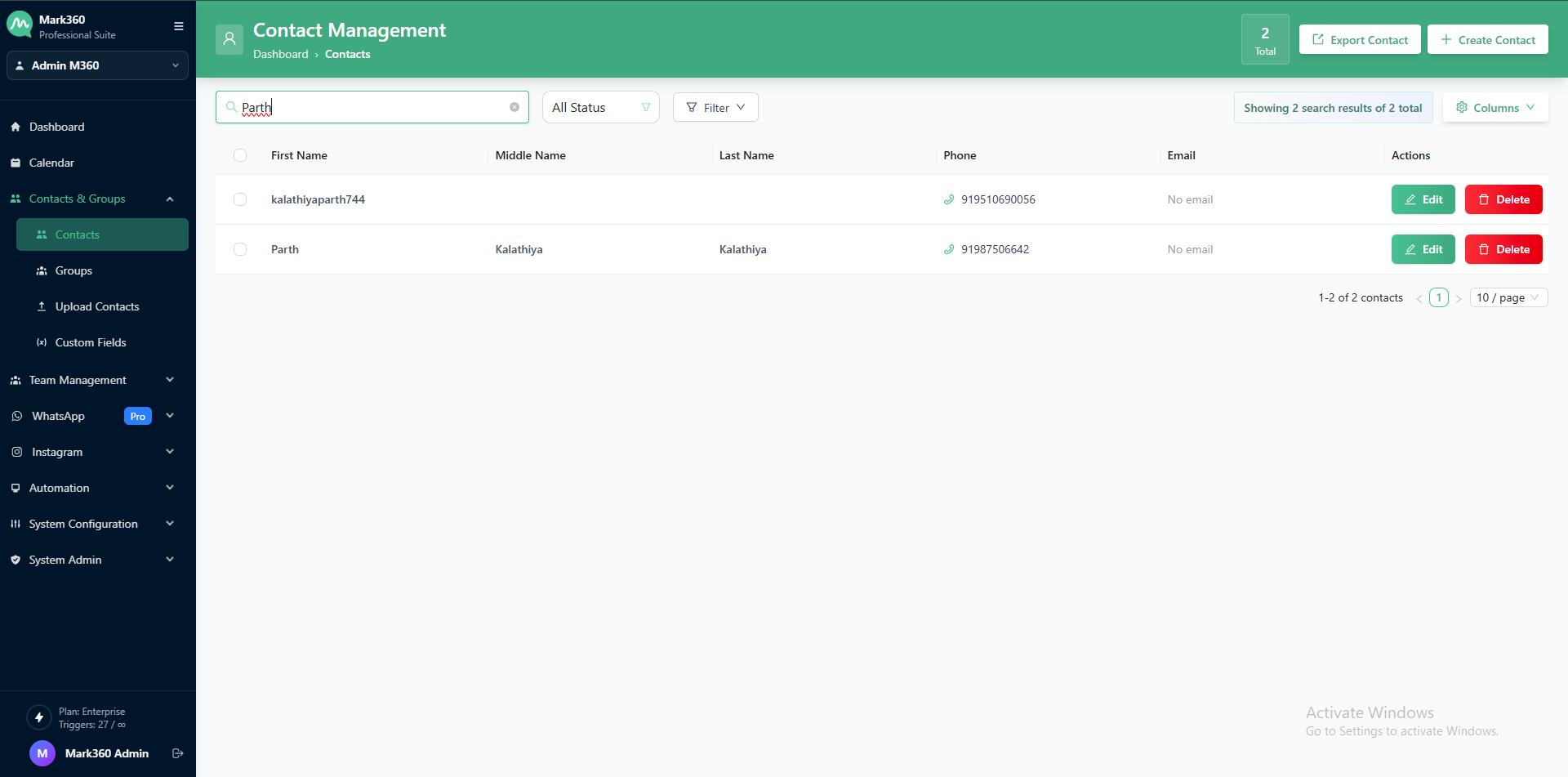
You're now ready to initiate WhatsApp campaigns, assign tags, or trigger automation flows with this contact.