Custom Fields
What is an Custom Fields in Mark360.ai?
Custom Fields allow you to add extra information to your contacts beyond the standard fields (like Name, Phone, Email). This helps you store and manage contact data that is specific to your business needs.
How to Create a Custom Field?
Creating a Custom Field in Mark360.ai is super simple. Follow these steps:
-
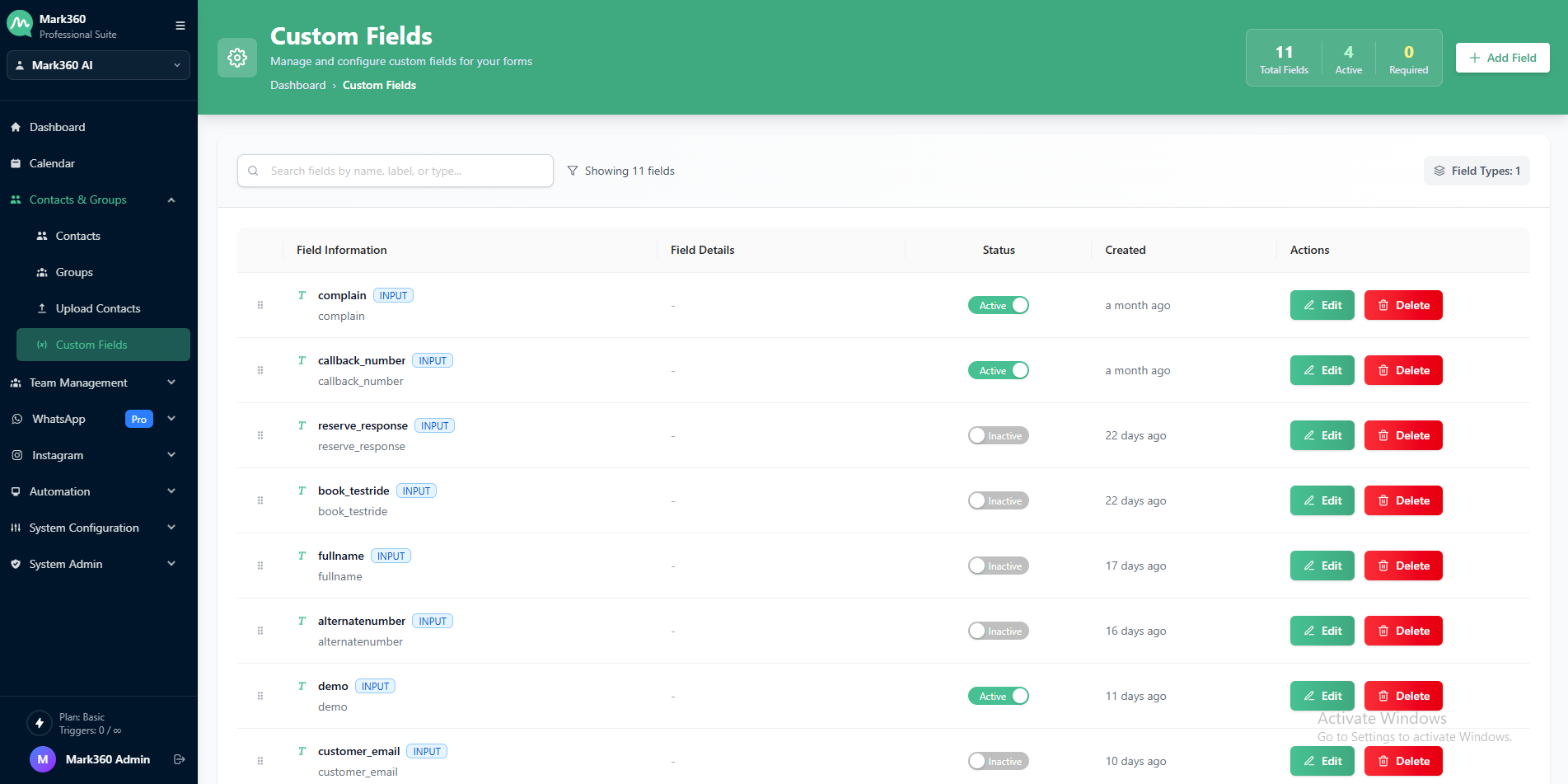
Navigate to the Contacts & Groups section from the left-hand panel of your Mark360.ai dashboard.
-
Click on the "Custom Fields" tab and then hit "Add Field" — this will open a popup.
- On the top-right corner, click the ➕Add Field button.
-
When you click on Create New Custom Field, a side panel opens on the right-hand side. This panel asks you to enter details for your new field. You will see the following inputs:
- Basic Information
- Display Label
- Field Name
- Placeholder Text
- Help Text
- Field Configuration
- Field Type
- Active Status
- Field Validation
- Basic Information
-
To add a custom field for Contact, you'll be asked to provide the following details:
- Field Type : Choose the field type depending on the kind of information you want to collect, like text, numbers, dates, or other options. This helps you organize data properly and keep your contacts well-categorized.
| Type | Description |
|---|---|
| Input | Holds short pieces of information like text, names, or small entries. |
| Number | Takes numerical values, often for quantities or measurements. |
| Date | Used for picking specific calendar dates. |
| Time | Used for selecting specific times. |
| Date/Time | Allows selecting both date and time together. |
| TextArea | Accommodates longer text entries like descriptions or feedback. |
| Select/Dropdown | Offers a dropdown menu with pre-defined choices. |
| URL | Stores website or link information. |
| Checkbox | Allows users to toggle between two states (checked/unchecked), often for yes/no or agreement options. |
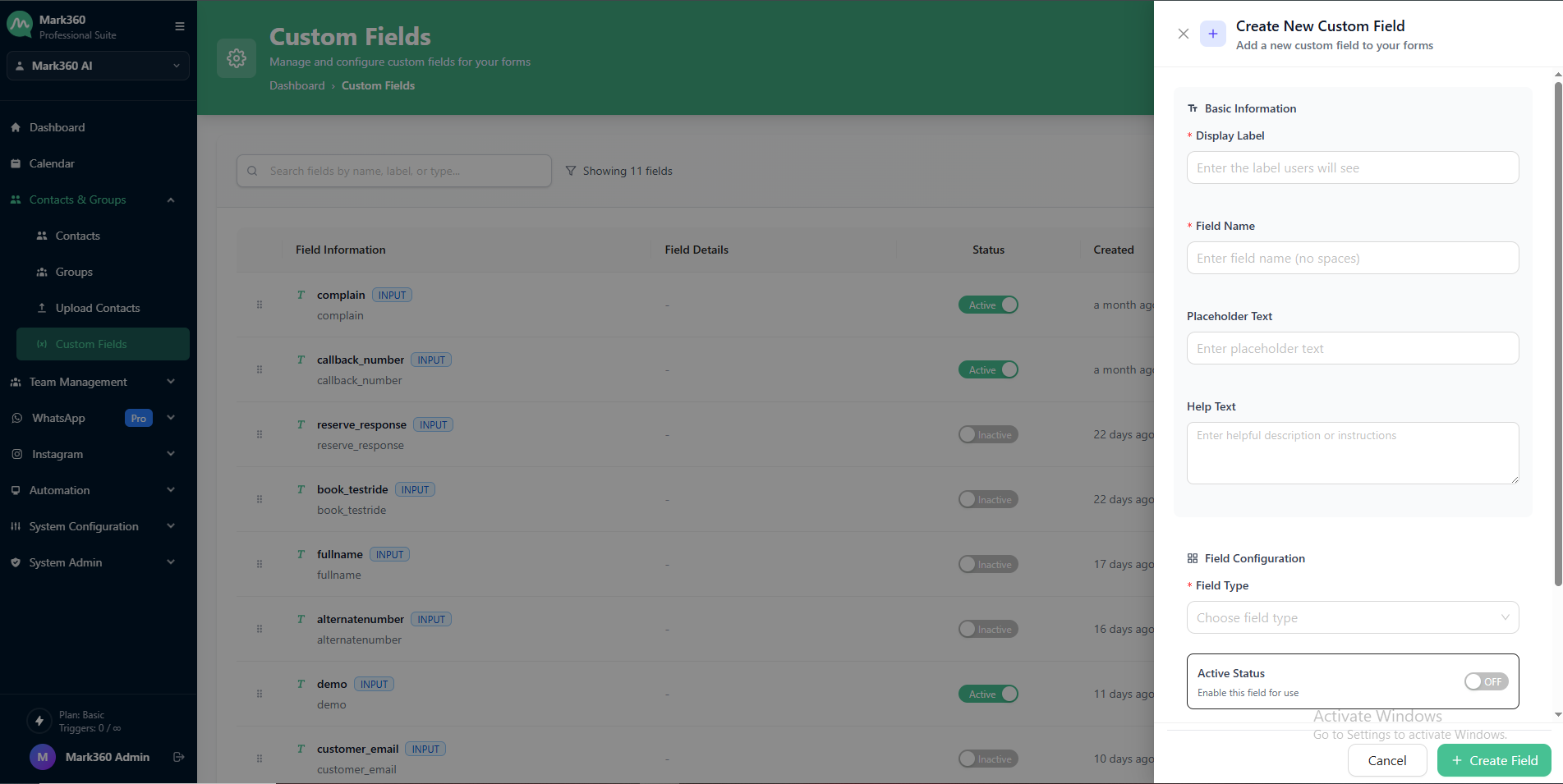
- Click "Create Field", and your Field will be created instantly.
- The Field will now appear in your Field List.
Edit & Delete Custom Fields
✏️ Edit a Custom Fields
-
Navigate to the Contacts & Groups section from your Mark360.ai dashboard.
-
In the Field List, locate the Custom field you want to edit.
-
On the right side under Actions, click the ✏️ Edit icon.
-
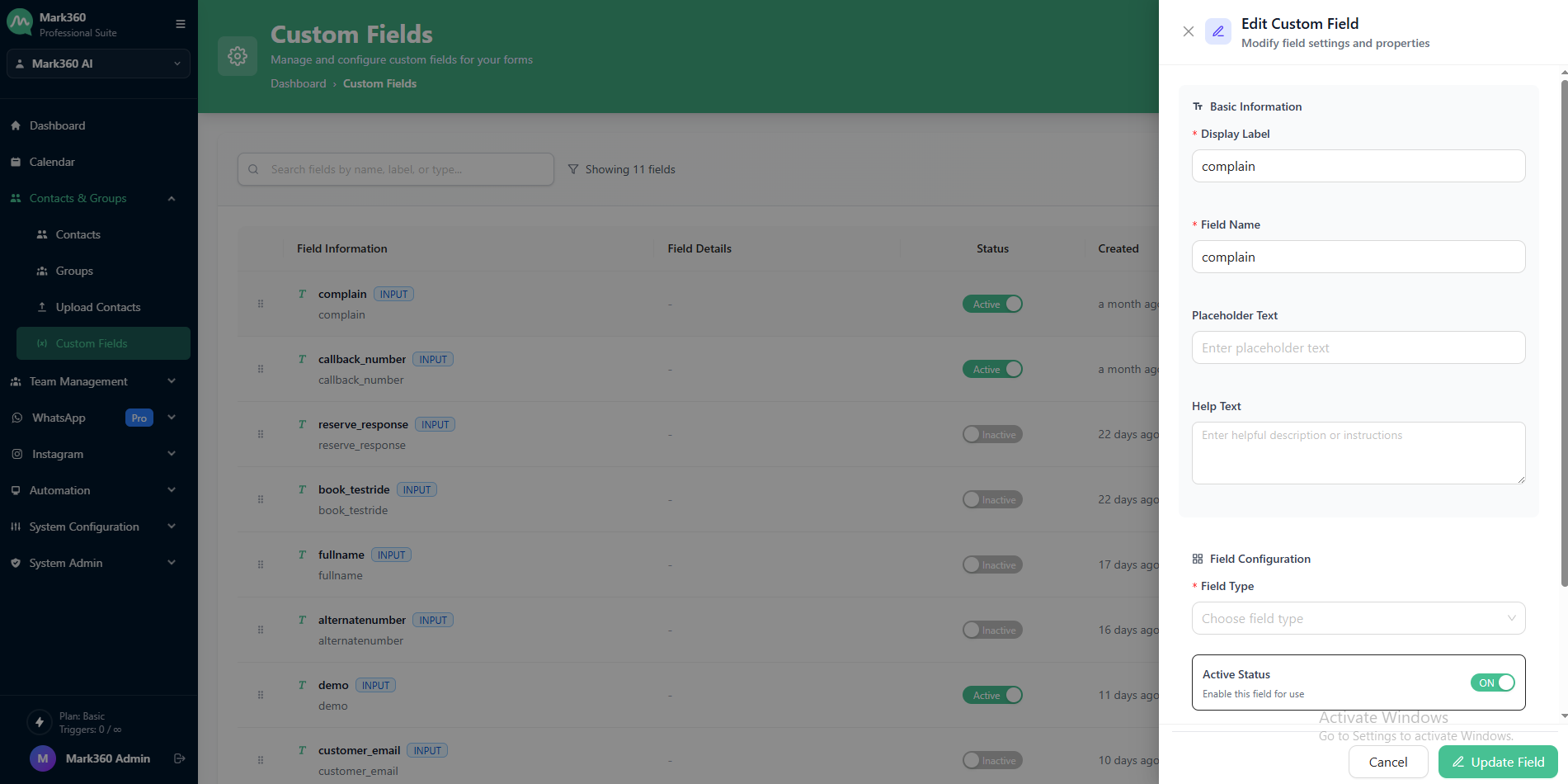
A side panel will open , update any of the following:
- Basic Information
- Display Label
- Field Name
- Placeholder Text
- Help Text
- Field Configuration
- Field Type
- Active Status
- Field Validation
- Basic Information
-
After entering the required information, click Update Field to successfully update the custom field.
- The updated details will instantly reflect in your field list.
🗑️ Delete a Custom Field
-
Navigate to the Contacts & Groups section from your Mark360.ai dashboard.
-
In the Field List, locate the contact you want to Delete.
-
On the right side under Actions, click the 🗑️ Delete icon.
-
A confirmation popup will appear:
- Click Yes, Delete to confirm.
- Or Cancel if you don’t want to proceed.
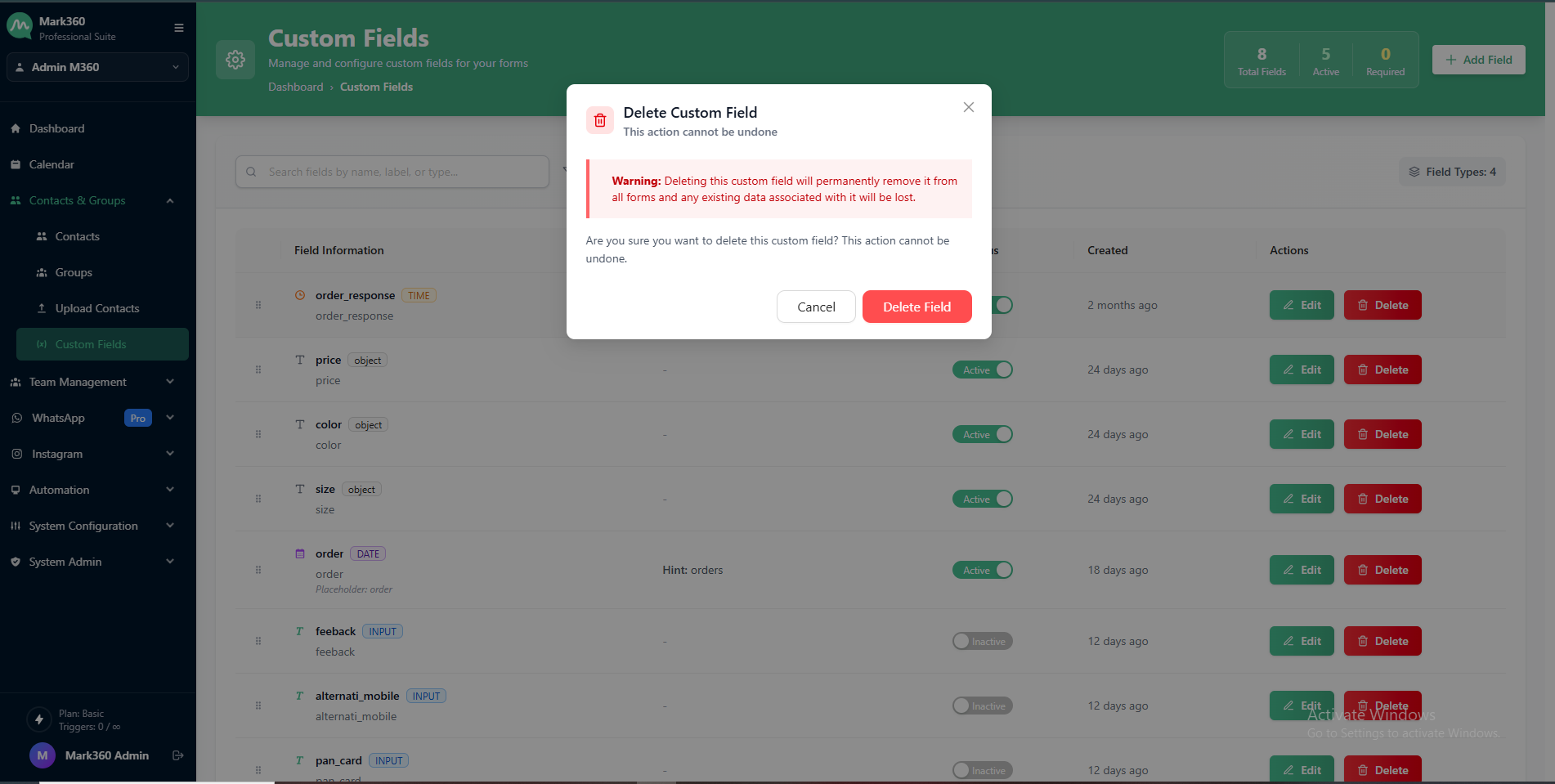
Deleted fields cannot be recovered. Make sure before deleting.