Bulk Contact Import
Easily upload and manage thousands of contacts with just a few clicks using Mark360.ai. Our bulk import process is designed for speed, simplicity, and efficiency.
How to import contact in bulk?
Import Contact in bulk Mark360.ai is super simple. Follow these quick steps:
-
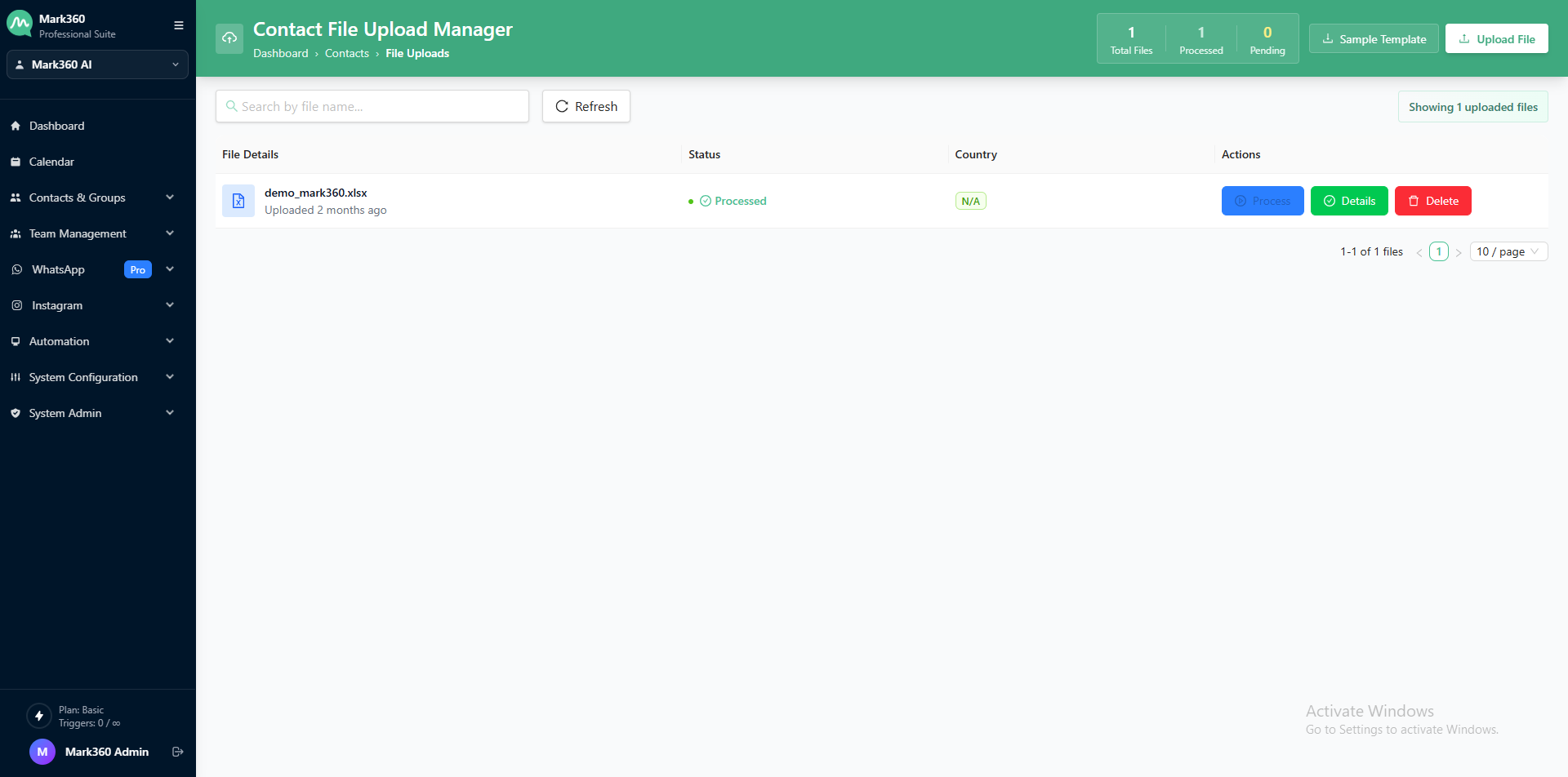
Go to the Contacts section in your Mark360.ai dashboard.
-
Click on Upload File.
-
Upload your Excel (.xlsx) file containing contact data.
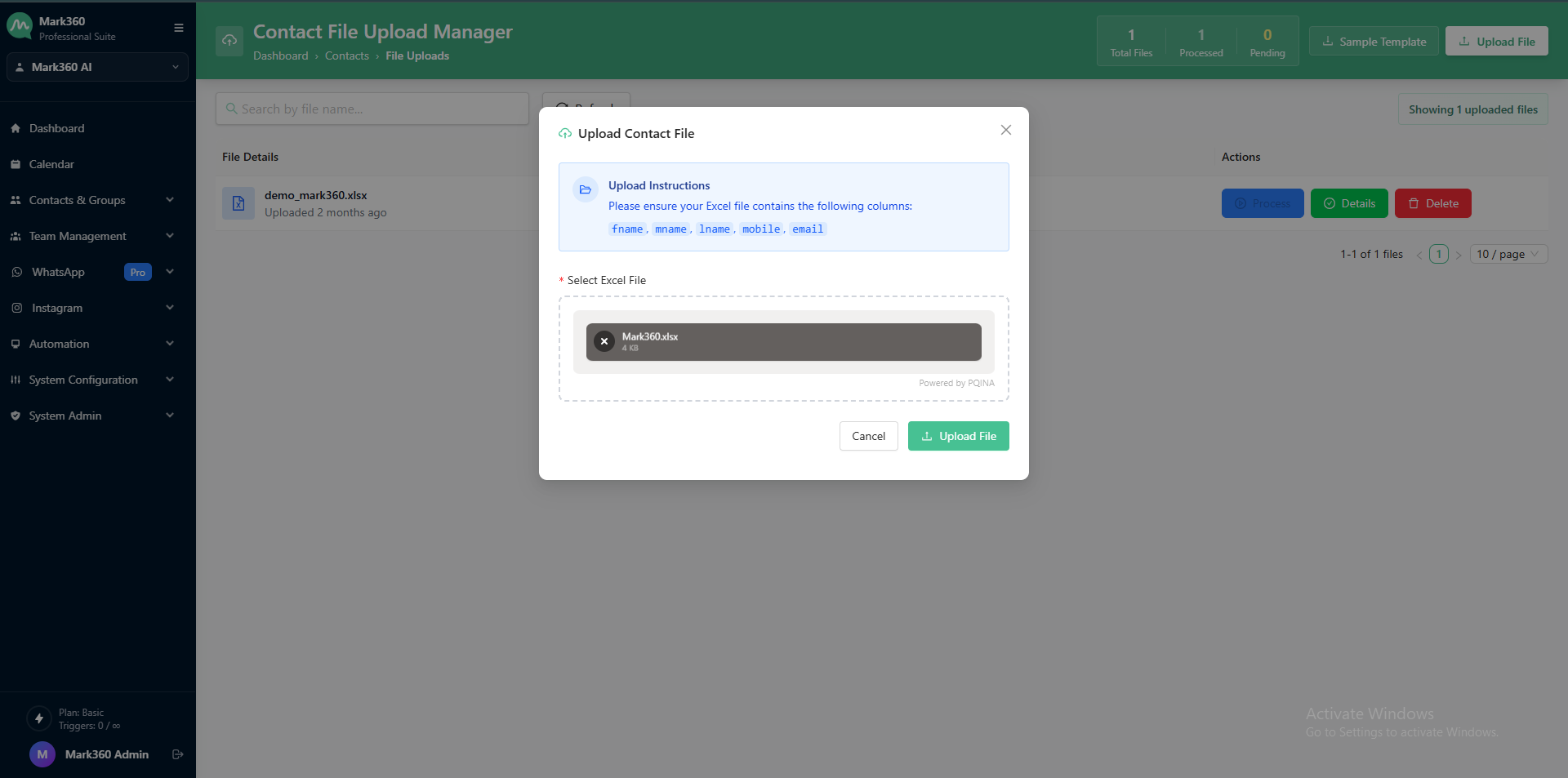
Want to make sure your format is correct? Download our ready-made Sample File — available with or without country code.
- If you use the version without country code, we’ll automatically assign your default business country code.
- You can update your country in Account Settings > Business Country at any time.
After Uploading Your File processfile
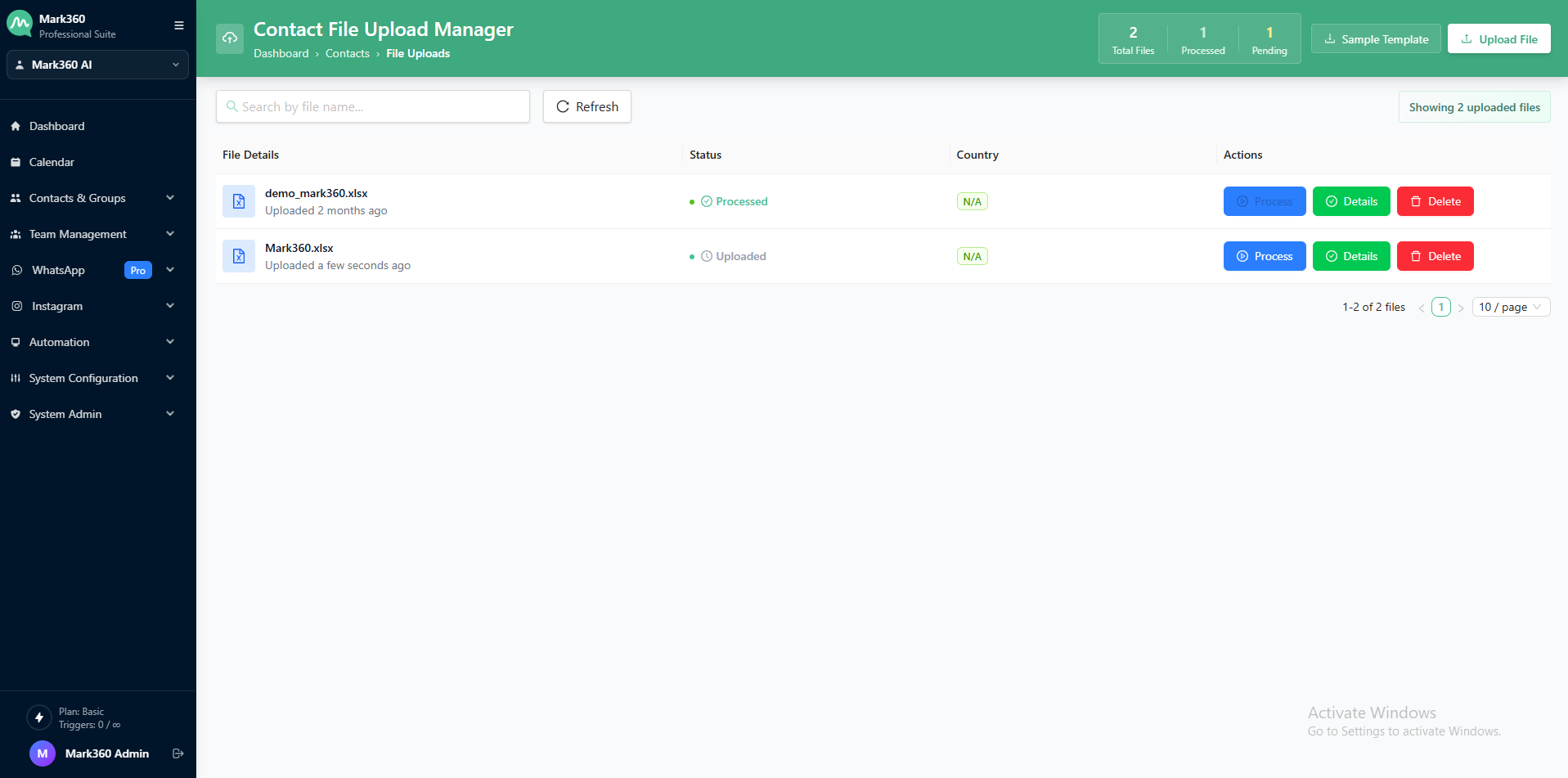
Once your file is uploaded:
- Rename your import batch to keep things organized.
- Choose Import Type: Select "Add New Contacts".
- By default, all contacts are considered to have marketing opt-in = Yes.
- Optionally, assign Tags to segment and manage your contacts better.
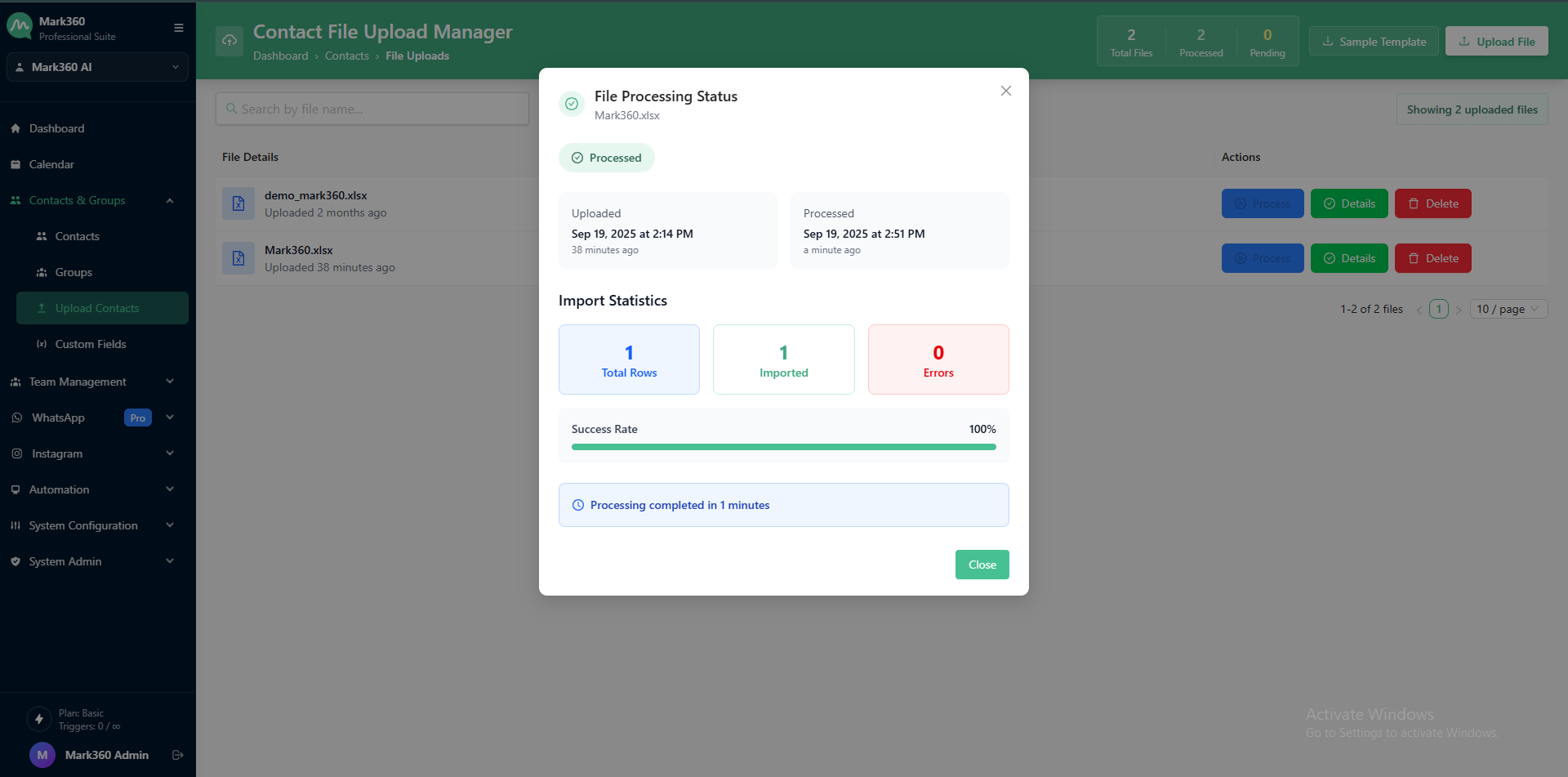
After processing, you’ll see a report
-
Total Rows – How many records were in your file.
-
Imported – How many contacts were successfully added.
-
Errors – Any records skipped due to missing or invalid details.
-
Success Rate – Percentage of successfully imported contacts.
Field Mapping
After uploading, map your Excel/CSV fields (like Name, Phone, Email, etc.) to the existing fields in Mark360.ai.
Don’t have a field in Mark360.ai yet? You can create custom fields on the spot before proceeding.
Once mapping is complete, click Confirm, and your contacts will be imported.
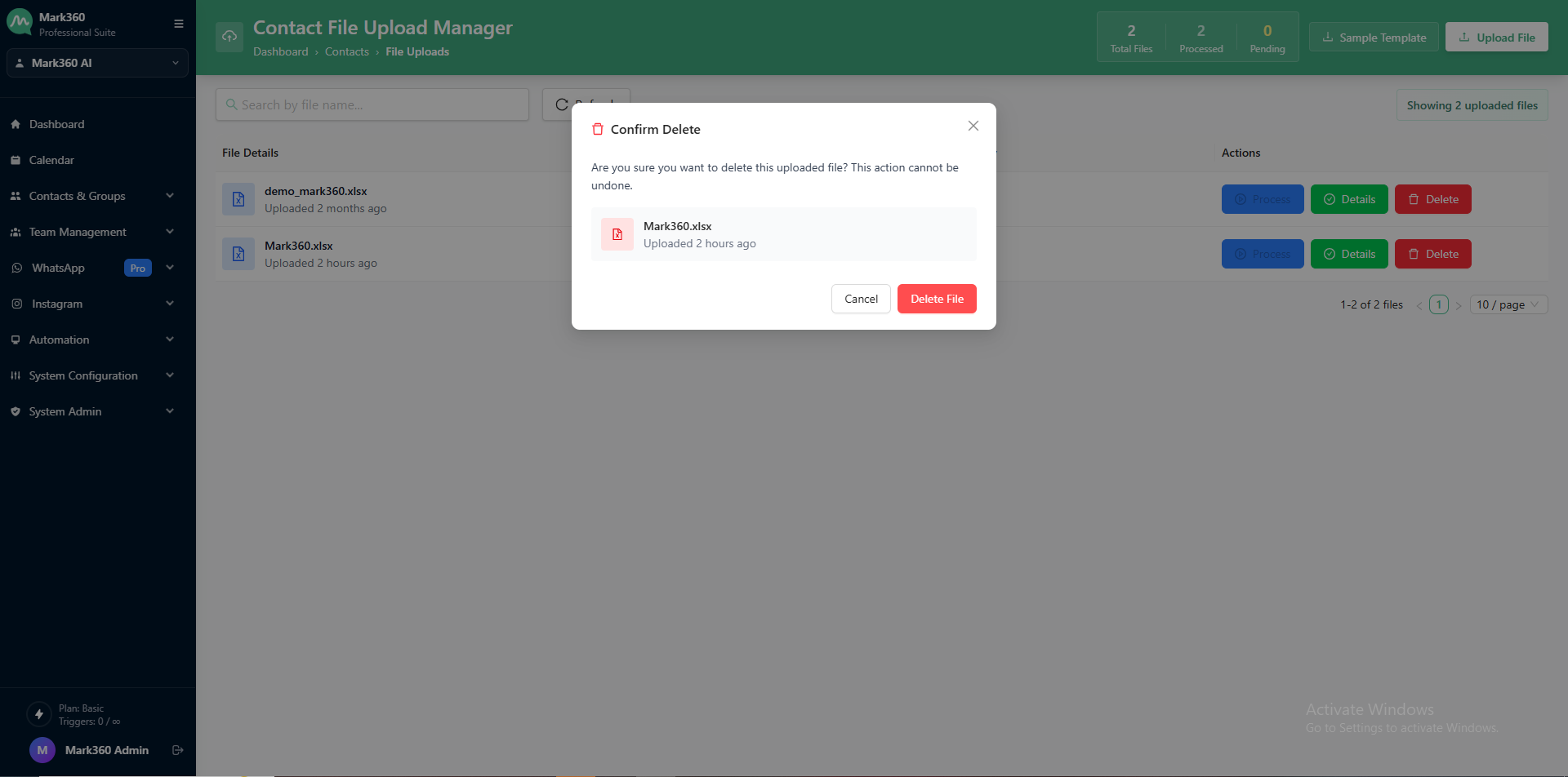
Deleting Uploaded Contact Files
-
Navigate to the Contacts & Groups section from your Mark360.ai dashboard.
-
In the File Detail List, locate the file you want to Delete.
-
On the right side under Actions, click the 🗑️ Delete icon.
Notes
- If a phone number doesn’t have a name, we’ll label the contact as “Guest” by default.
- You can always edit or enrich contact details later from the Contacts section.
That’s it — bulk contact upload made effortless with Mark360.ai.