Basic WhatsApp Template Creation
Create dynamic, personalized, and Meta-compliant WhatsApp templates in Mark360.ai for marketing, support, and transactional use cases. Whether you're starting from scratch or editing a prebuilt one from our Template Library, this guide will walk you through every step.
Key Components of a WhatsApp Template
| Component | Description |
|---|---|
| Header | Optional. Appears at the top. Can be Text, Image, Video, Document, or Location. Only one allowed per template. |
| Body | Main message content. Can contain variables like {{name}} or {{order_id}}. Keep it clear and personalized. |
| Footer | Optional. Useful for legal text, unsubscribe message, or signature. |
| Buttons | Add Quick Reply, Call-To-Action (URL/Phone), or WhatsApp Flow buttons. |
Create a WhatsApp Template from Scratch
-
Navigate to
WhatsApp>Message Templates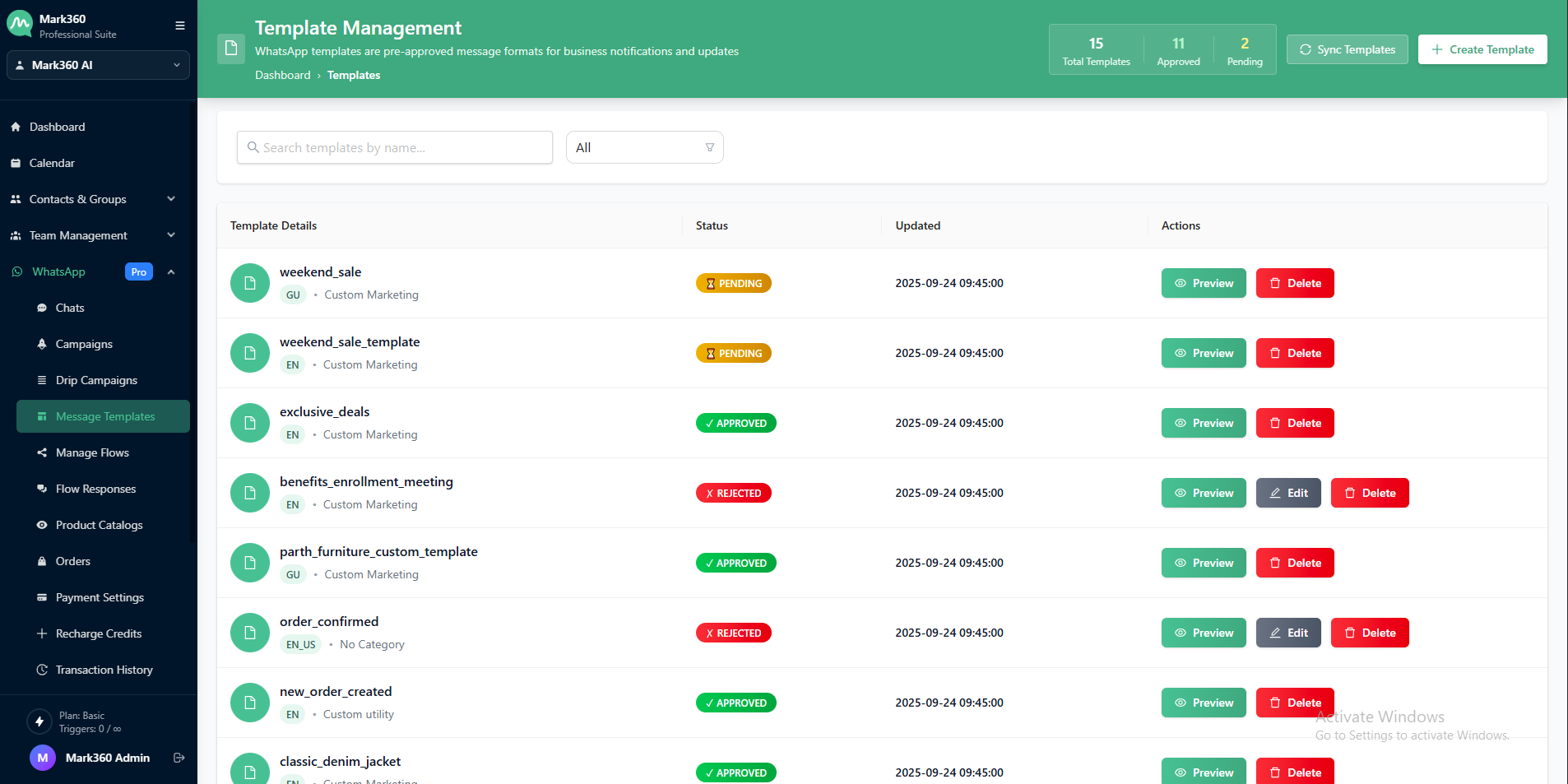
-
Click:
+ Create Template- On the top-right corner, click the ➕Create Template button.
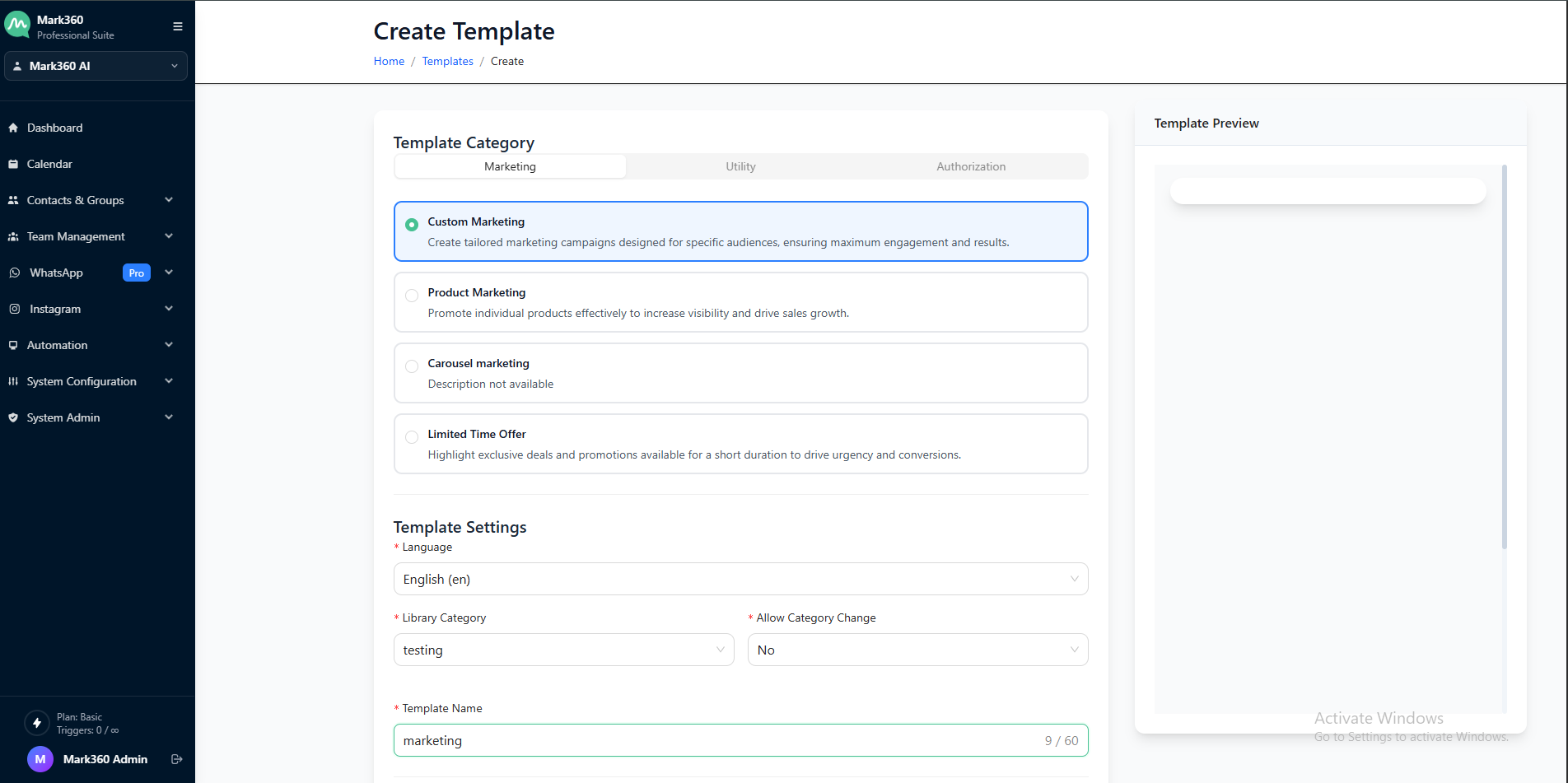
Step 2: Define Basic Details
-
Template Name
-
Category: Marketing, Utility
-
Language: Select supported Meta language for your audience
Step 3: Add Header (Optional)
Choose format:
- Text (max 60 chars)
- Image:
.jpeg,.jpg,.png(up to 5 MB) - Video:
.mp4,.3gpp(up to 16 MB) - File: Max 100 MB
- Location: Static only
The uploaded media is only for Meta approval. You can replace it while sending.
Step 4: Draft the Message Body
- Write the core message with optional variables (e.g.
{{name}},{{date}}) - Provide sample values for variable fields for Meta review
Step 5: Add Footer (Optional)
- Example: Reply with STOP to unsubscribe
- Or include your brand’s tagline
Step 6: Add Buttons (Optional)
Button Types:
-
Quick Replies (max 10)
-
Call-To-Action (CTA):
- URL Buttons (up to 2)
- Phone Button (1 max)
- Copy Code Button (1 max)
-
Flow (Form): Launch interactive WhatsApp Forms

You can’t mix CTA + Quick Replies in one section. You can rearrange button positions using the "Swap" option.
Final Check & Submit
- Review all components
- Click Submit for Approval
Meta Reclassification Alert: Meta may reclassify your template category (e.g., Utility → Marketing), which affects pricing.
Edit a Template from the Template Library
-
Go to
WhatsApp > Message Templates > Select From Library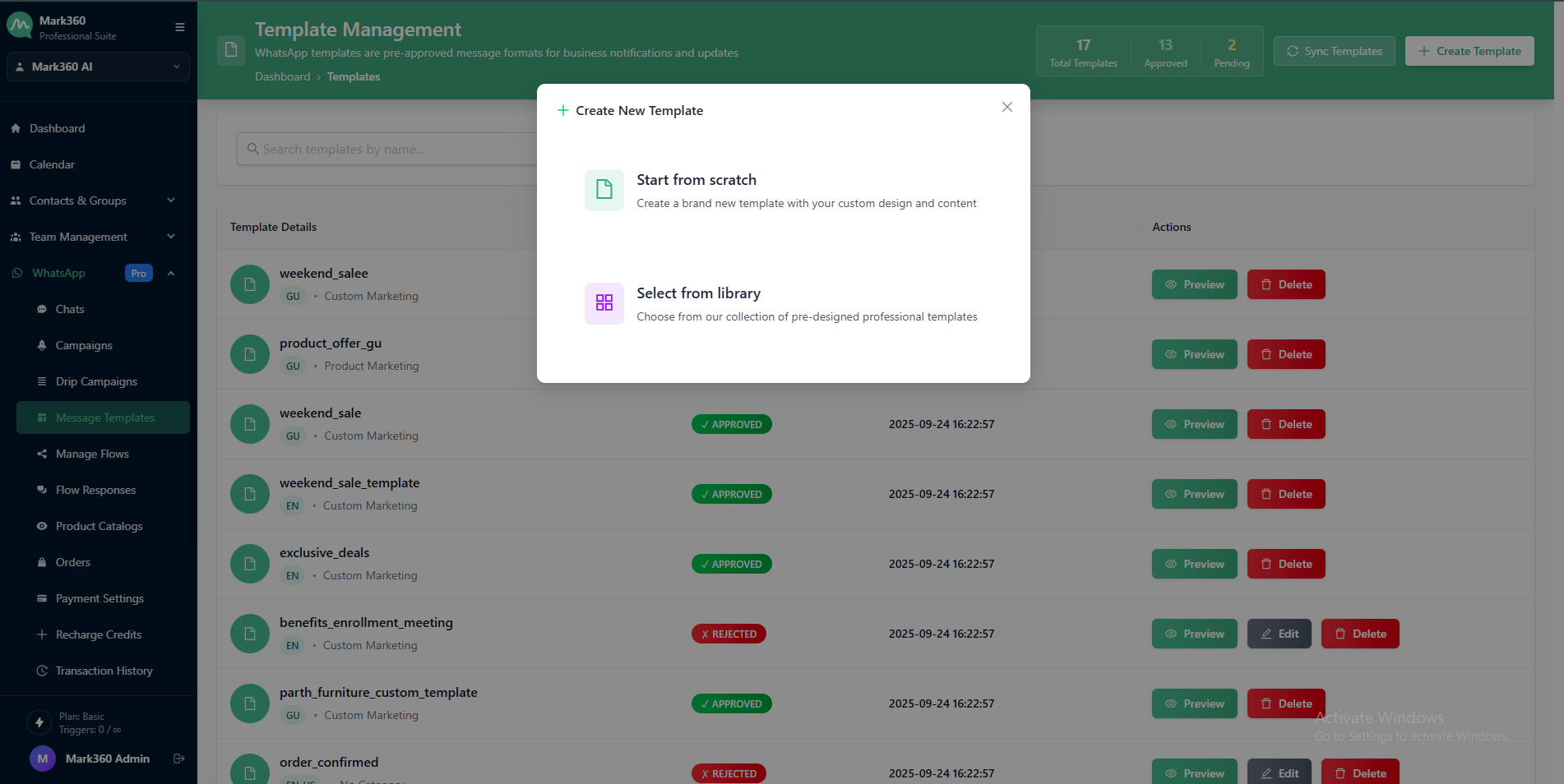
-
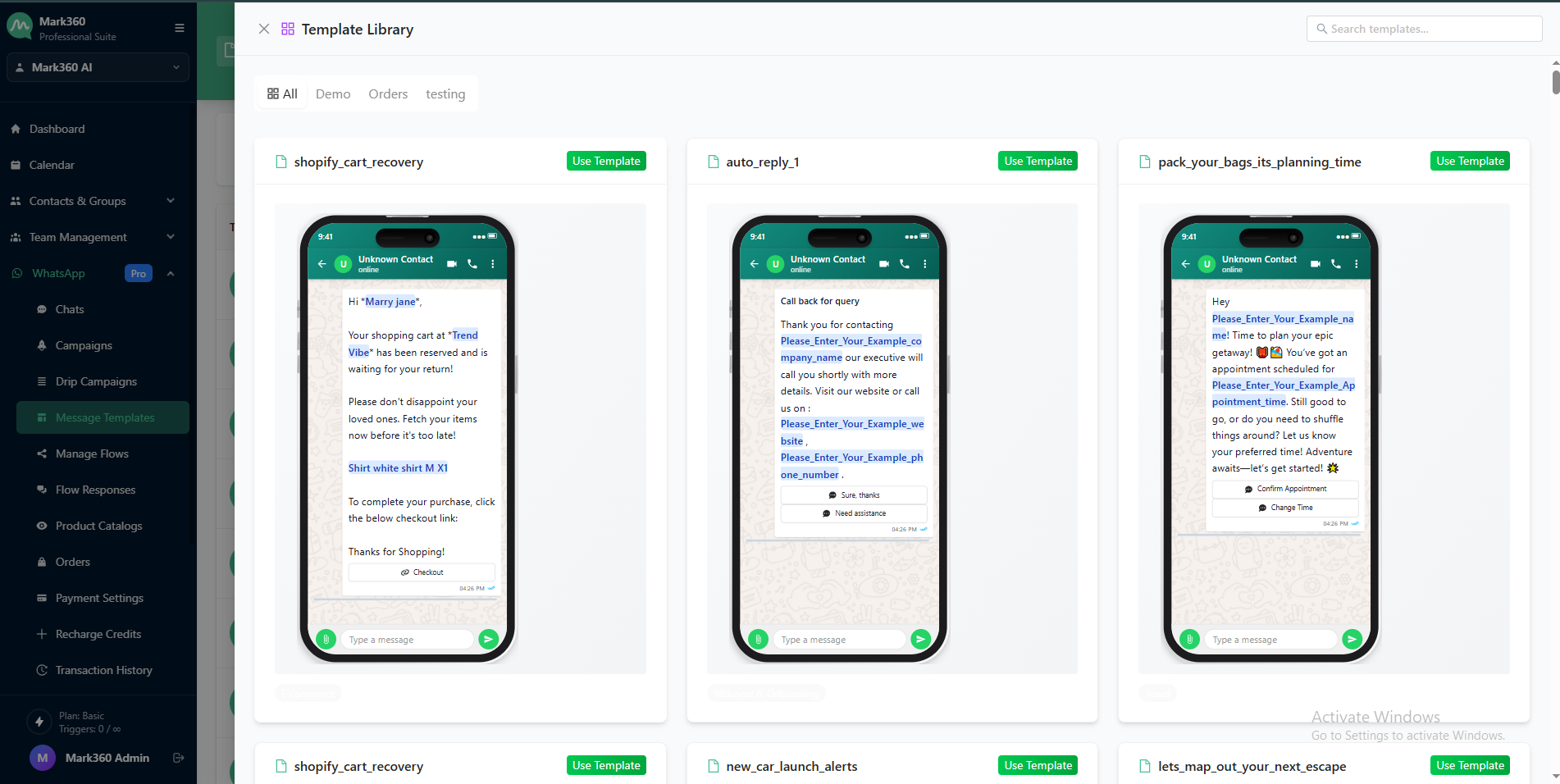
Select a ready-to-use template
-
Click Use Template and modify components (category, text, buttons, footer)
-
Click Submit for Approval
Check Template Status
Click the Sync button to refresh the status after submission.

Approval can take 1–24 hours. Once approved, wait 15 minutes before testing or broadcasting.
Test a Template
- Only test templates that are in
ApprovedorRecently Approvedstate - For newly approved ones, wait 15 minutes to avoid test errors
Template Configurations (Reply Settings)
After approval:
- Click
⋮(three dots) next to the template name > Configurations - Assign responses to:
- A Bot Flow
- A Team Member
- A Team
You can also configure what happens when users reply to buttons.
Handle Partial URLs Intelligently
If you paste the full URL in a dynamic field instead of the suffix, Mark360.ai intelligently cleans up duplicates and ensures a valid link is sent.
Works across:
- Inbox
- Broadcasts
- Bot Messages
- Public API
- Flows & Sequences
This works with or without tracking enabled in the template settings.
Best Practices
- Use clear and concise messaging
- Add personalization via variables
- Include unsubscribe options to maintain quality rating
- Avoid generic messages that may lead to user reports
- Monitor performance of templates regularly
Let your WhatsApp communication shine with rich, interactive, and rule-compliant templates – only on Mark360.ai.