Order Details Template
The Order Details Template allows you to share order information in a more interactive and engaging format. Instead of sending plain text messages, you can send detailed order summaries or billing details using templates with integrated call-to-action buttons, enhancing the customer’s payment experience.
Overview
The Order Details Template helps you deliver clear and actionable order information directly to your customers. By using interactive message templates, you can:
- Share complete order or invoice details
- Add quick payment or tracking buttons
- Drive faster responses and higher conversion rates
Once your templates are created and approved, you can send them instantly to guide customers toward completing their purchase or making a payment.
Creating Order Details Templates in Mark360
Follow these steps to create an Order Details Template in Mark360:
-
Navigate to:
WhatsApp → Message Templates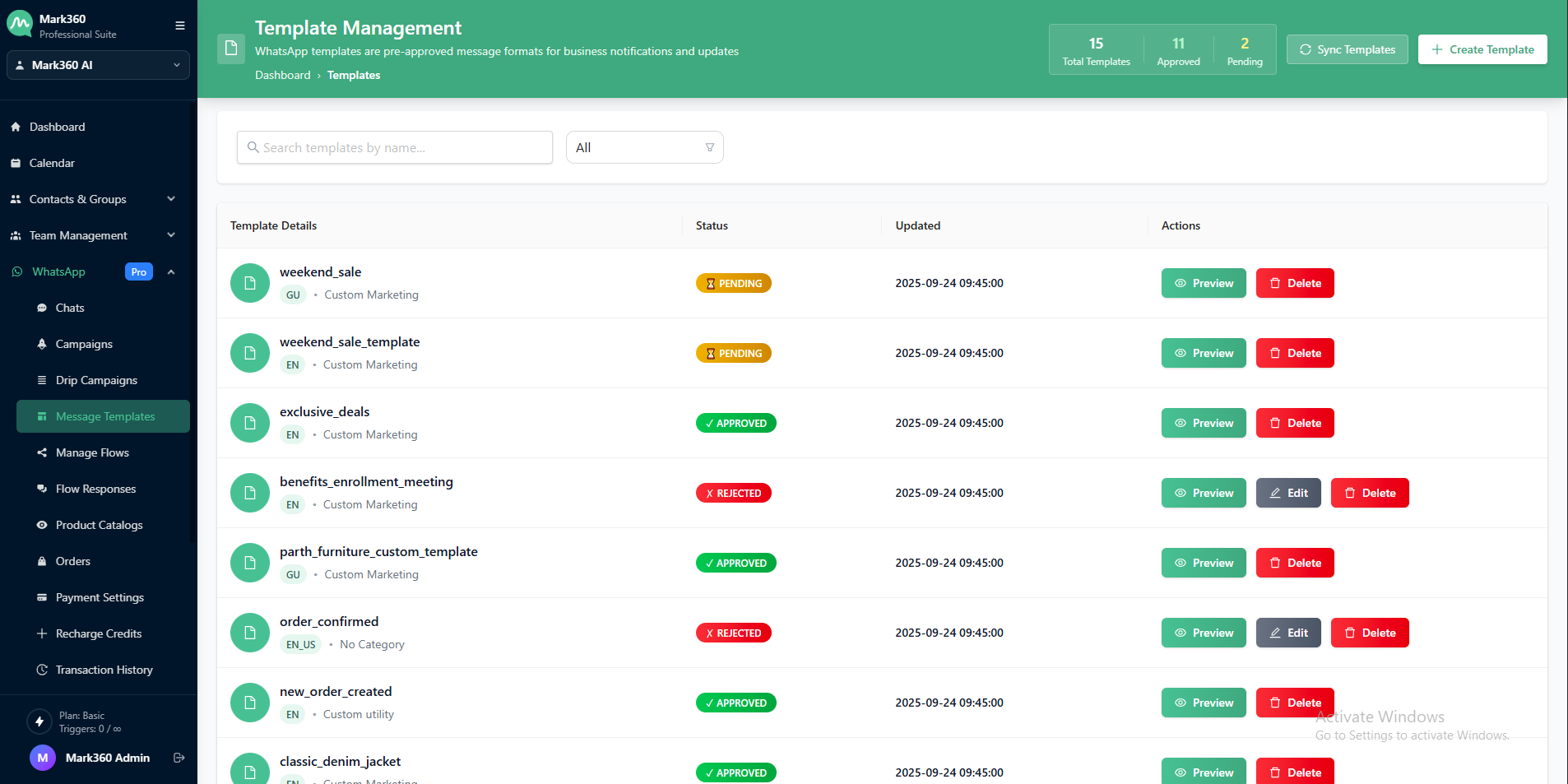
-
Click:
+ Create Template- On the top-right corner, click the ➕Create Template button.
-
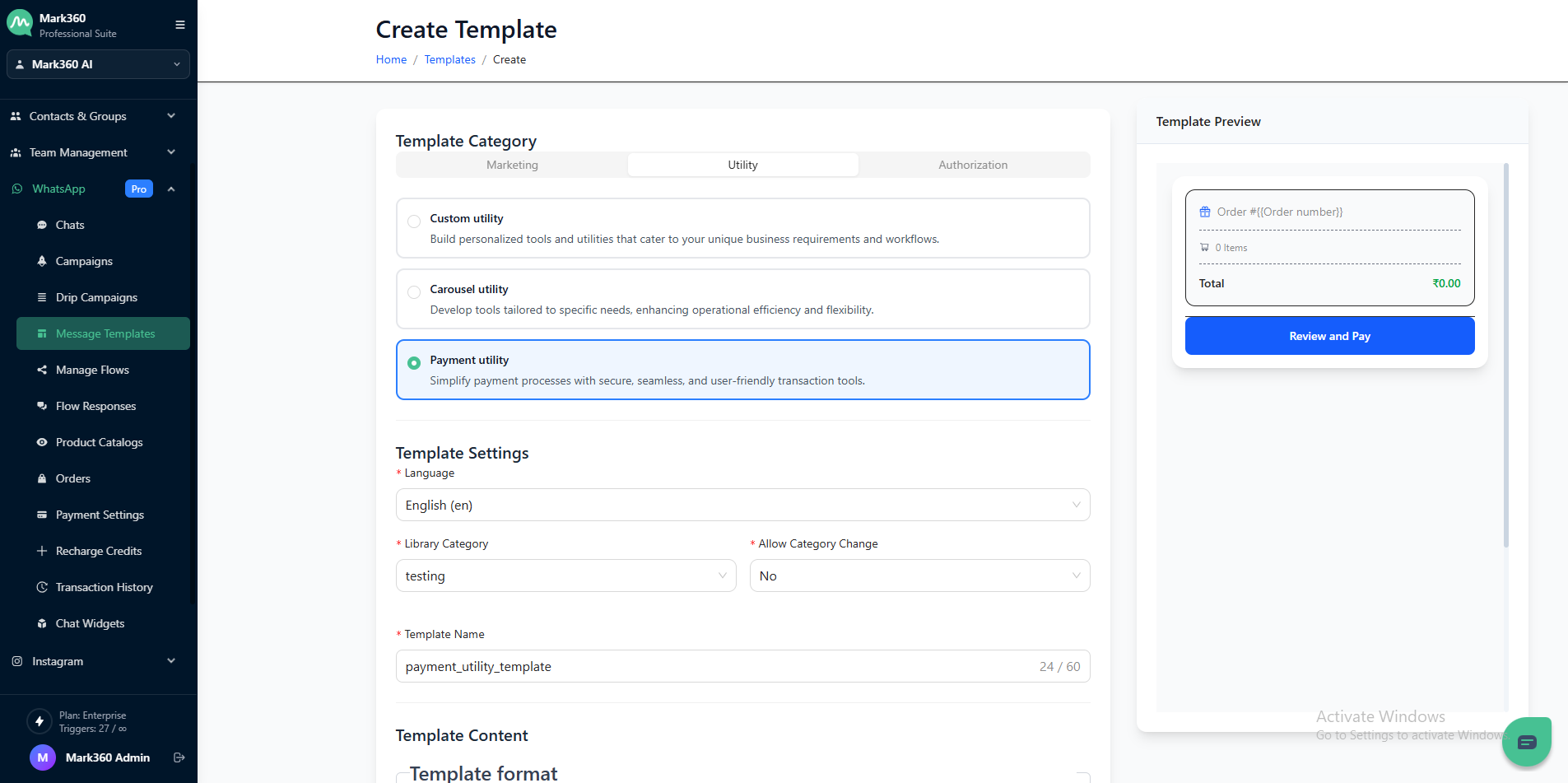
Enter the following details:
- Template Name
- Category:
Utility - Payment Utility - Allow Category Change:
No - Language: Choose preferred language
-
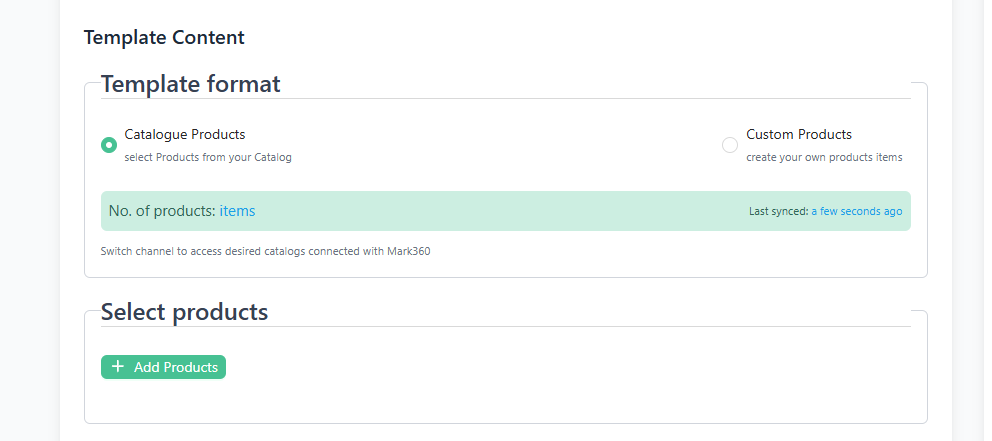
You can either choose the Catalogue Products as the Template format or custom products as the Template format.
Catalogue Products as Template Format: Select and send products from your connected catalogue.
Custom Products as the Template Format: Create and send your own product items.
-
Choose the payment provider (WhatsApp Native Payments) from the dropdown.

-
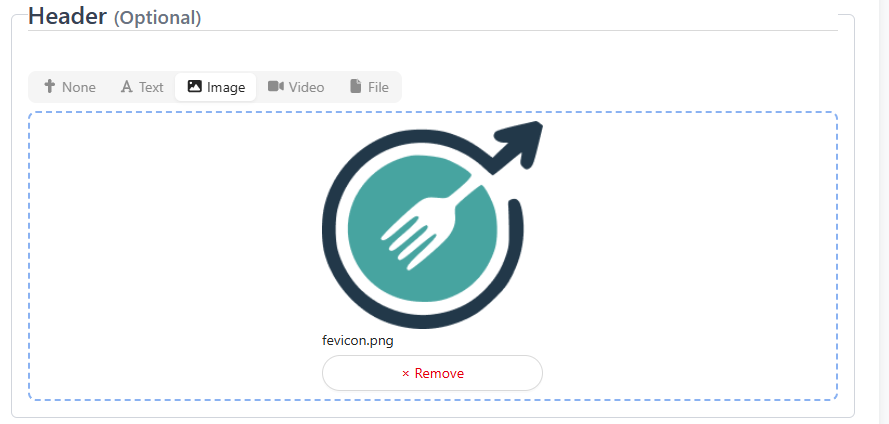
You can highlight your message by adding either a text or an Image as a Message header.
-
Now, add the message content you would like to share with your customers. To make it more personalized.
You can add a footer to your message as well.
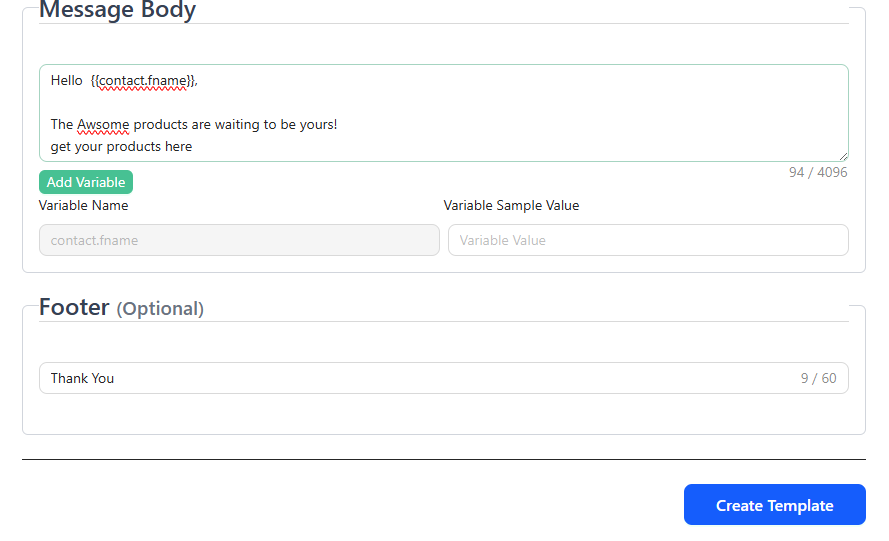
-
Once you are done adding the details for all the fields, click on Create Template for Approval with the META Team. It will take around 24 hours for the WhatsApp Template to get approved status.
Once your template is approved, you can start sending product messages seamlessly. Ensure to monitor the approvals and make any necessary adjustments based on feedback.