Product Marketing Templates in Mark360.ai
Boost your sales and enhance product discovery with Catalog Templates and Multi-Product Message (MPM) Templates in Mark360.ai. These templates help you present your product inventory directly inside WhatsApp — visually appealing, interactive, and optimized for conversions.
Catalog Templates — Highlight Single Products Beautifully
Catalog templates act like WhatsApp brochures for individual products. You can feature:
- A product thumbnail
- A custom message body
- Optional header/footer for branding
- Interactive CTA buttons
Prerequisites:
- Your product catalog must be uploaded to Meta Commerce Manager
- The catalog must be linked to your Mark360.ai WhatsApp channel
- Your WhatsApp number must be connected using Cloud API
How to Create a Catalog Template in Mark360.ai
-
Navigate to:
WhatsApp → Message Templates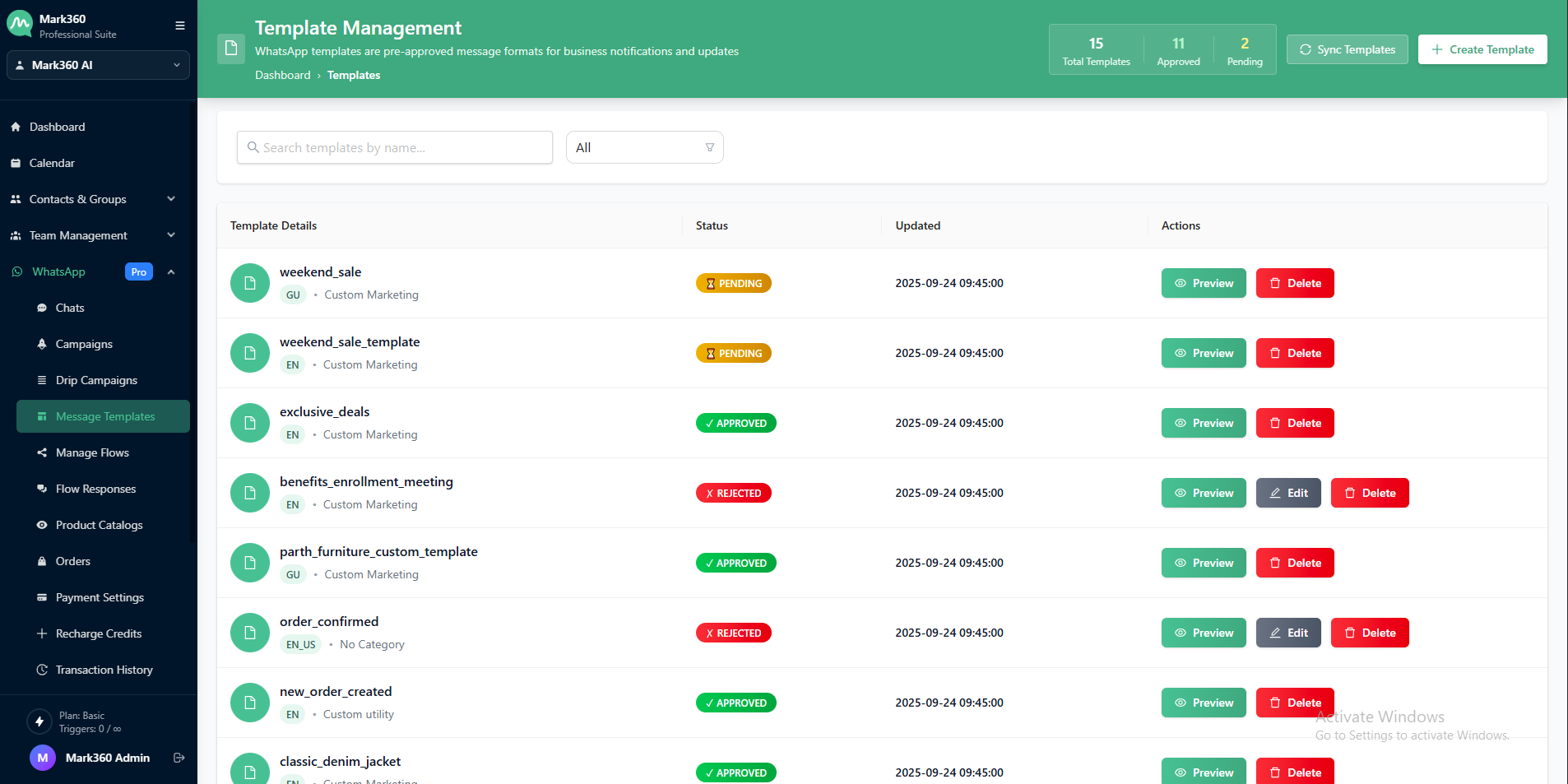
-
Click:
+ Create Template- On the top-right corner, click the ➕Create Template button.
-
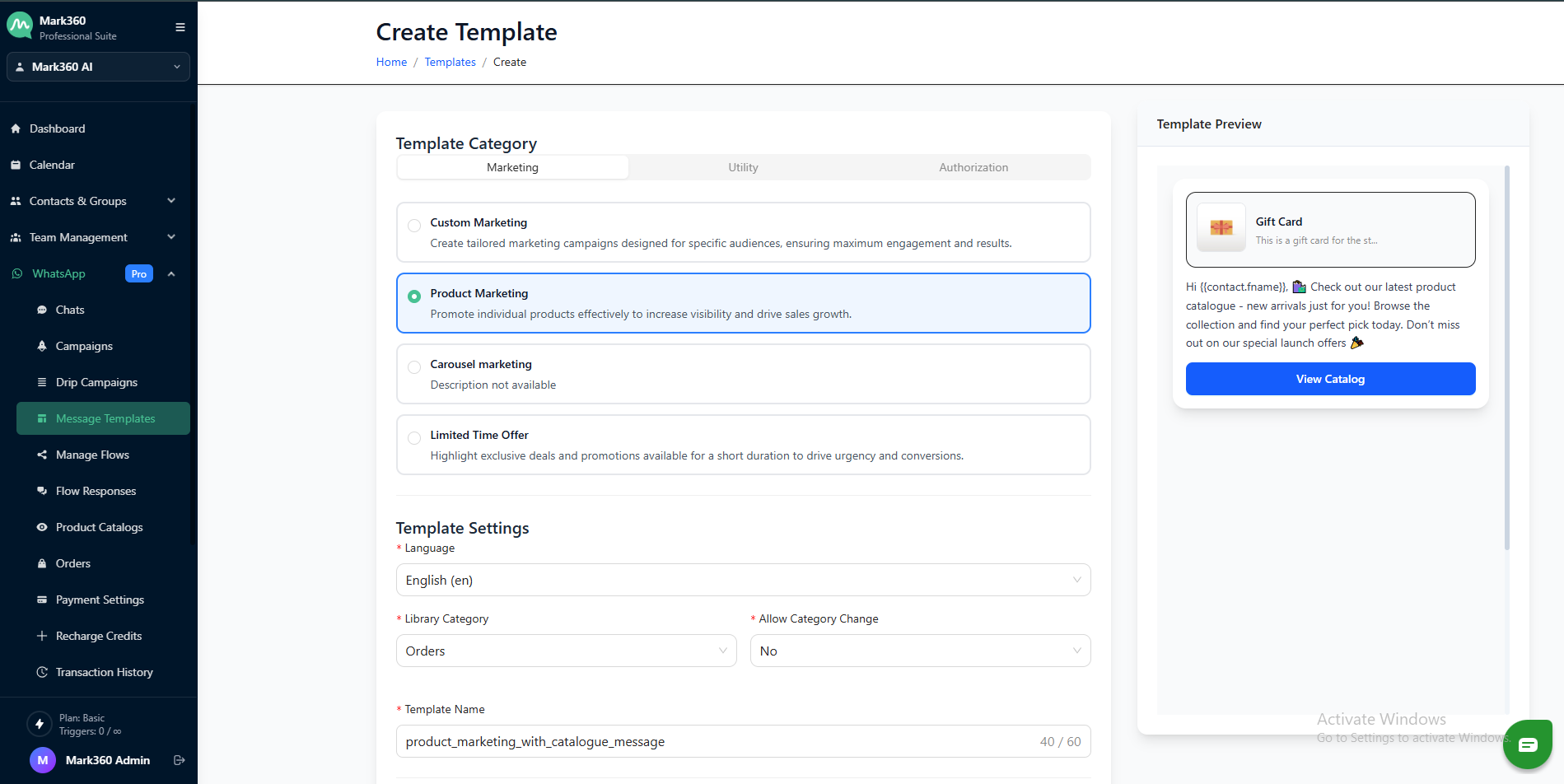
Fill in the following:
- Template Name
- Category:
Product Marketing - Mark category change:
No
-
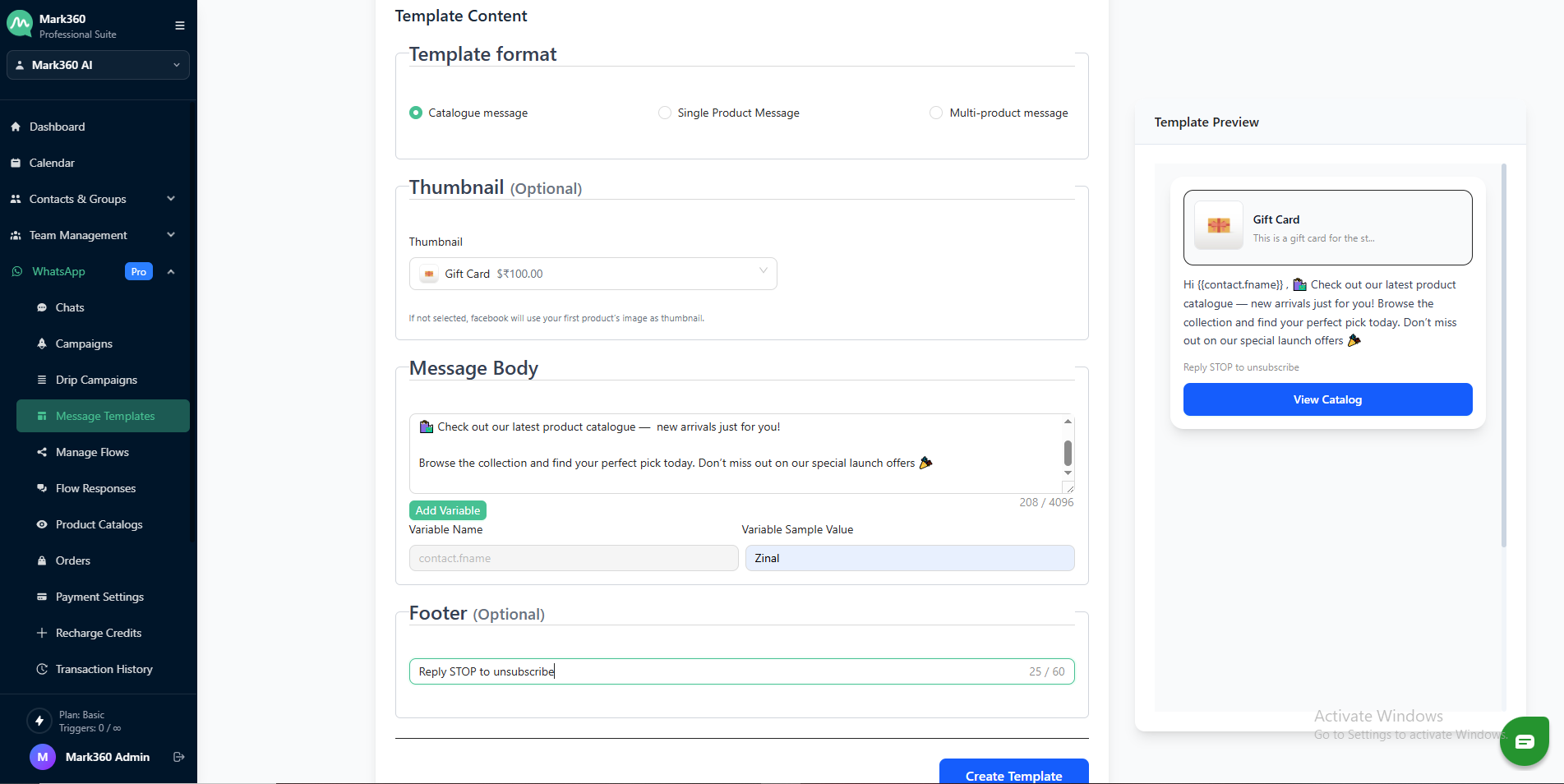
Under Template Format, select:
Catalog Message- Connected catalog
- Select a thumbnail image, or leave it to auto-pick the first product image
-
Compose Message Body
- You can use variables like
{{name}},{{product_name}} - Provide sample values for those variables
- You can use variables like
-
Footer (optional):
- Example: “Reply STOP to unsubscribe” or a brand tagline
-
Buttons: Automatically pre-filled with appropriate CTA
-
Review all content, then Submit for Approval
Once approved, your catalog template is ready for use in conversations and broadcasts.
How to Create a Single Product Message Template in Mark360.ai
-
Navigate to:
WhatsApp → Message Templates -
Click:
+ Create Template- On the top-right corner, click the ➕Create Template button.
-
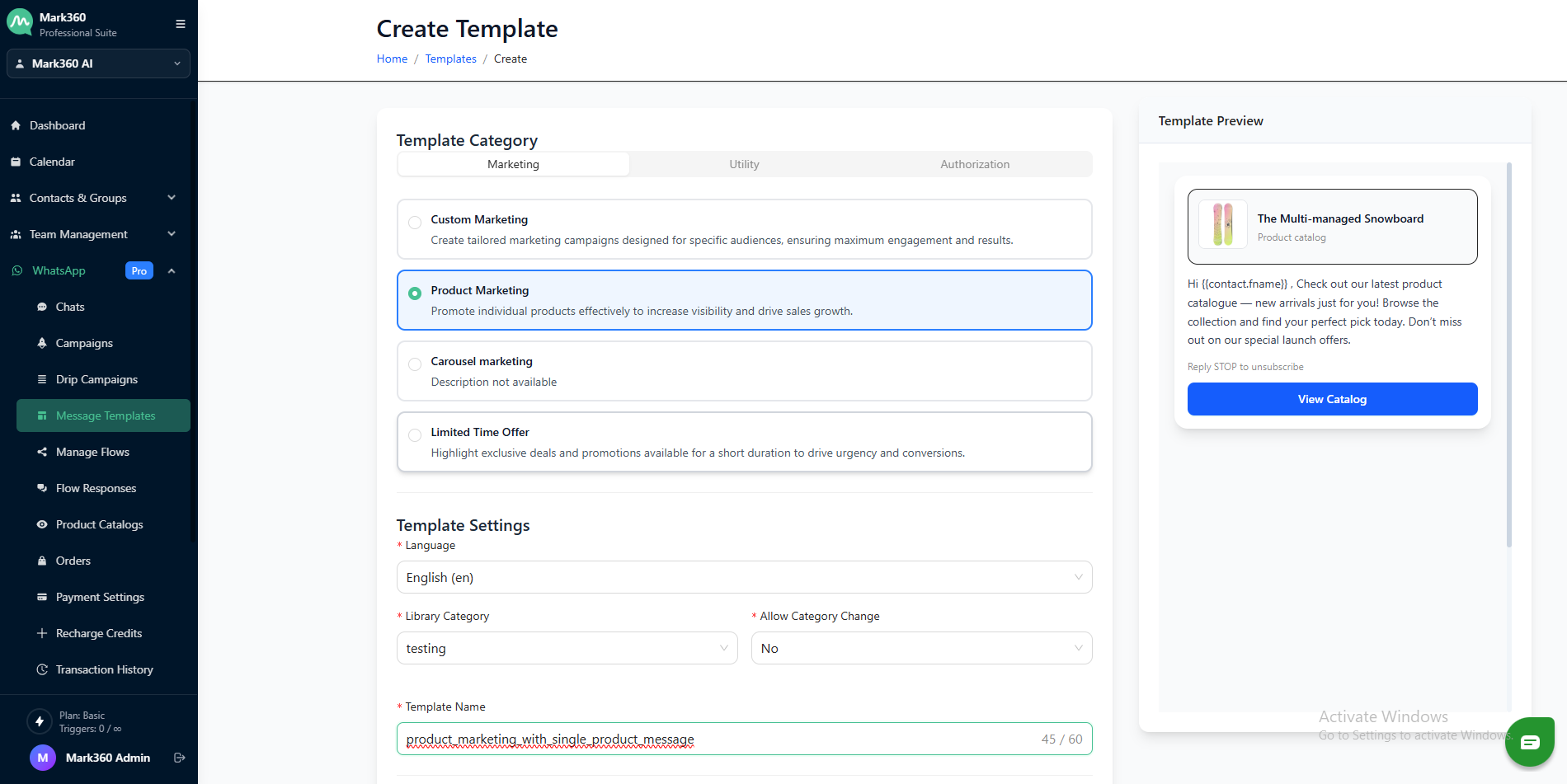
Fill in the following:
- Template Name
- Category:
Product Marketing - Mark category change:
No
-
Under Template Format, select:
Single Product Message- Connected catalog
- Select a Product
-
Compose Message Body
- You can use variables like
{{name}},{{product_name}} - Provide sample values for those variables
- You can use variables like
-
Footer (optional):
- Example: “Reply STOP to unsubscribe” or a brand tagline
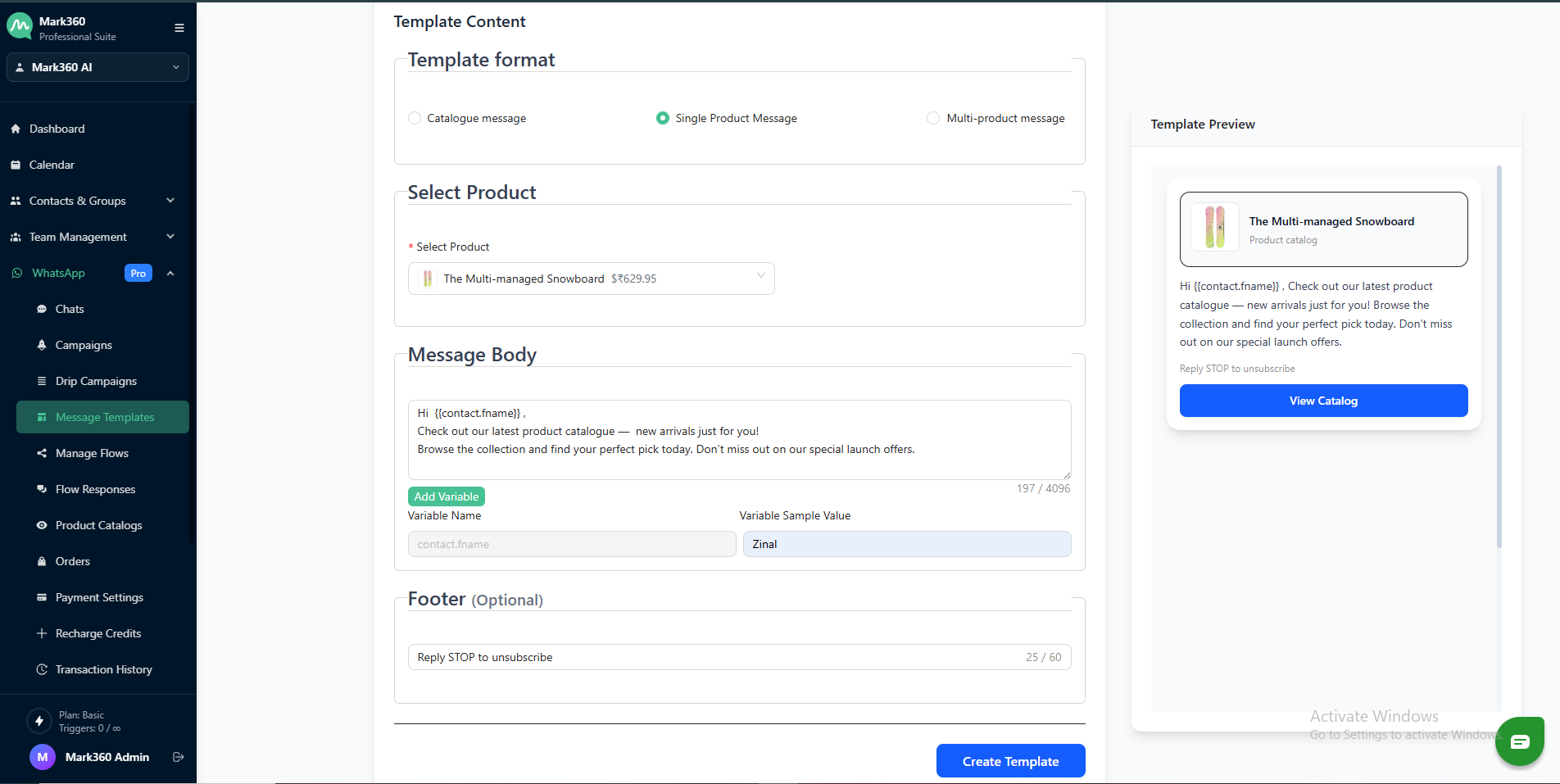
-
Buttons: Automatically pre-filled with appropriate CTA
-
Review all content, then Submit for Approval
Once approved, your catalog template is ready for use in conversations and broadcasts.
Multi-Product Message (MPM) Templates — WhatsApp as Your Mini Store
MPM Templates allow you to showcase up to 30 products in one WhatsApp message, grouped neatly in sections, offering a native, cart-based shopping experience.
Customer Experience:
- Browse multiple products
- View product details
- Add/remove items to cart
- Submit cart to business via WhatsApp
How to Create an Multi-Product Message (MPM) Template in Mark360.ai
-
Navigate to:
WhatsApp → Message Templates -
Click:
+ Create Template- On the top-right corner, click the ➕Create Template button.
-
Fill in the following:
- Template Name
- Category:
Product Marketing - Mark category change:
No
-
Under Template Format, select:
Multi-Product Message- The system will show connected catalog & number of products
-
Product Selection & Sections:
-
Create up to 10 sections
-
Each section can display up to 30 products
-
The first product in Section 1 becomes the thumbnail image
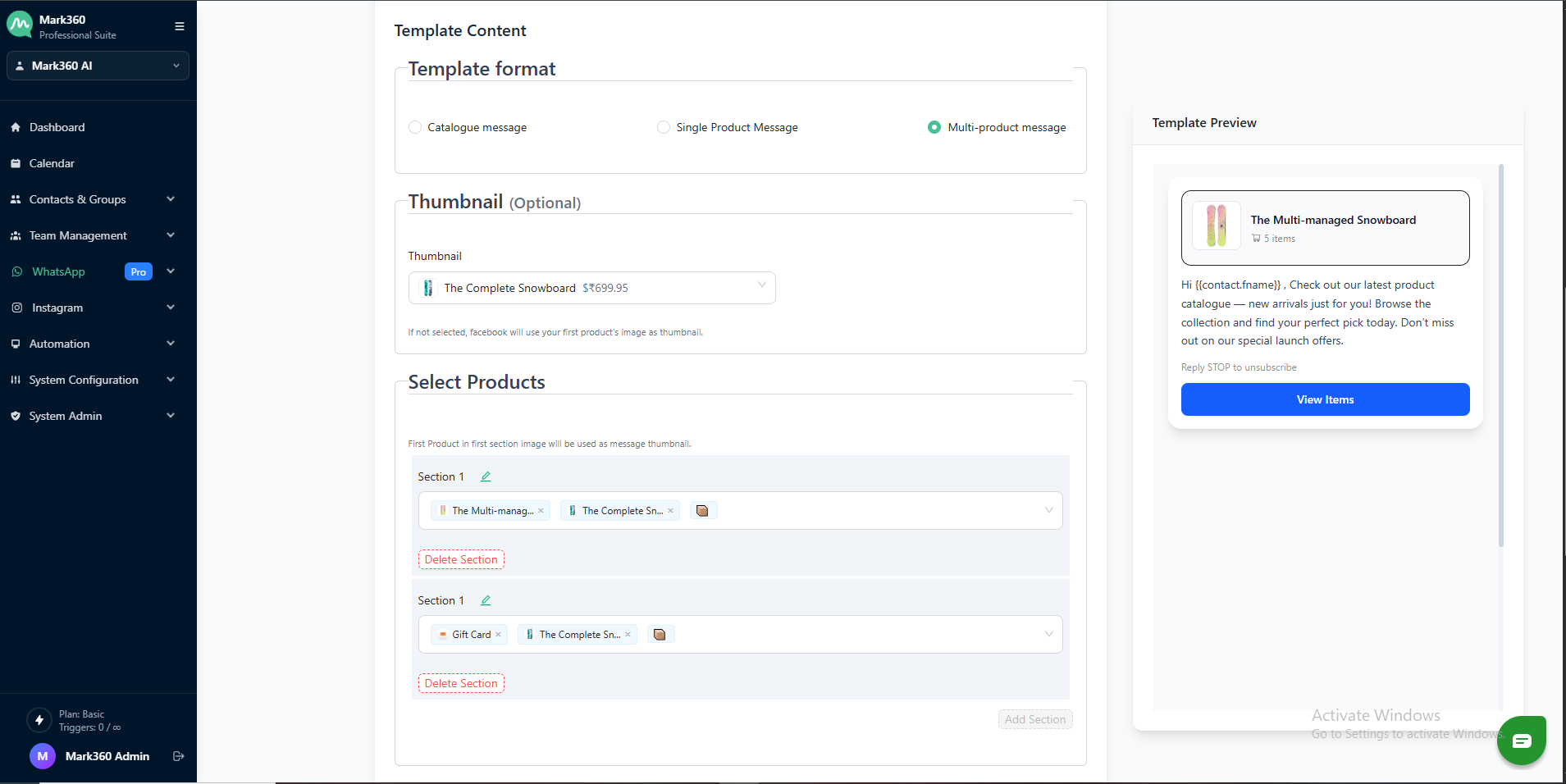
-
-
Header (optional): Add a catchy title like “New Arrivals” or “Flash Sale!”
-
Message Body:
- Add custom message
- Include personalization variables like
{{customer_name}} - Provide sample values for Meta approval
-
Footer (optional):
-
Add an unsubscribe option or brand tagline
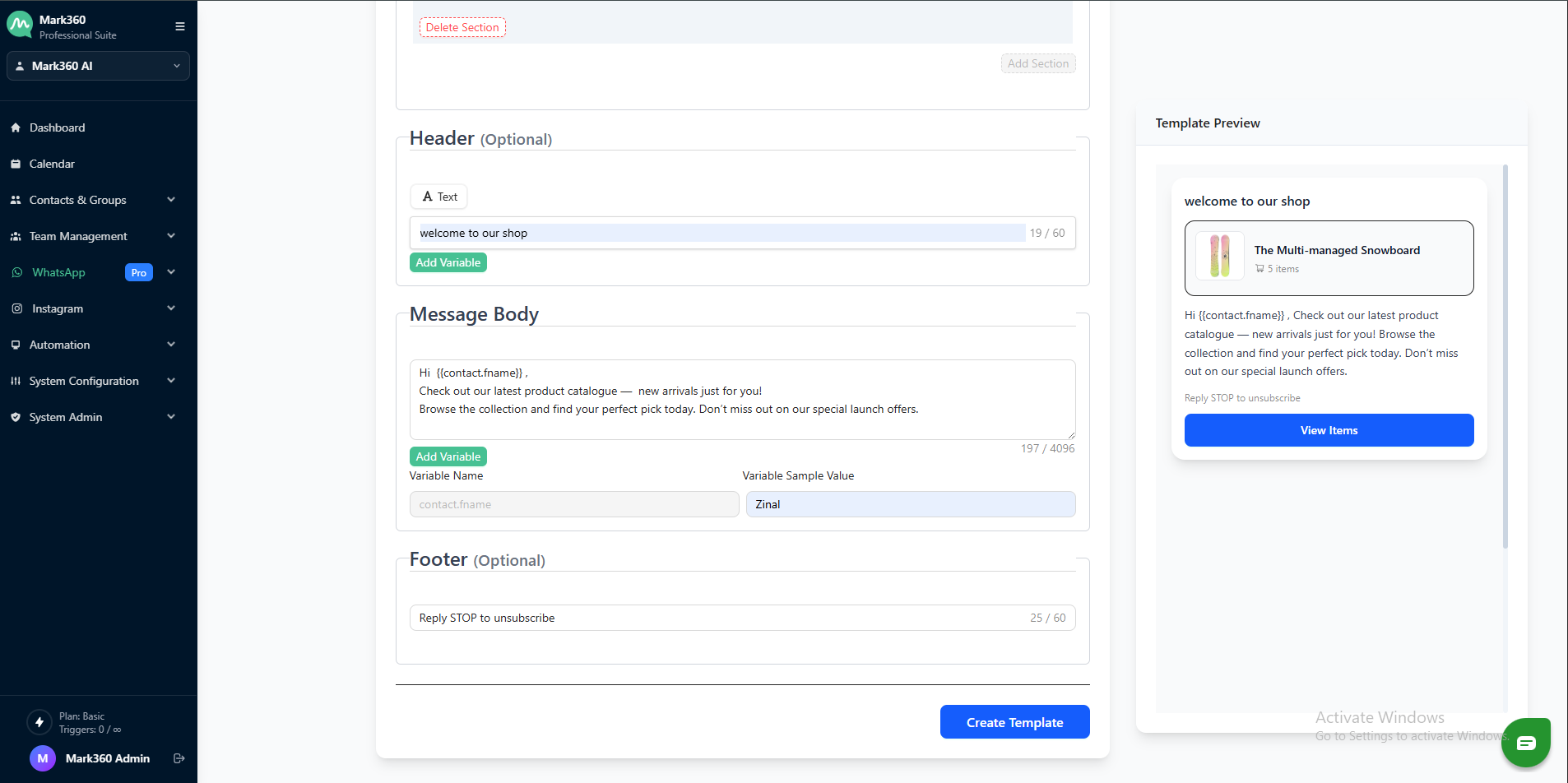
-
-
Buttons: CTA is auto-configured
-
Review & Submit for approval
After approval, wait 15 minutes before using the template.
Comparison Chart
| Feature | Catalog Template | MPM Template |
|---|---|---|
| Product Display | Single item | Up to 30 items |
| Layout | Header + body + CTA | Sections + products |
| Ideal Use Case | Highlight one product | Send collection |
| Customer Action | View or buy | Add to cart & checkout |
| CTA Buttons | Auto-included | Auto-included |
Pro Tips
- Use variables like
{{name}},{{discount}}, or{{brand}}to personalize each message. - Create product groups in Meta Catalog to control what shows in each section.
- Add emotional CTAs like “Grab Now”, “Explore More”, or “Shop Before It’s Gone!”
By using Mark360.ai’s Catalog and MPM Templates, you’re not just sending promotional messages — you’re transforming WhatsApp into a personalized shopping destination for your customers.