Add Team
What is a Team in Mark360.ai?
Teams in Mark360.ai help you organize your internal users based on roles, functions, or departments — such as Sales, Support, Marketing, or Regional Teams. This enables better conversation assignment, user management, and access control across your workspace.
How to Add a New Team?
Creating a team in Mark360.ai is super quick and requires just one thing — the Team Name.
Step-by-Step Guide:
-
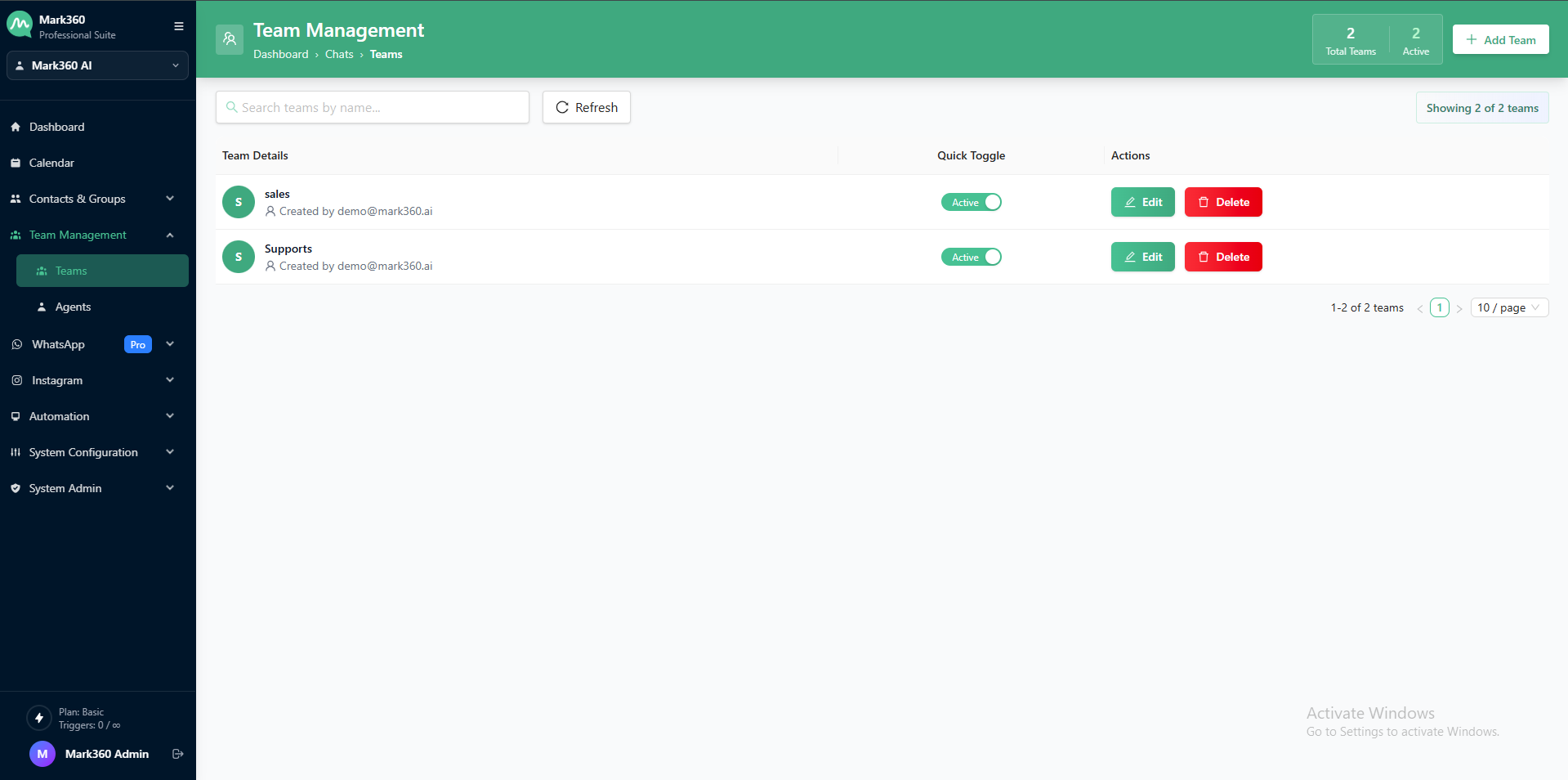
Navigate to the "Team Management" section from the left navigation in your Mark360.ai dashboard.
-
Click on the "Teams" tab.
-
Click the "Add Team" button — a simple popup will appear.
-
Enter your Team Name (e.g.,
Sales Team,Delhi Support,Marketing India).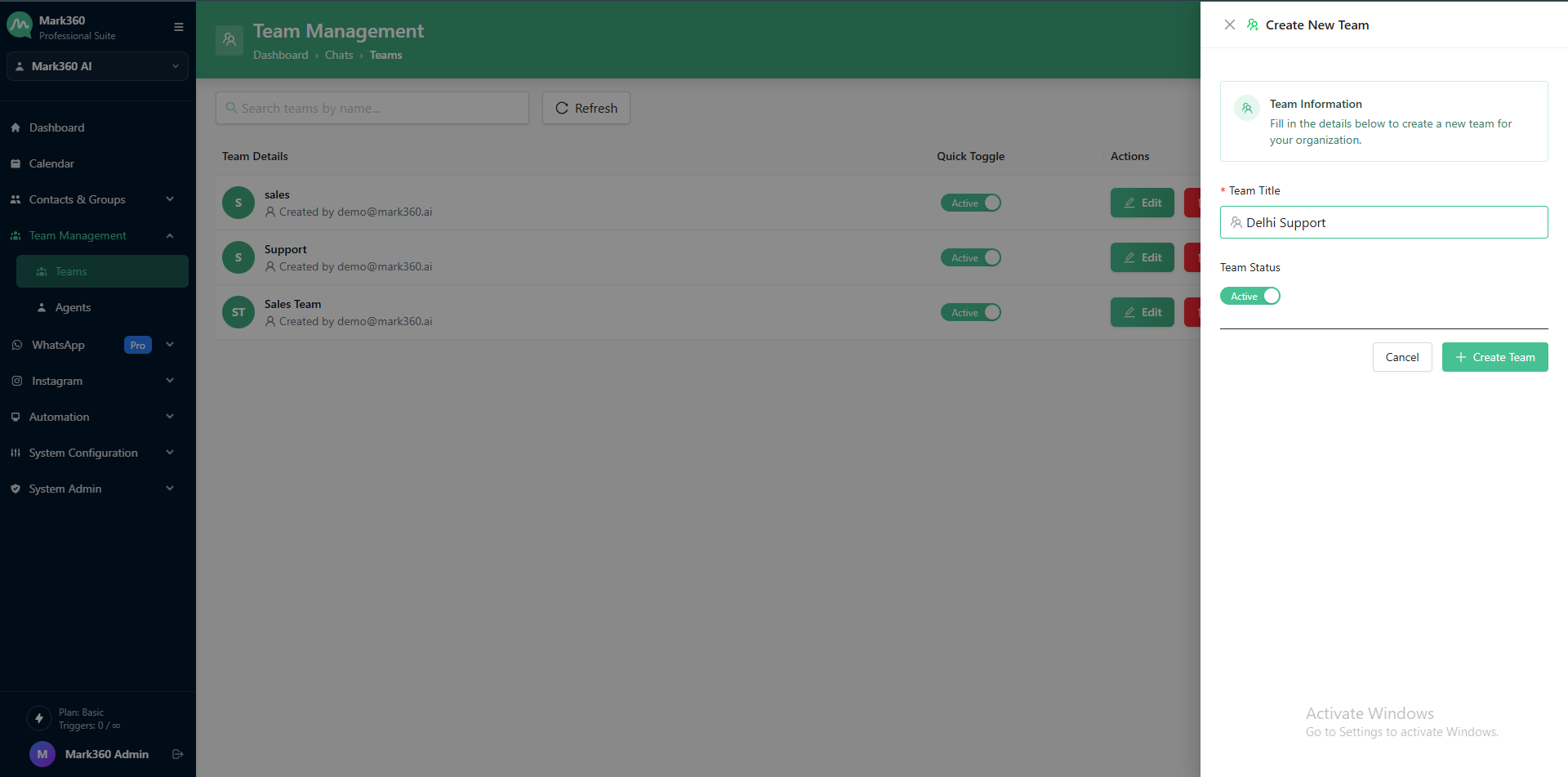
-
Click "Create Team", and you're done!
Edit & Delete Teams
✏️ Edit a teams
-
Navigate to the Team Management section from your Mark360.ai dashboard.
-
In the Team List, locate the Team you want to edit.
-
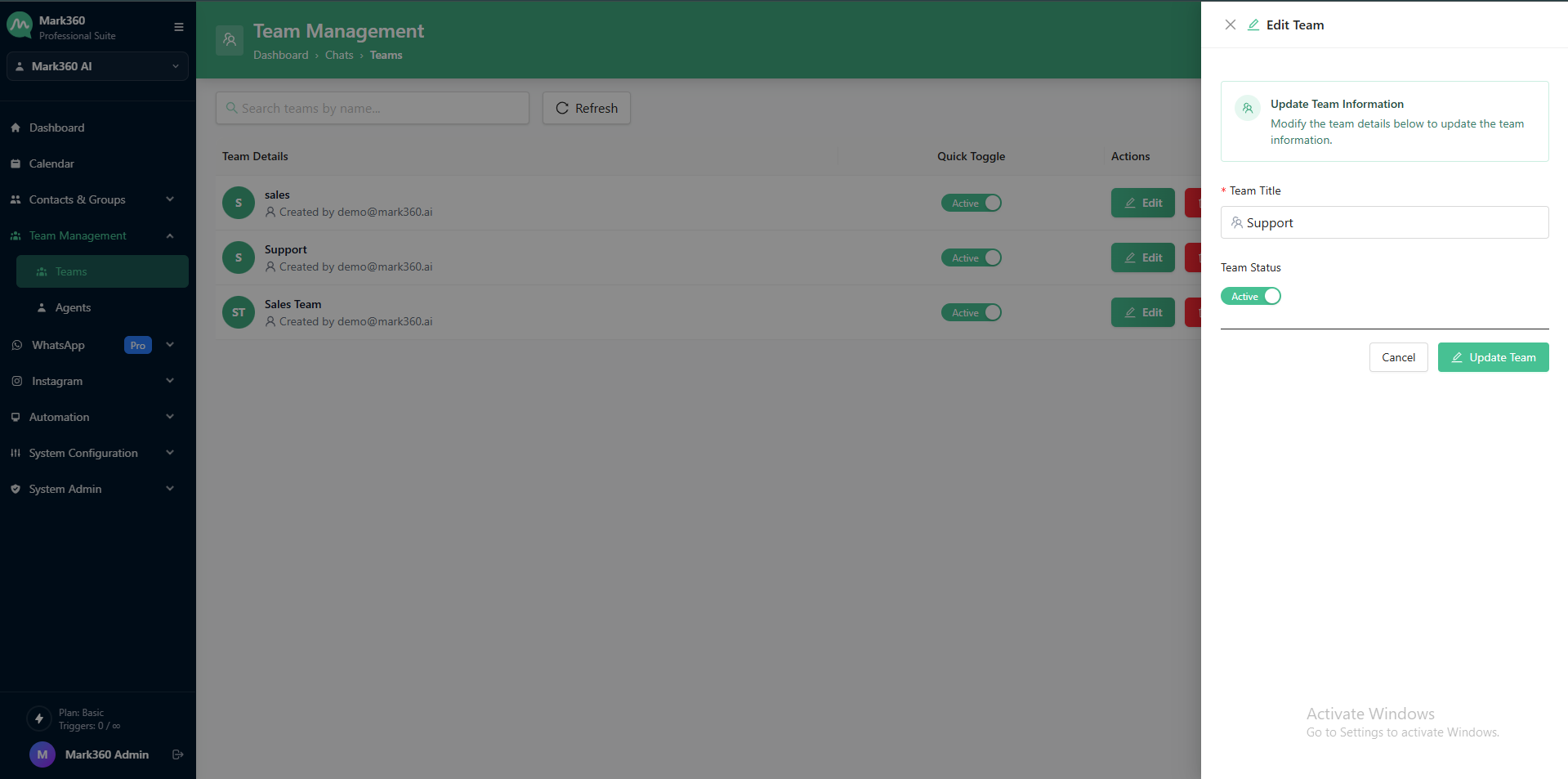
On the right side under Actions, click the ✏️ Edit icon.
-
After entering the required information, click Update Team to successfully update the teams.
- The updated details will instantly reflect in your teams list.
🗑️ Delete a Teams
-
Navigate to the Team Management section from your Mark360.ai dashboard.
-
In the Team List, locate the team you want to Delete.
-
On the right side under Actions, click the 🗑️ Delete icon.
-
A confirmation popup will appear:
- Click Yes, Delete to confirm.
- Or No if you don’t want to proceed.
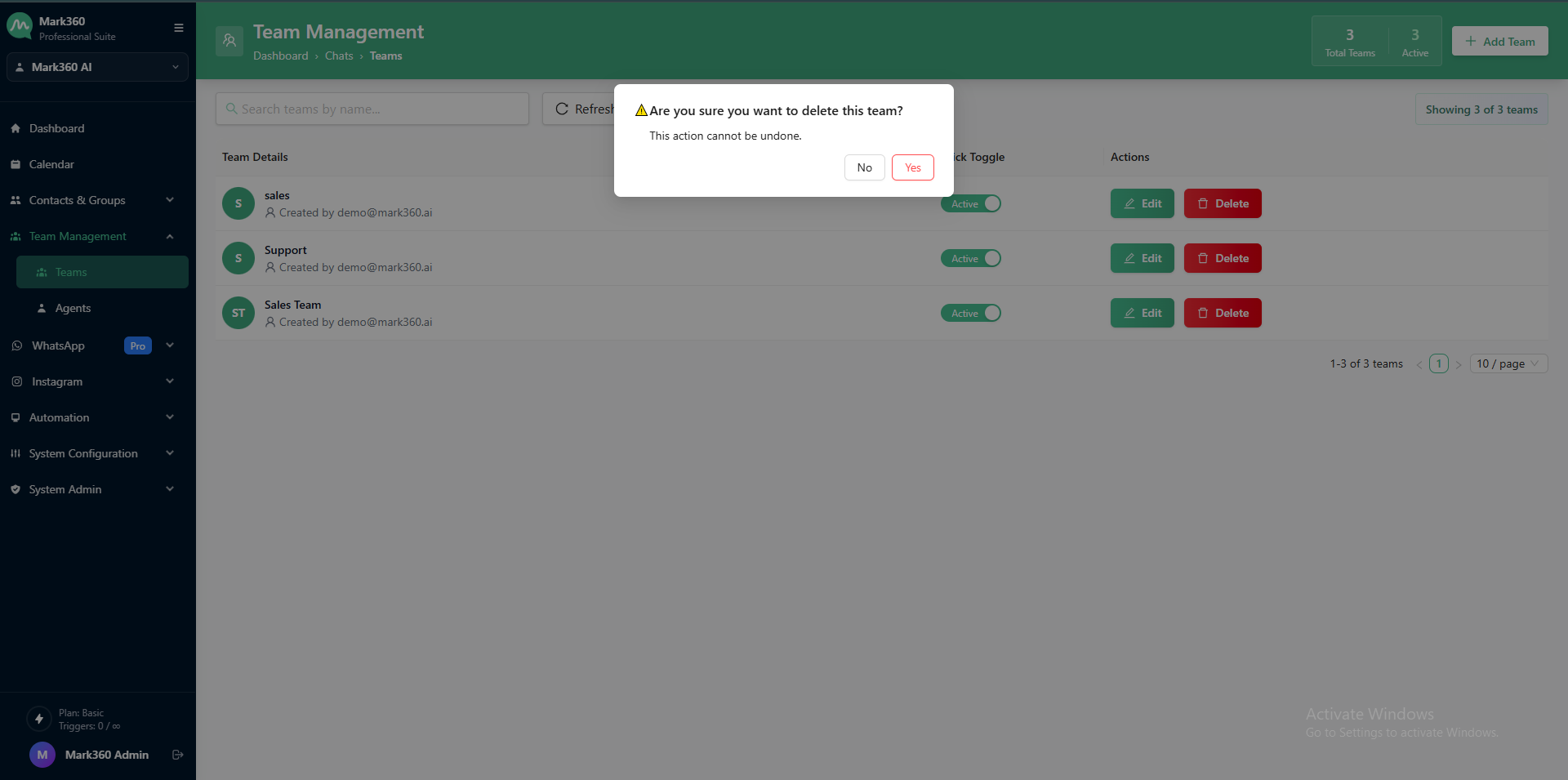
Deleted Teams cannot be recovered. Make sure before deleting.
That’s It!
Your new team is now created and ready to:
- Assign team members
- Route conversations using round-robin or specific assignment
- Set permission rules for data access
- Map bots or automation flows to teams
Tip: Create teams based on location, function, or language support to keep your customer communication streamlined and your team accountable.
Need help assigning users to your team or mapping them to a channel? Check out the User Management section or reach out to Mark360.ai support.