Send WhatsApp Form in a Bot – mark360.ai
Simplify user data collection and improve engagement using mark360.ai’s Bot-powered Form Cards. Choose from interactive form types like Collect Form Card and Send Form Card based on your business goals.
Overview
mark360.ai Bots allow seamless integration of WhatsApp Forms using two powerful card types:
- Collect Form Card – For collecting user input via interactive forms.
- Send Form Card – For sending forms without requiring user input.
These options enable you to tailor each interaction based on the context—whether you're gathering lead information or simply sharing structured data.
Collect Form Card
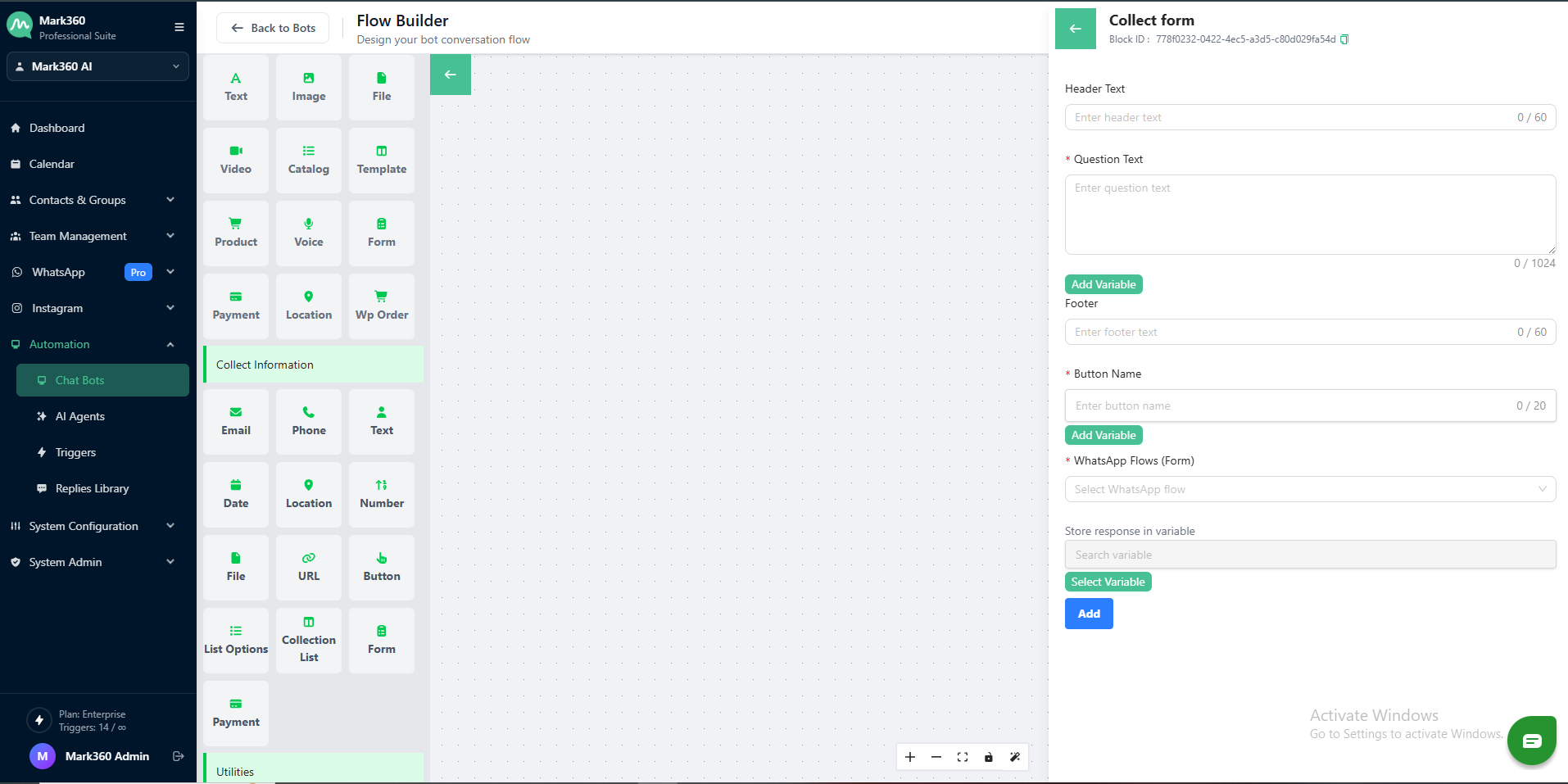
The Collect Form Card is designed to actively collect data from users during a bot conversation. It allows you to:
-
Collect structured inputs through WhatsApp Flows (Forms)
-
Customize forms with various input fields like text, radio buttons, dropdowns, date pickers, etc.
-
Guide users through one or more steps for seamless data collection
Use Case Examples:
- Lead capture forms
- Feedback and survey forms
- Appointment booking
Once submitted, responses are stored and can be viewed under the Responses tab in mark360.ai.
Send Form Card
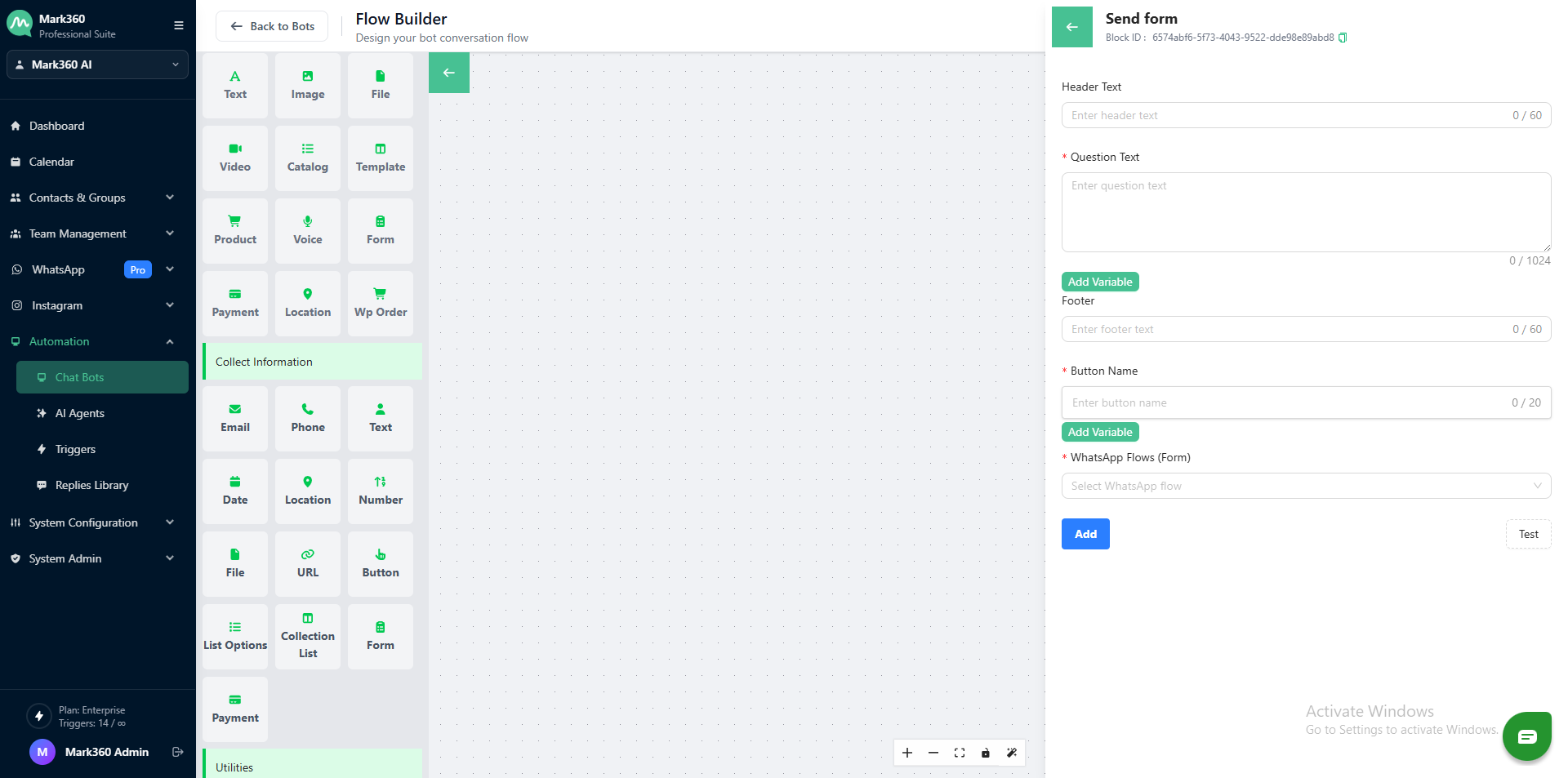
The Send Form Card enables you to share a WhatsApp Form with users without requiring immediate input. It’s ideal for cases where you simply want to:
-
Provide access to a form for later completion
-
Send product inquiries, registrations, or onboarding flows
-
Distribute pre-filled forms or documents for reference
Use Case Examples:
- Sharing onboarding forms
- Product inquiry forms
- Scheduled tCollect workflows
How to Use in Bot Builder
-
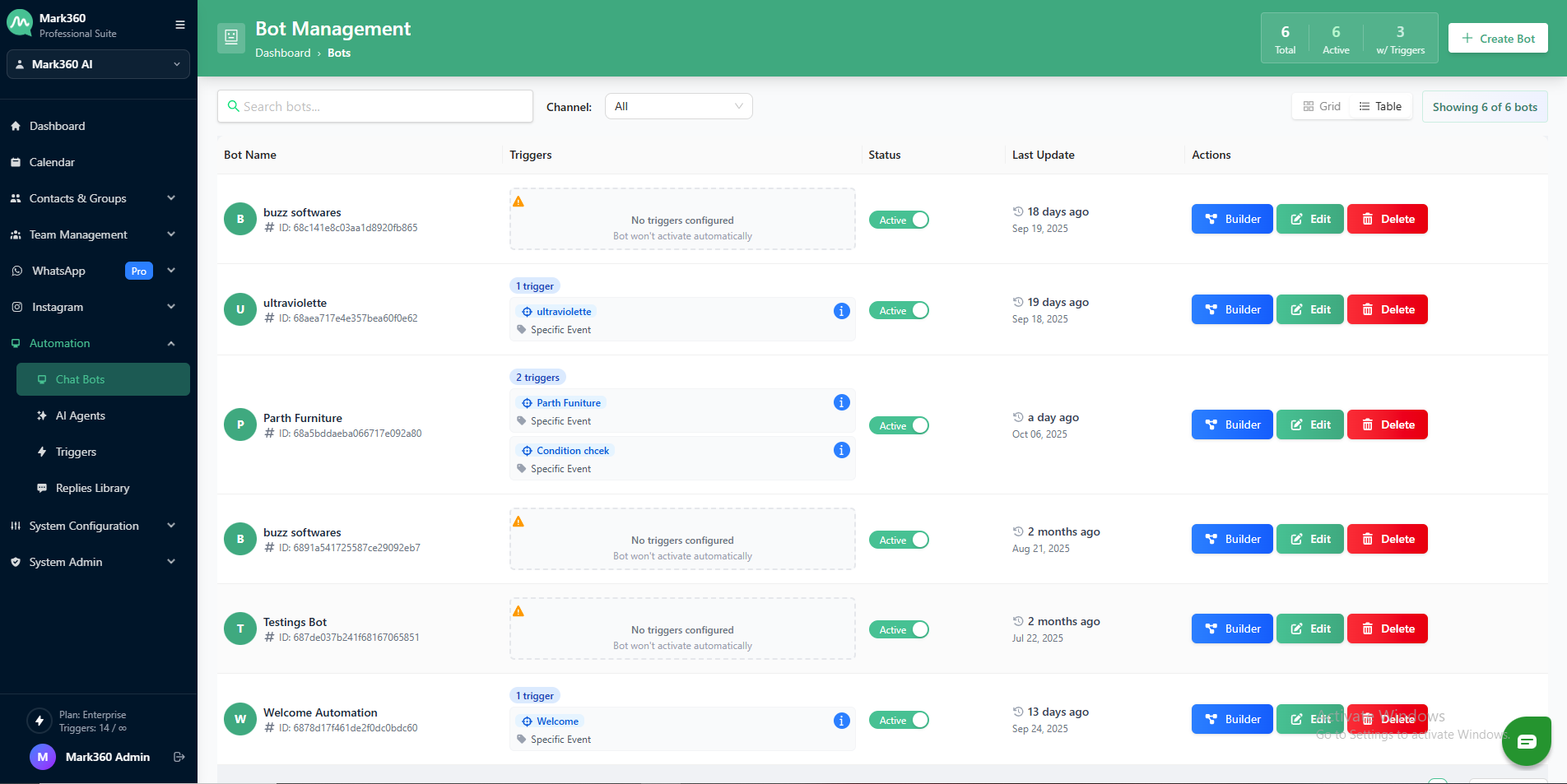
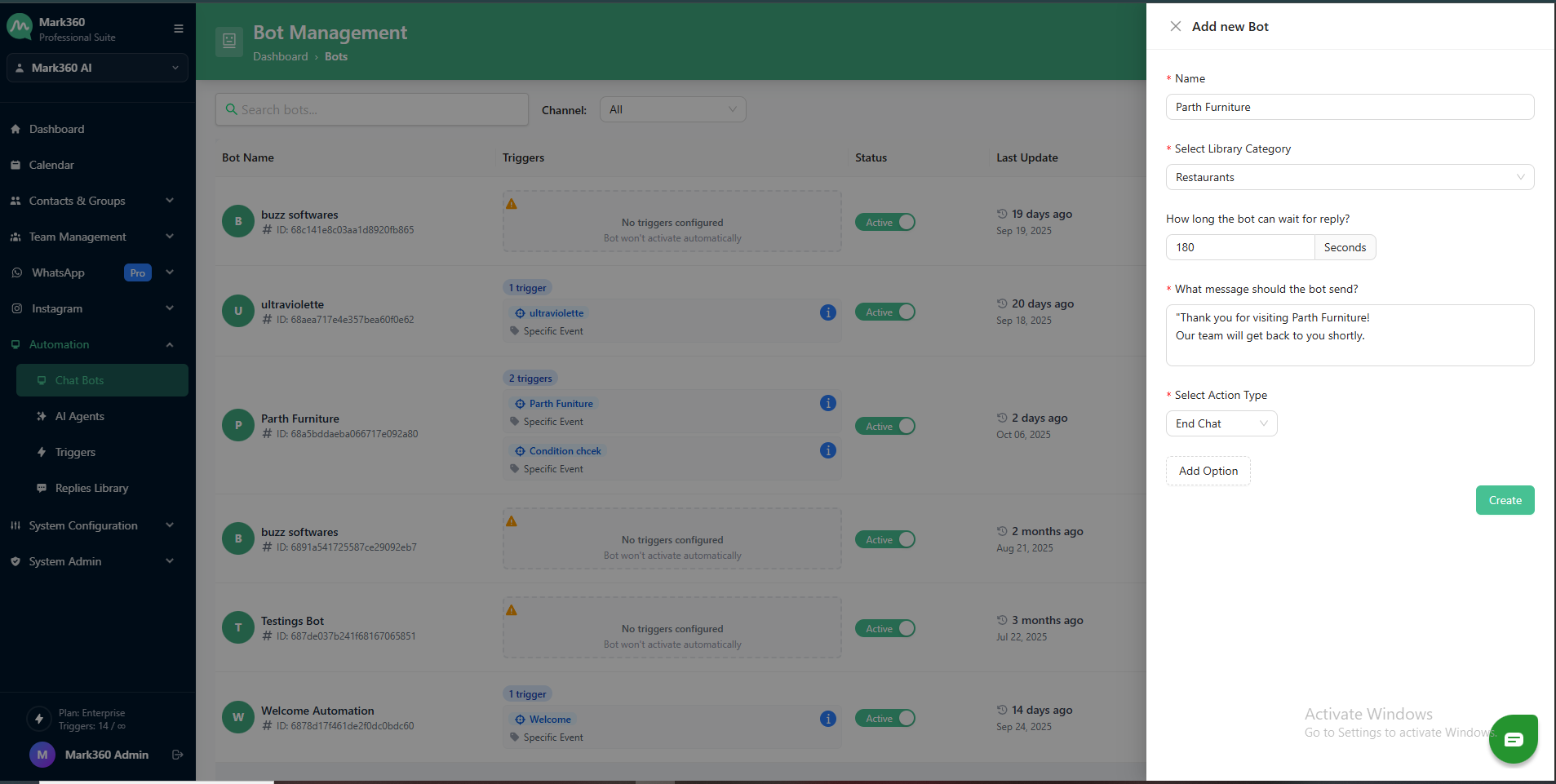
Navigate to Automation -> Chat bots in the left menu of mark360.ai.
-
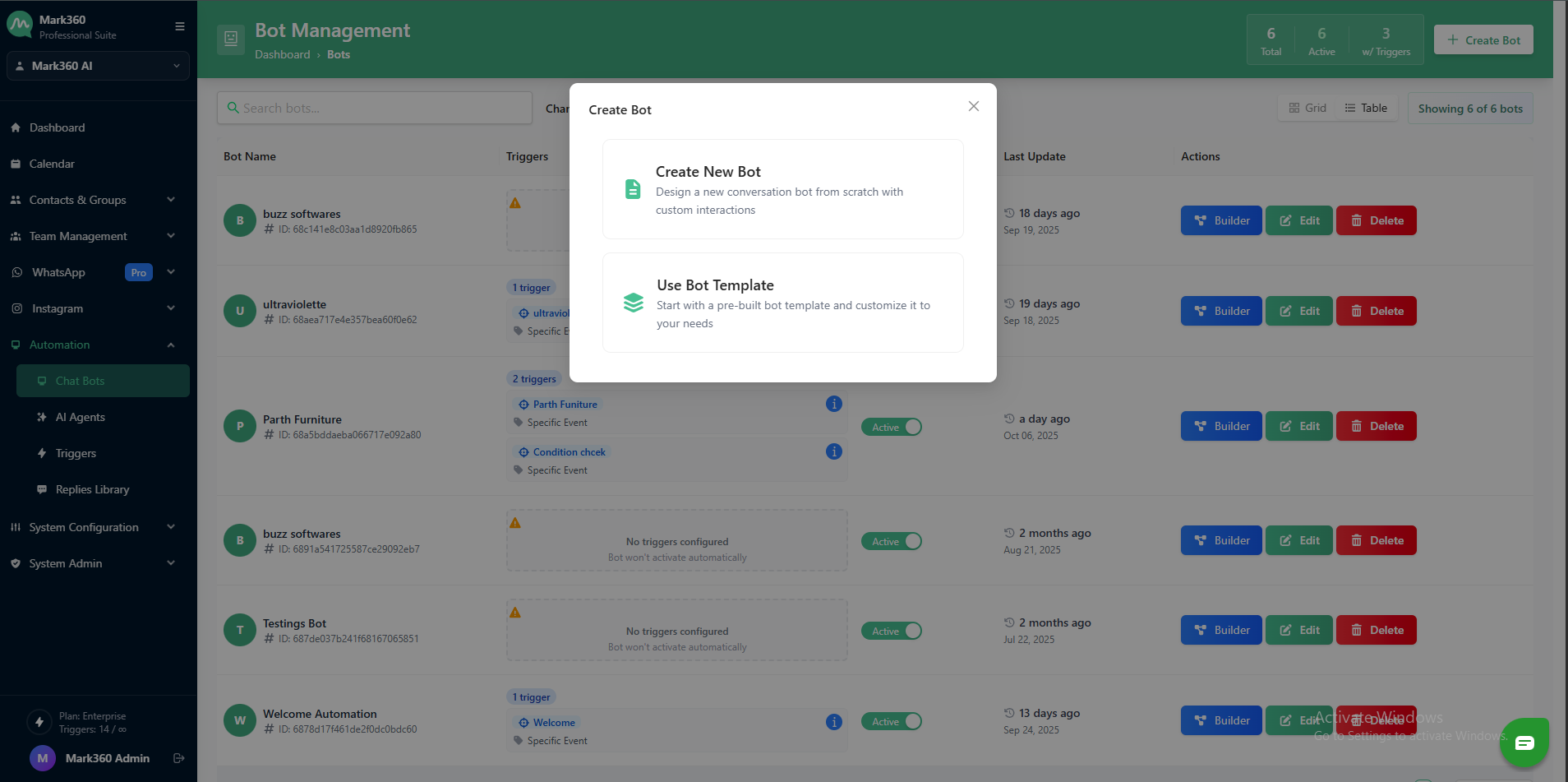
Click:
+ Create Bot- On the Create Bot Page, click the Create New Bot button.
-
Fill in the following details in the Add new Bot form on the right panel:
- Name: Enter the bot name (e.g.,
Parth Furniture). - Select Library Category: Choose a relevant category from the dropdown (e.g.,
Restaurants). - How long the bot can wait for reply: Specify the wait time in seconds (e.g.,
180). - What message should the bot send?: Enter the message text to be sent to users.
Example:Thank you for visiting Parth Furniture!
Our team will get back to you shortly. - Select Action Type: Choose the appropriate action (e.g.,
End Chat).
- Name: Enter the bot name (e.g.,
-
Once all details are filled, click on the Create button to save the bot.
-
After the bot is created, go to the Action column and click on the Builder button to configure the bot’s workflow and responses.
-
Add a new Card and select either:
-
Collect Form Card – to request user input.
-
Send Form Card – to share a form passively.
-
-
Select the desired WhatsApp Flow (form) from the dropdown.
-
Customize messages and conditions as needed.
-
Save and publish your bot.
With mark360.ai Bots + WhatsApp Forms, you can automate data collection and offer a seamless experience to your users—without any coding.
Need help building your first WhatsApp Bot? Contact Support or Watch the Tutorial.