Comments Management
The Comments Management section allows you to manage and monitor all your connected Instagram post comments in one place. From this dashboard, you can view post details, analyze engagement, and re-engage with commenters directly using automated triggers.
Overview
Under Instagram → Comments, you can access all posts from your connected Instagram account.
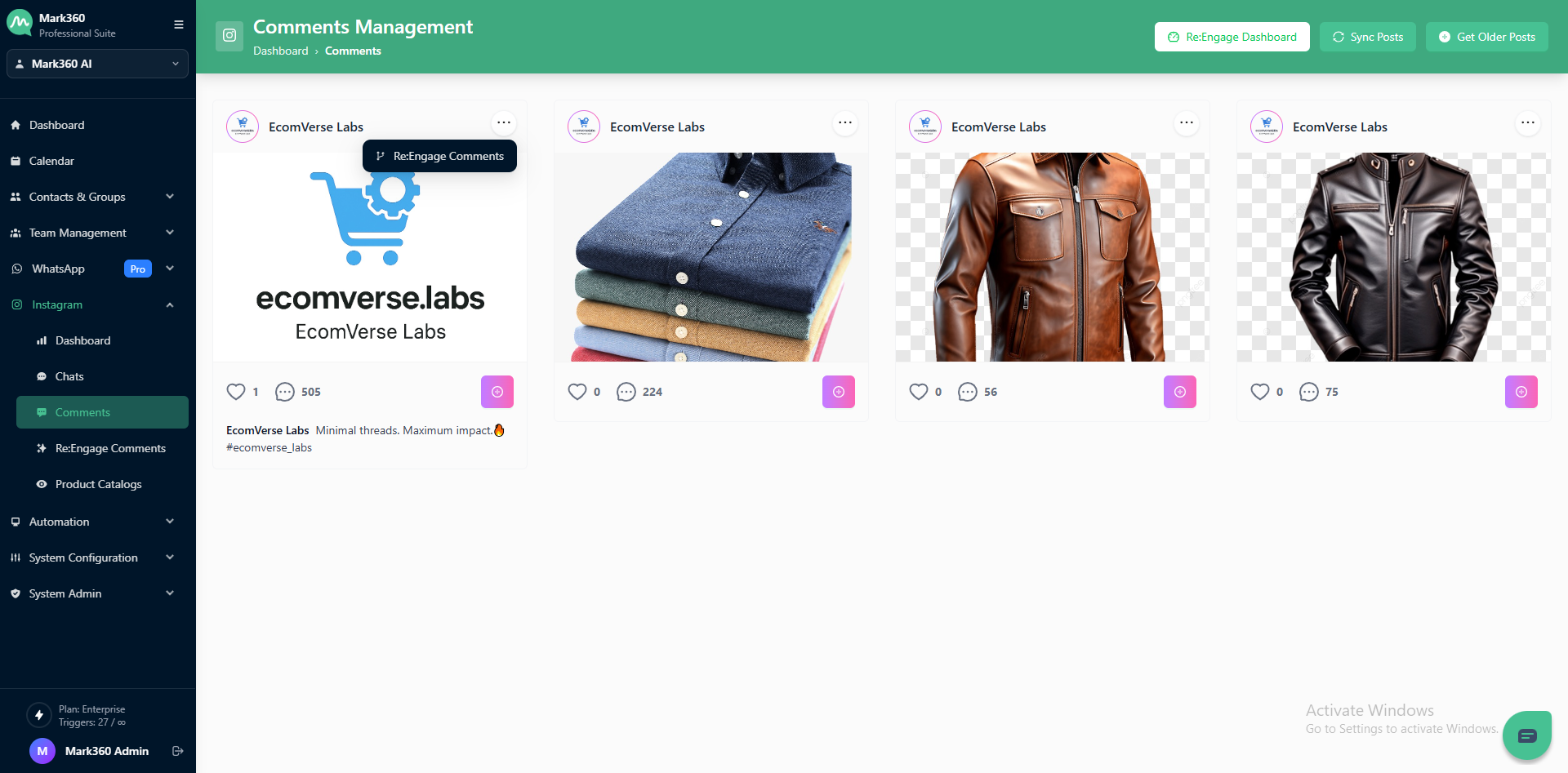
Each post card displays:
| Element | Description |
|---|---|
| Post Preview | Displays the Instagram post image. |
| Account Name | The Instagram account associated with the post. |
| Likes, Comments & Views Count | Shows total likes, comments, and view metrics for that post. |
| Post Caption | Displays the original caption along with hashtags. |
| Re:Engage Comments Icon | Allows you to set up triggers for comment-based engagement. |
Available Actions
| Action | Description |
|---|---|
| Re:Engage Comments | Click to create or manage automated response triggers for the post’s comments. |
| Re:Engage Dashboard | View all re-engagement triggers and their analytics. |
| Sync Posts | Syncs the latest posts from the connected Instagram account. |
| Get Older Posts | Fetch older posts to review or set up triggers for them. |
Tip: Use this dashboard to stay connected with your audience by replying or automating responses to comments — helping you maintain engagement effortlessly.
Re:Engage Comment Triggers
The Re:Engage Comment Triggers feature allows you to automatically manage and respond to comments made on your Instagram posts. You can configure triggers to engage with users who have commented on specific posts within a chosen time frame.
Accessing Comment Triggers
-
Navigate to Instagram → Comments in the sidebar.
-
Click on Three Dots the desired post where you want to Re:Engage.
-
Click on the Re:Engage Comment Triggers option to open the configuration window.
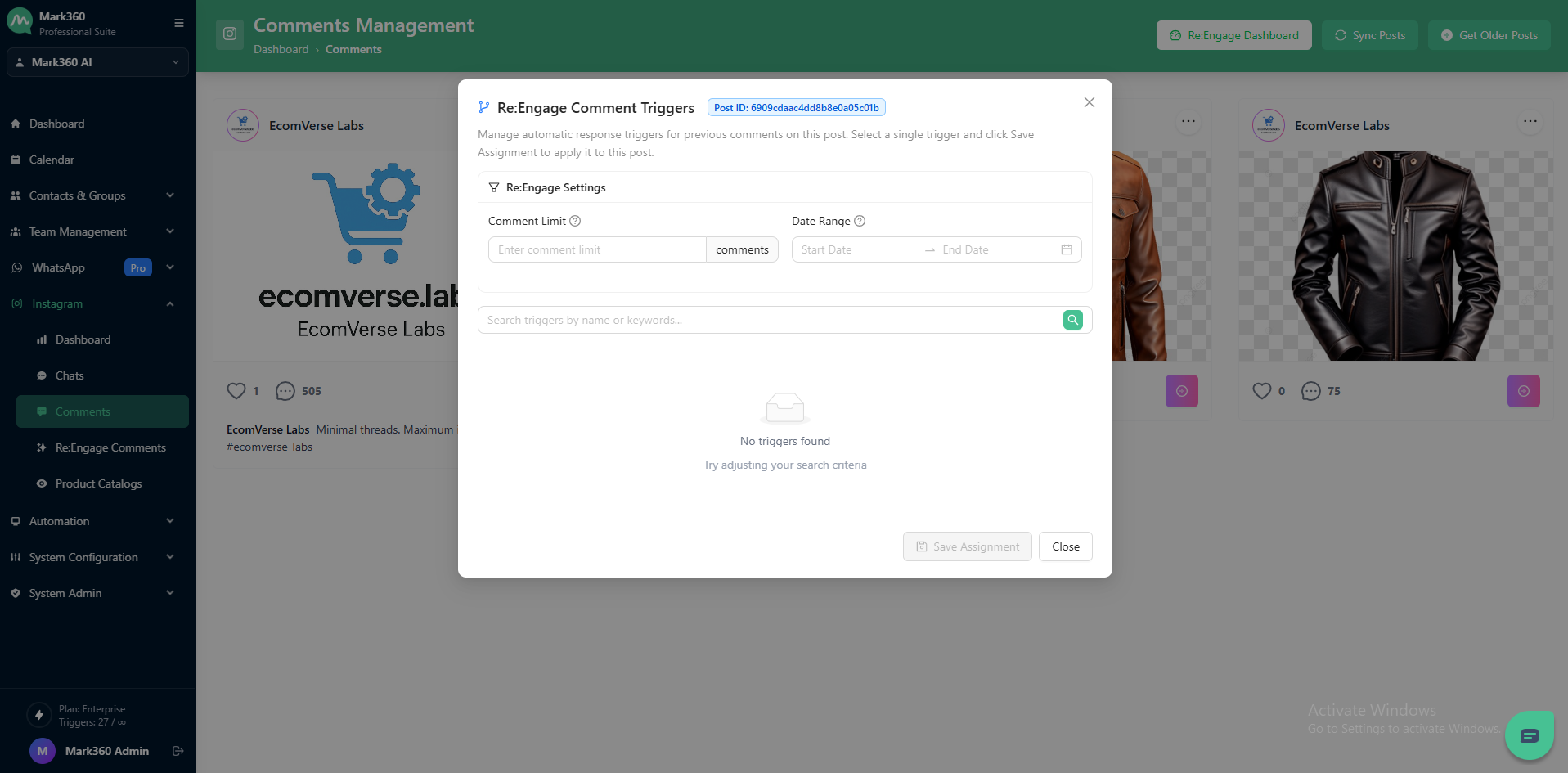
Re:Engage Settings
In this window, you can manage automatic response triggers for existing comments on a post.
| Field | Description |
|---|---|
| Post ID | Displays the unique ID of the selected post. |
| Comment Limit | Set the maximum number of comments to engage with. |
| Date Range | Define the time period for which you want to fetch comments (Start and End date). |
| Search Triggers | Search for existing triggers by name or keyword. |
Trigger Management
- Once the filters are applied, available triggers will be displayed in the list.
- You can select a trigger to assign it to the post.
- If no triggers are found, the system will display “No triggers found. Try adjusting your search criteria.”
Actions
| Action | Description |
|---|---|
| Save Assignment | Apply the selected trigger to the post to start automated responses. |
| Close | Exit the configuration window without making changes. |
Tip: Use this feature to re-engage users who have previously commented on your posts — helping increase interaction and automate responses efficiently.