Bot Essentials
The Bot Builder in Mark360 is your central workspace for designing and personalizing chatbots with ease.
It enables you to create intelligent and interactive chat experiences tailored to your business needs — all without complex coding.
With the Mark360 bot Interface, you can:
- Create and customize your chatbot’s conversation flow using an intuitive drag-and-drop layout.
- Preview your bot directly on WhatsApp to ensure it performs as expected.
- Publish confidently, knowing your chatbot is ready to engage users in real time.
The Bot Builder gives you full control over your chatbot’s personality, logic, and customer journey — helping you turn everyday chats into meaningful, engaging interactions.
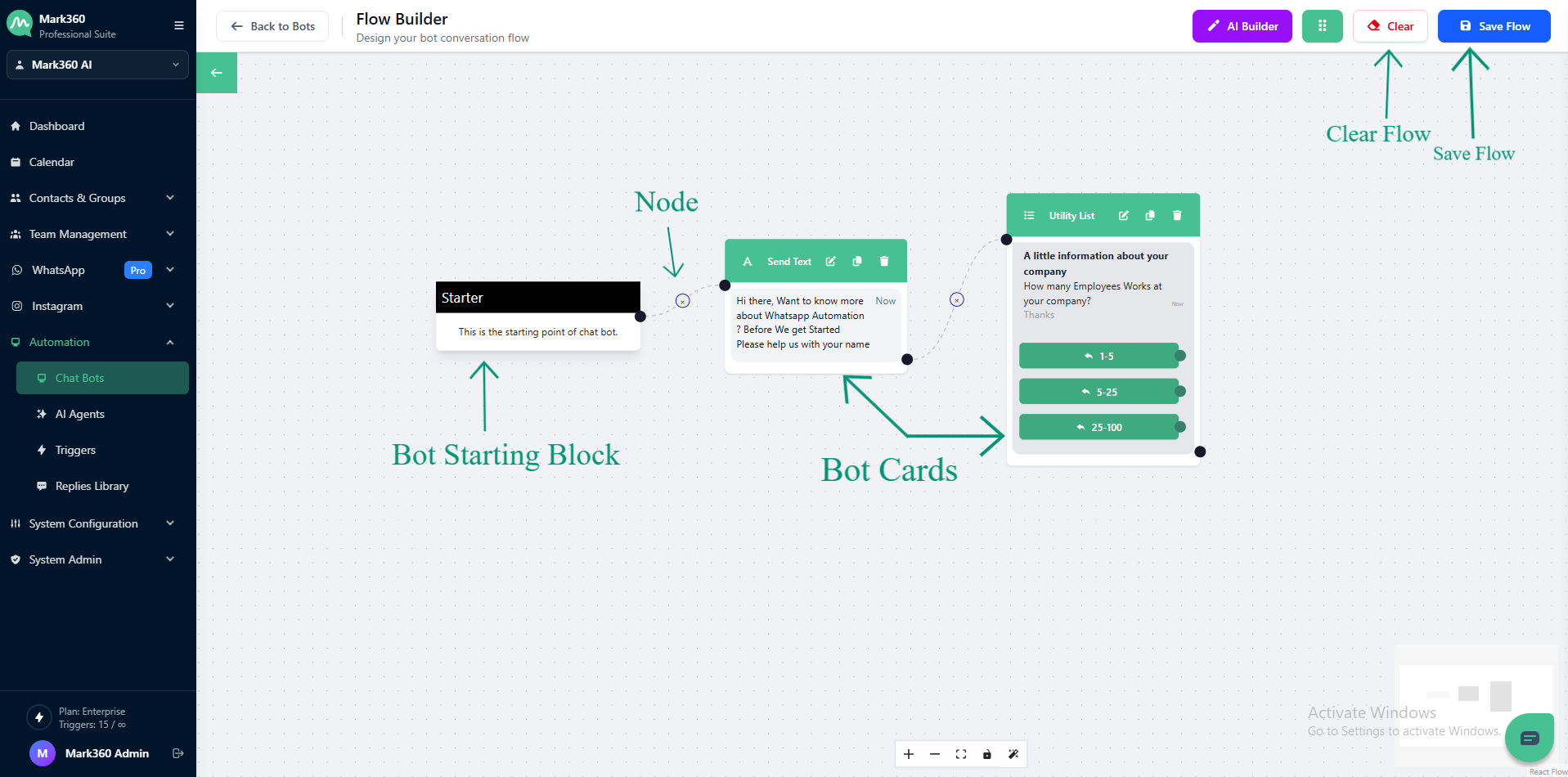
Auto grid alignment
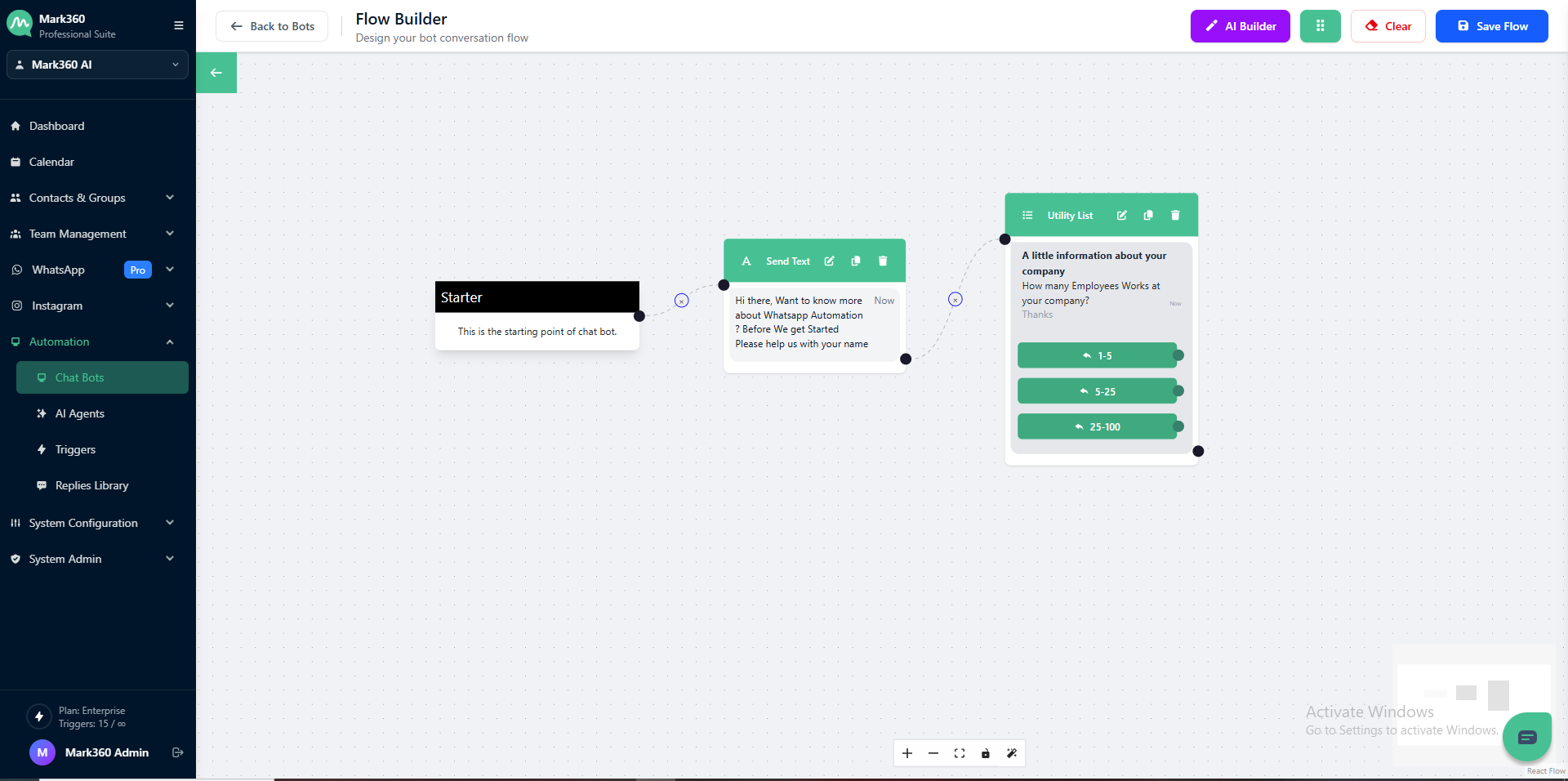
Provides essential tools to help you navigate, organize, and present your bot flow efficiently. Here’s what each option does:
➕ Zoom In
Focus on specific sections of your bot flow by zooming in.
Ideal when you need a closer look at detailed connections or card configurations.
➖ Zoom Out
Zoom out to get a wider perspective of your entire canvas.
Perfect for reviewing the complete chatbot structure or multiple connected flows at once.
🖥️ Fit to Screen
Quickly adjust the view so the entire bot flow fits neatly within your screen.
This helps you see everything at once without manually adjusting zoom levels.
🔒 Lock (View-Only Mode)
Activate the lock to prevent accidental movement or edits on the canvas.
Useful when you’re presenting or reviewing the flow and want to keep everything fixed in place.
🎨 Beautify Flow
Automatically organize and align your cards to create a clean, structured layout.
This feature enhances readability and ensures your bot flow looks professional and easy to follow.
Bot Flow Card Drawer
The Bot Flow Card Drawer is your main toolkit for building chatbot conversations.
It includes all the essential blocks you’ll need to design your bot’s logic and responses.
You can easily toggle the Side Panel on or off by clicking the arrow icon — giving you more workspace or quick access to your blocks whenever you need them.
Categories in the Side Panel
The drawer is organized into six main categories, each serving a unique purpose:
-
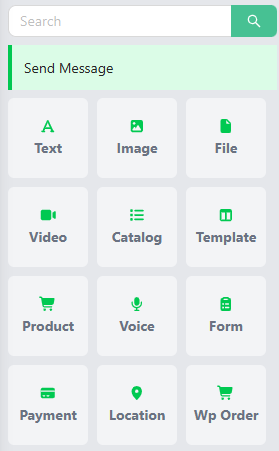
Send Message – Add messages or information that your bot will send to users.
-
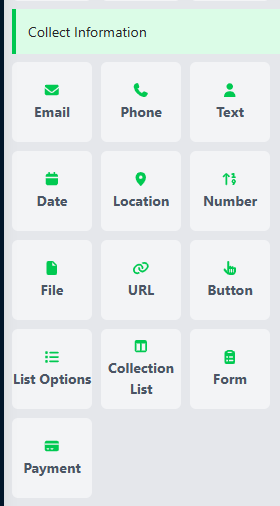
Collect Information – Create input fields to collect user responses and data.
-
Actions – Trigger automated tasks like API calls, CRM updates, or conditions.

-
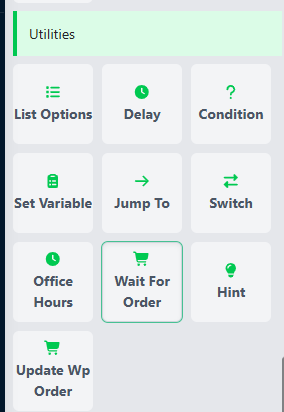
Utilities – Include helper tools that improve flow control and logic management.
-
Connections – Link different cards together to define the conversation path.
-
AI Bot – Enhance conversations with intelligent, context-aware responses powered by AI for a more natural user experience.

What is a Variable?
In Mark360, a variable acts as a smart container that holds information collected during a chat.
Think of it as a storage label that keeps track of your user’s responses, allowing the bot to recall and reuse that data throughout the conversation.
When a user replies to a question, their response is automatically stored in a variable — making your chatbot more personalized and dynamic.
Common Ways to Use Variables
- Save the user’s name to greet them personally in future messages.
- Capture the email address to share confirmations or follow-up updates.
- Record user preferences or interests to recommend the most relevant products or services.
Variables make your Mark360 chatbot smarter by remembering details and using them to create more meaningful, customized interactions.
Variable Formats in Mark360
In Mark360, variables can store different kinds of data depending on what information your bot needs to handle.
Each format serves a specific purpose and helps make your bot smarter and more efficient.
Types of Variable Formats
- String (Text) – Used for storing any kind of text such as words, numbers, links, or emojis.
- Number – Designed specifically for numeric values without any letters or symbols.
- Date – Best for saving date information like appointment schedules or delivery dates.
- Array – Ideal for developers who need to store a collection of similar data items (e.g., multiple names or IDs).
- Object – A structured data type that can hold multiple pieces of related information together.
- Boolean – A logical value (true/false) used mainly in condition checks, such as verifying if an agent is online.
Creating Variables in Mark360
The value of a variable changes dynamically based on user responses or selections during the conversation flow.
To create a variable in a card:
-
Select a Card in your bot flow.
-
Scroll down to the “Store response in variable” field.
-
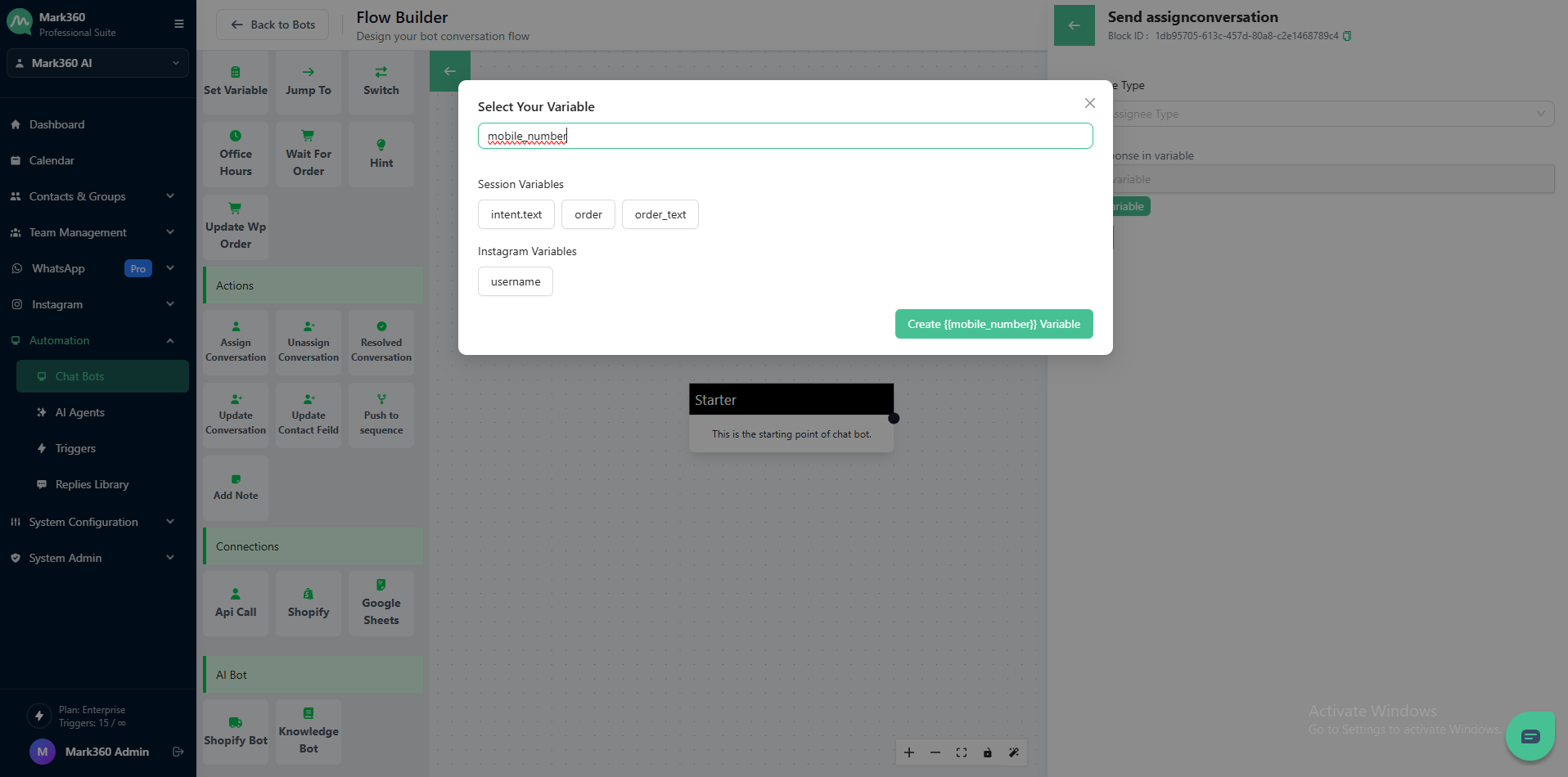
Enter a variable name (must start with a letter and can only include underscores
_— no special characters).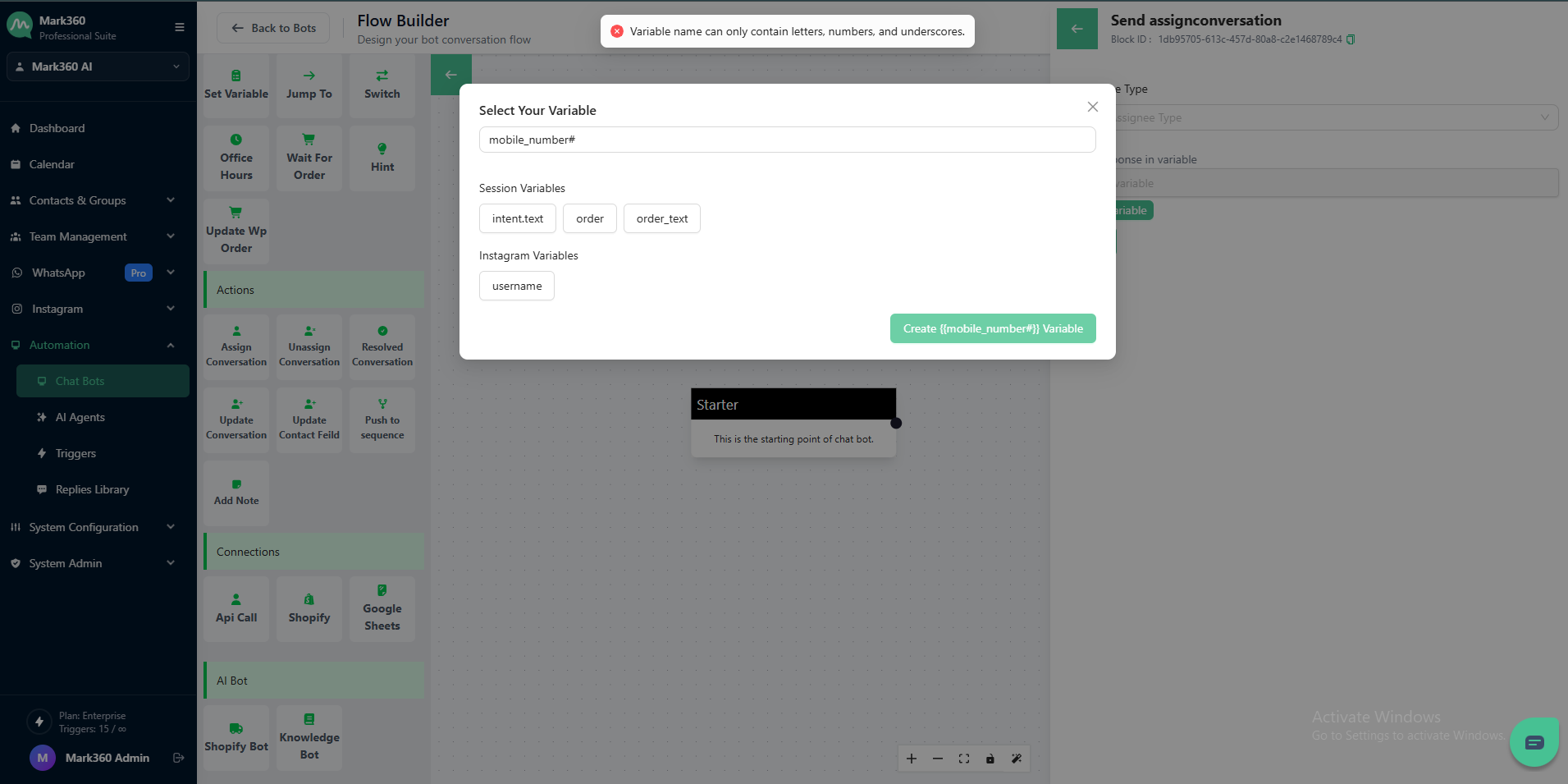
-
Click Create to save it.
💡 Tip:
Use clear and meaningful variable names so you can easily identify their purpose later — for example, user_name, user_email, or preferred_product.
Validation Settings for Cards
Validation settings in Mark360 help ensure that the data collected through your bot is accurate and reliable.
They control how the bot responds to user inputs and guide users to provide the correct information during interactions.
Advance Validation Settings
-
Attempt – Set the maximum number of tries a user has to provide a valid response.

-
Validation Error Message – Optionally, create a custom message that appears when a user’s input does not meet the required format.

-
Action on Invalid Response – Decide what happens when a user repeatedly provides incorrect input, such as Skip the question or ending the flow.

-
Regex (Regular Expression) – Use patterns to validate input formats like phone numbers, emails, or URLs.
-
Example patterns:
\d{3}-\d{3}-\d{4}→ Phone number in the format123-456-7890[a-zA-Z0-9._%+-]+@[a-zA-Z0-9.-]+\.[a-z]{2,}→ Standard email format^https?://→ URL starting withhttp://orhttps://

-
These settings ensure your bot can handle errors gracefully and maintain smooth, accurate conversations.