API Call
Integrate external systems effortlessly with the API Call card in Mark360.
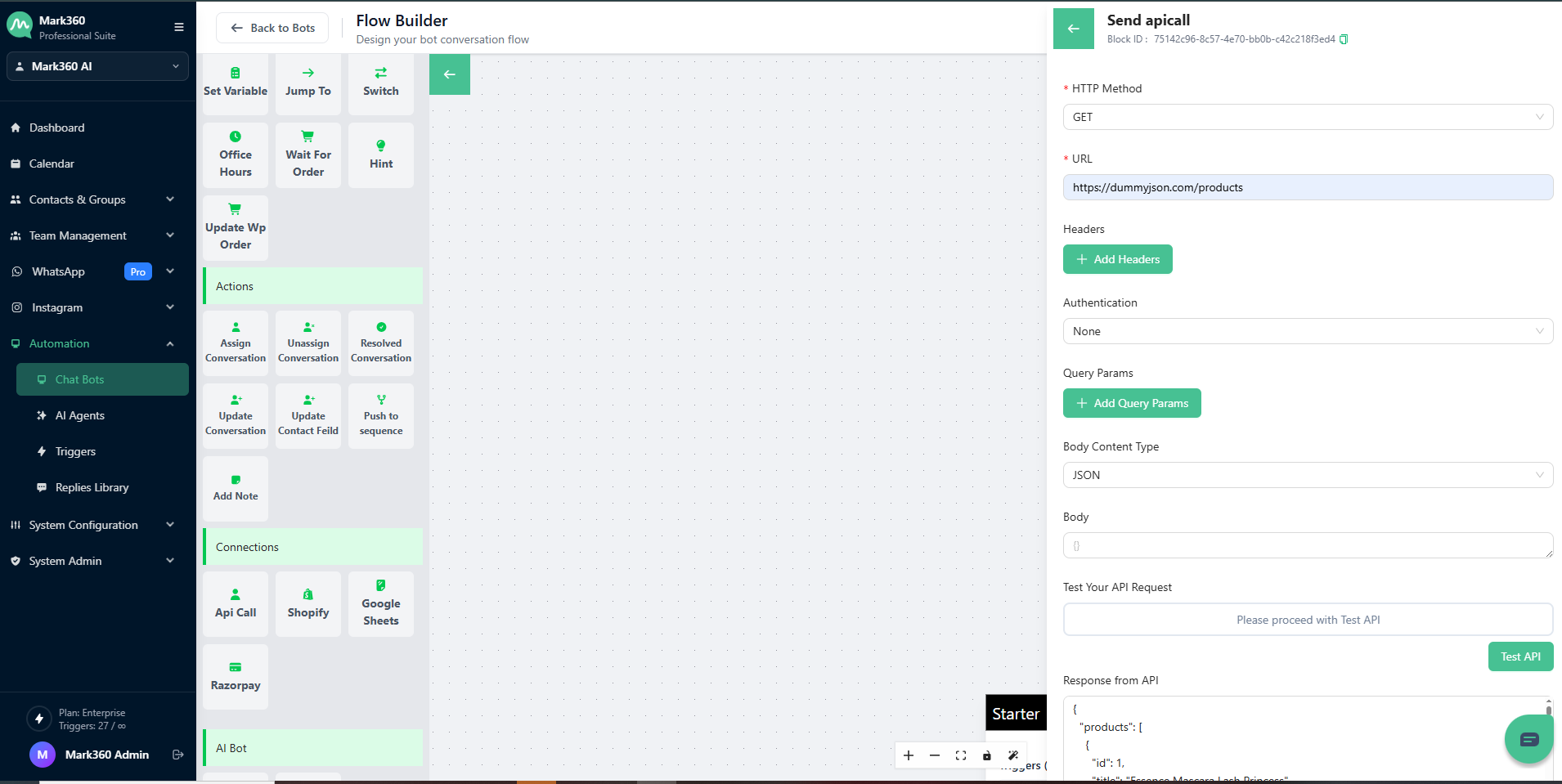
This feature lets you connect with third-party APIs using configurable HTTP methods, headers, authentication, and more — all from within your chat flow.
Overview
The API Call card enables smooth communication between Mark360 and other applications by sending HTTP requests to specified URLs.
It helps you retrieve, send, or update data directly from your flow — perfect for syncing information with CRMs, payment gateways, or other services.

What is an API?
API (Application Programming Interface) is a set of rules that allows two software systems to talk to each other.
Think of it as a bridge that connects different applications so they can share data and functionality securely and efficiently.
Supported API Methods
Mark360 supports standard HTTP methods to perform various operations with external APIs.
| Method | Description |
|---|---|
| GET | Retrieve data or information from an external resource. |
| POST | Submit or send new data to an external system. |
| PATCH | Partially update an existing resource. |
| PUT | Fully update or replace an existing resource. |
| DELETE | Remove a specific resource from the system. |
Key Components of the API Call Connector
The API Call connector in Mark360 includes several configurable options for building precise API integrations.
| Field | Description |
|---|---|
| HTTP Method | Choose between GET, POST, PUT, PATCH, or DELETE based on the API action you want to perform. |
| URL | The API endpoint you’re sending the request to. |
| Headers | Add custom information like Content-Type, Authorization, or other headers required by the API. |
| Authentication | Link external apps like HubSpot, Zoho CRM, Zoho Bigin, Razorpay, or Zoom for secure communication. |
| Query Parameters | Optional parameters to customize or filter your API requests. |
| Body Content Type | Define the data format — JSON, XML, or form-URL encoded. |
| Body | Add the data payload to be sent in the API request body. |
| Test Values | Enter sample values to test your configuration before going live. |
| Response from API | Displays the status code, headers, and body returned from the API request. |
| Store Response in Variables | Save specific values or the full response for later use in your flow. |
How to Use the API Call Card
Step 1: Configure the API
Provide all required details — HTTP method, endpoint URL, headers, authentication, and body parameters.
Step 2: Test the Request
Use Test Values to run a sample API call and confirm that your setup works correctly.
You can review the API’s response and troubleshoot if needed.
Step 3: Store & Use Response Data
Save key response values into variables.
These variables can then be reused in other cards like Send Products to deliver dynamic, data-driven interactions.
Example Use Cases
- Fetching live product data from your e-commerce backend
- Creating new leads in your CRM when users fill a form
- Checking payment status through Razorpay or Stripe
- Sending meeting details through Zoom APIs
Key Benefits
- Simplifies external system integrations
- Reduces dependency on manual API setups
- Enables dynamic and data-driven chat experiences
- Supports robust automation and reporting