Send Product
Use the Send Products card to highlight your products directly for customers. You can display complete product details, including key features, advantages, and descriptions. Customize your message with dynamic variables and apply rich text formatting to make it more engaging and personalized.
Message Body
It is a space to provide detailed information regarding the product(s), features, benefits, or any other relevant information.
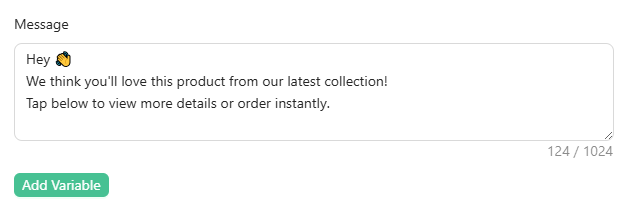
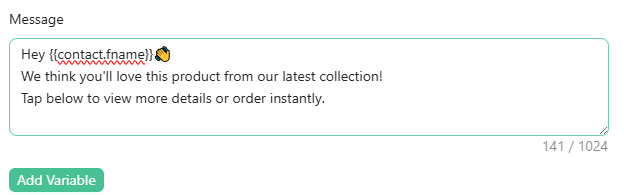
Use Variables
Use them to add already collected data from your customers to the messages.
Just click on "Add Variables" to open up a Popup with all the available fields. Just a quick tip – make sure the variable you choose actually has some data in it, or it won't show up as intended!
Catalogue
Select the catalogue from which the products is to be listed. If you haven't connected your catalogue yet with Mark360 click here.

Products Type
You can choose products in two different ways — Static Products or Dynamic Products.
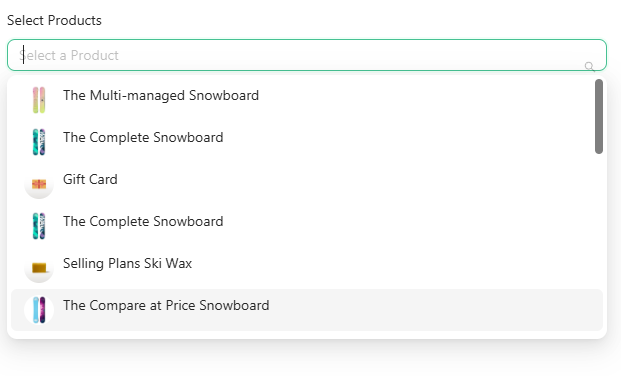
1. Static Products
When you select Static Products, you can manually pick the items from the catalog linked to Mark360 using the drop-down menu.
If you plan to display more than one product, make sure to update the Header section accordingly.
2. Dynamic Products
If you want to send selected items to your customers dynamically, choose the Dynamic Products option.
The product details can be fetched using an API Call.
- Variable to iterate: Enter the variable name used to store the API response in the API Call Connector.
- Path to ID: Provide the path from your internal database within double curly brackets
{{ }}.