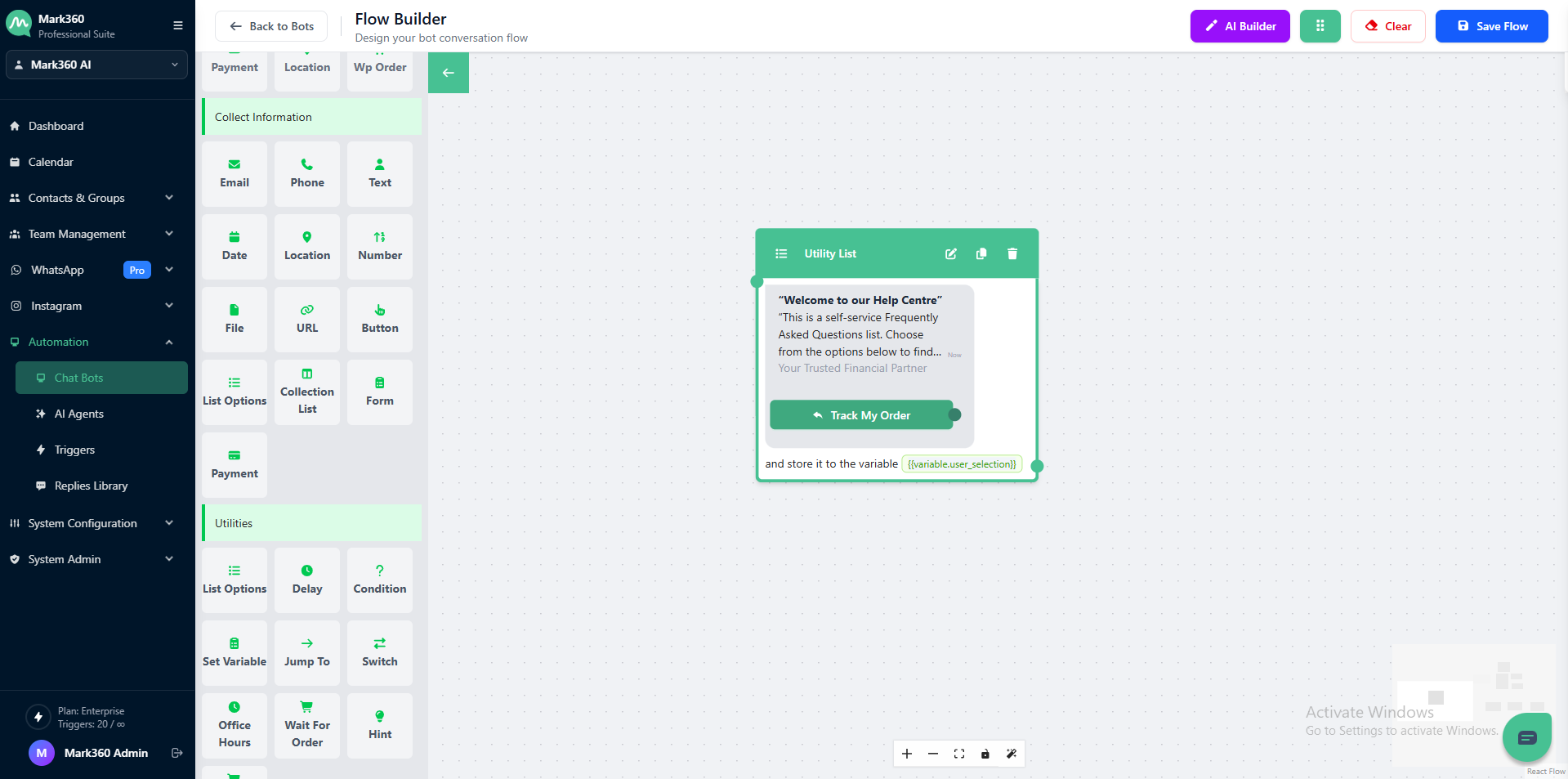
Send List
Simplify customer interactions with the Send List card in Mark360.
Present up to 10 options in a clean, consistent format — helping users make quick selections and engage effortlessly with your bot flow.
Overview
The Send List card enables you to display a structured list of up to 10 selectable options for your users.
This helps create a smooth, guided, and consistent experience — ideal for FAQs, service menus, or product categories.
How to Use
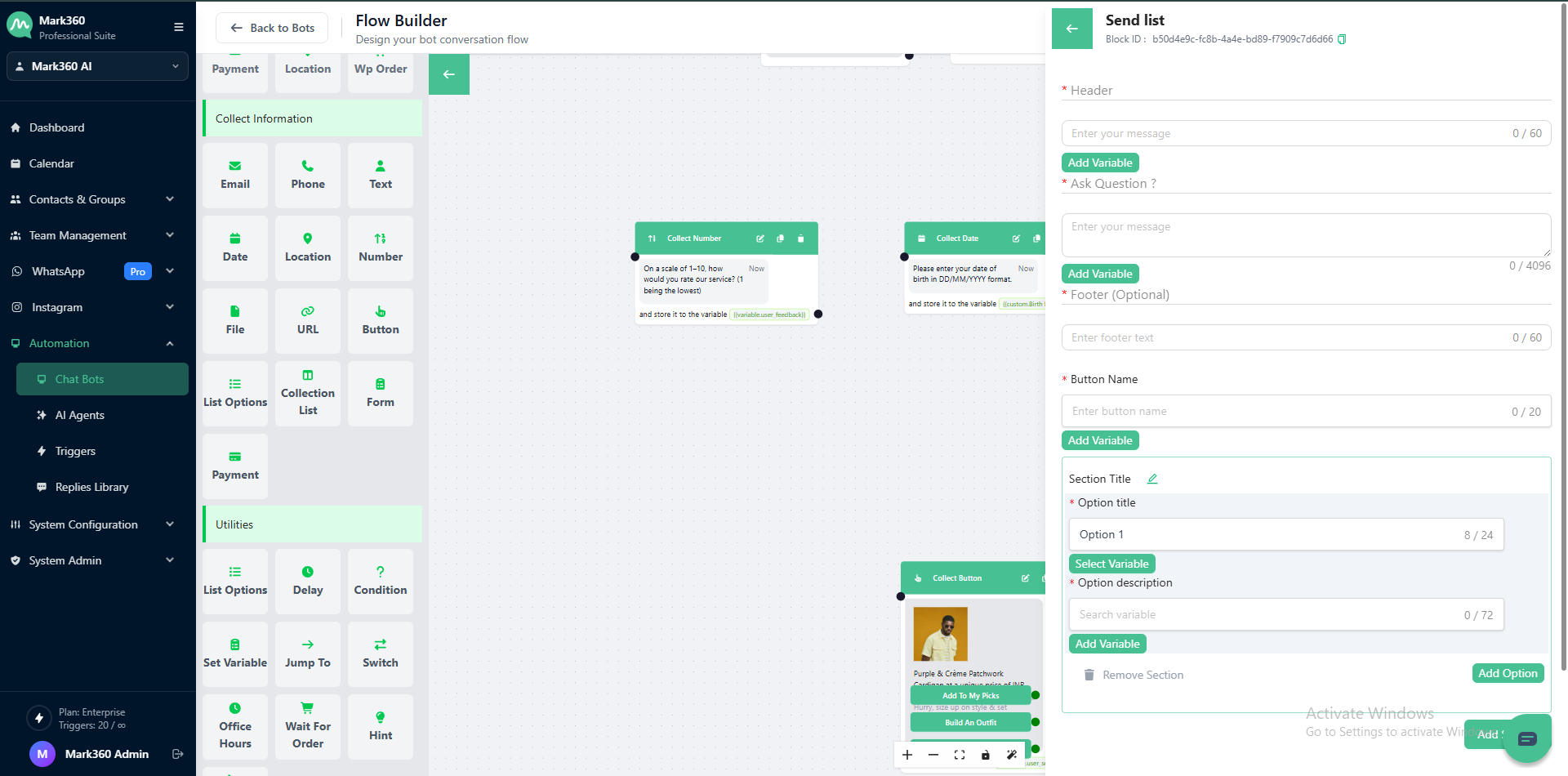
The Send List Message Node contains five key configuration fields:
- Header
- Ask Question
- Footer
- Button Name
- Options (Section)
Header
Add a short and clear title that introduces the context of your message.
💬 Example:
“Welcome to our Help Centre”
“Common Questions about Our Services”
📝 Character Limit: 60 characters

Ask Question
Write a meaningful question or message to guide your users.
💬 Example:
“This is a self-service Frequently Asked Questions list.
Choose from the options below to find what you’re looking for.”
📝 Character Limit: 4096 characters

Footer (Optional)
Add extra details or brand references.
💡 Example:
“ANC Banking Company”
“Your Trusted Financial Partner”
📝 Character Limit: 60 characters

Button Name
Give your button a short, descriptive label to represent your list.
💬 Example:
“View Options”
“Select Service”
📝 Character Limit: 20 characters

Options Section
Each list can include up to 10 options and multiple sections.
This makes it easy to organize your list content and allow users to make selections efficiently.
Fields in Each Section
Section Title
Give a meaningful title to your section to group related options.
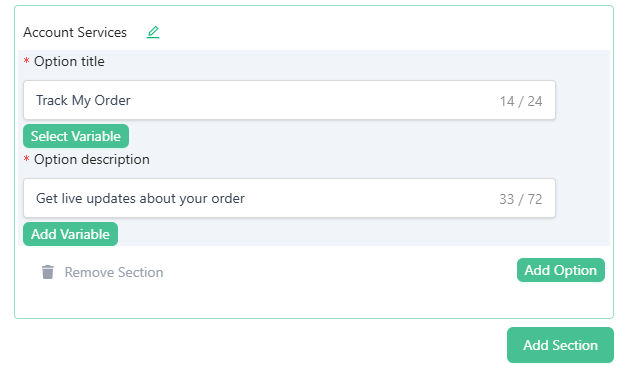
💡 Example: “Account Services”, “Loan Assistance”, “Product Info”
Option Title
Enter the display name for your list option.
📝 Limit: 24 characters
💬 Example: “Track My Order”, “Apply for Loan”
Option Description
Add a short description to explain what the option does.
📝 Limit: 72 characters
💬 Example: “Get live updates about your order”
Buttons
-
Add Option — Add a new option under the current section.
-
Remove Section — Delete the section if not needed.
Saving Your Configuration
Once all fields (Header, Question Text, Footer, and Options) are configured, click Add.
Your Send List card will be ready to use.
In Mark360 Bot Interface: