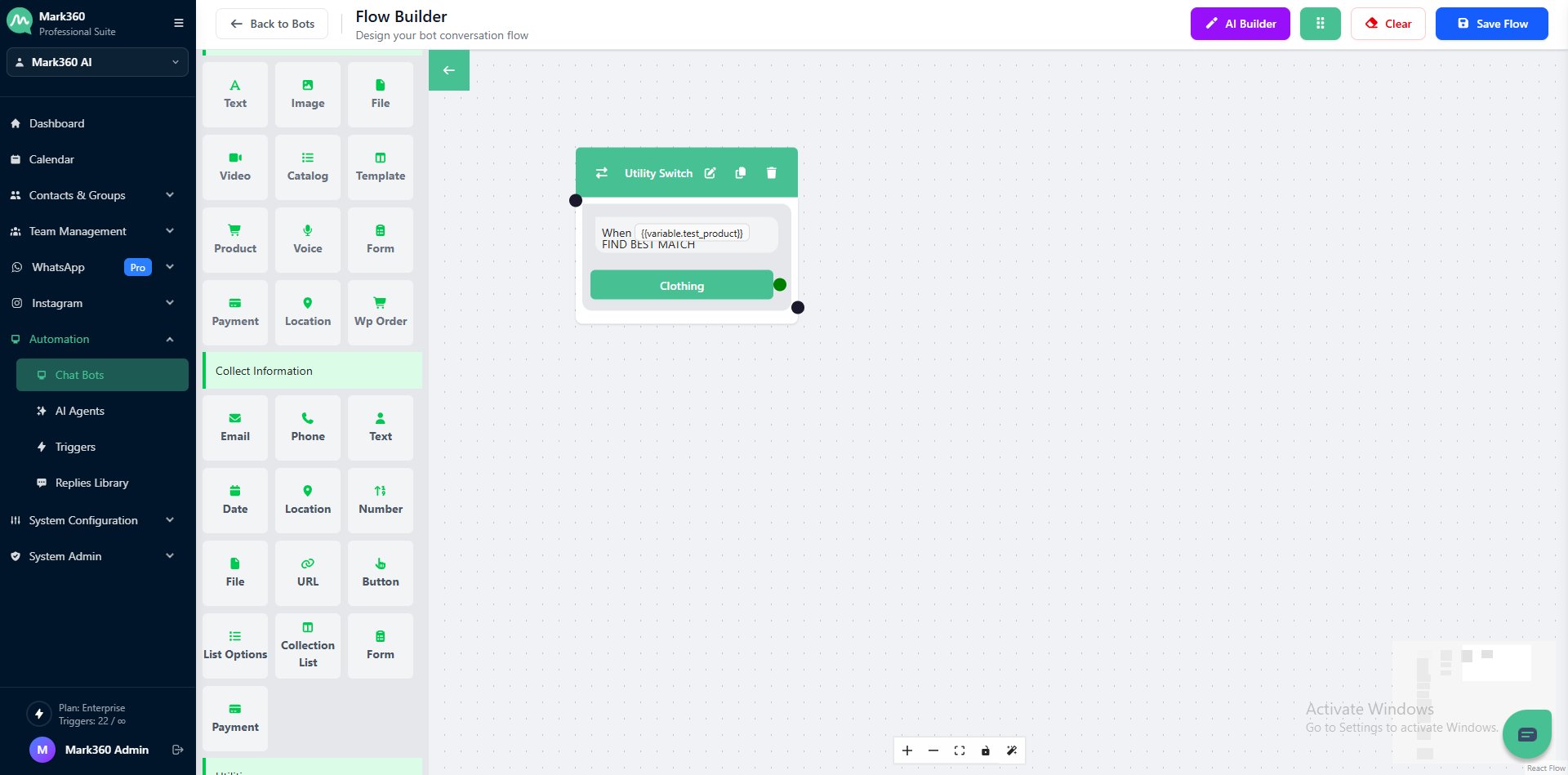
Switch
The Switch Card helps guide user interactions dynamically based on their responses. It allows your chat-bot to evaluate input and trigger the appropriate journey, creating a personalized experience.
Example Use Case: Product Inquiry Chat-bot
A chat-bot can assist customers in finding products based on their preferences. For example, the conversation may start with:
Chat-bot:
"Hi there! What type of product are you looking for today?"
The Switch Card evaluates the user's response and directs them to the most relevant product category.
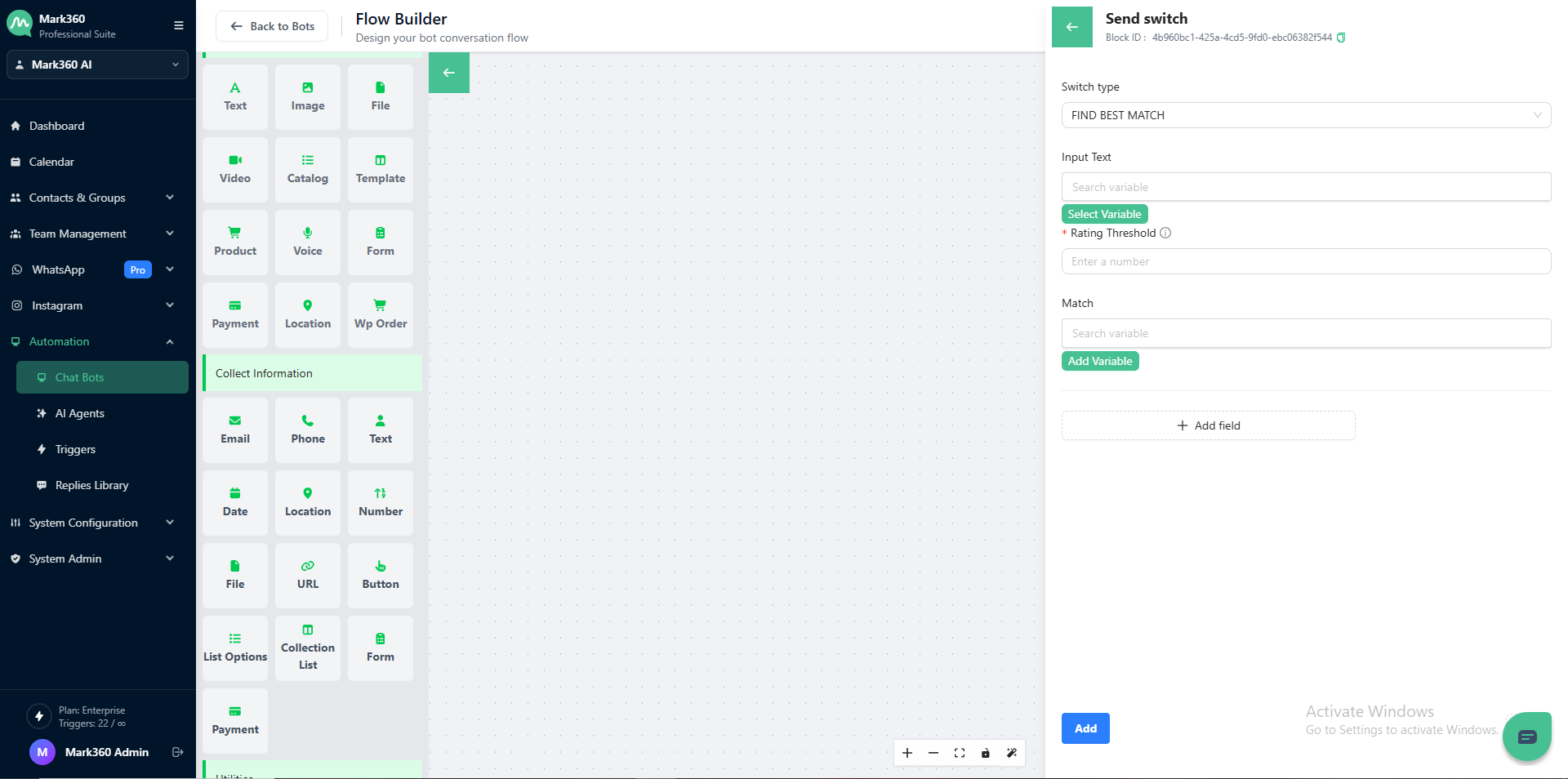
Configuring the Switch Card
1. Switch Type
There are two types:
-
Find Best Match: Finds the closest match in your database for the user's response.
-
Equals: Triggers only when the user's response exactly matches your condition.

Example: For the Product Inquiry Chat-bot, use Find Best Match.
2. Input
The Input is the data the Switch evaluates. It can include:
-
Variables from the greeting message
-
User intent
-
Contact fields

Example: Use a custom variable test_product that stores the user’s response.
3. Rating Threshold
The Rating Threshold defines how closely the user’s response should match your options. Value range: 0–1.
-
0= very low similarity -
1= exact match
Example: Set 0.2 for flexible matching.
4. Match
Define the categories to evaluate against the input:
-
electronics -
clothing -
home décor
Add more categories if needed.
Chat Flow Example